Quickstart
1. Add your manga
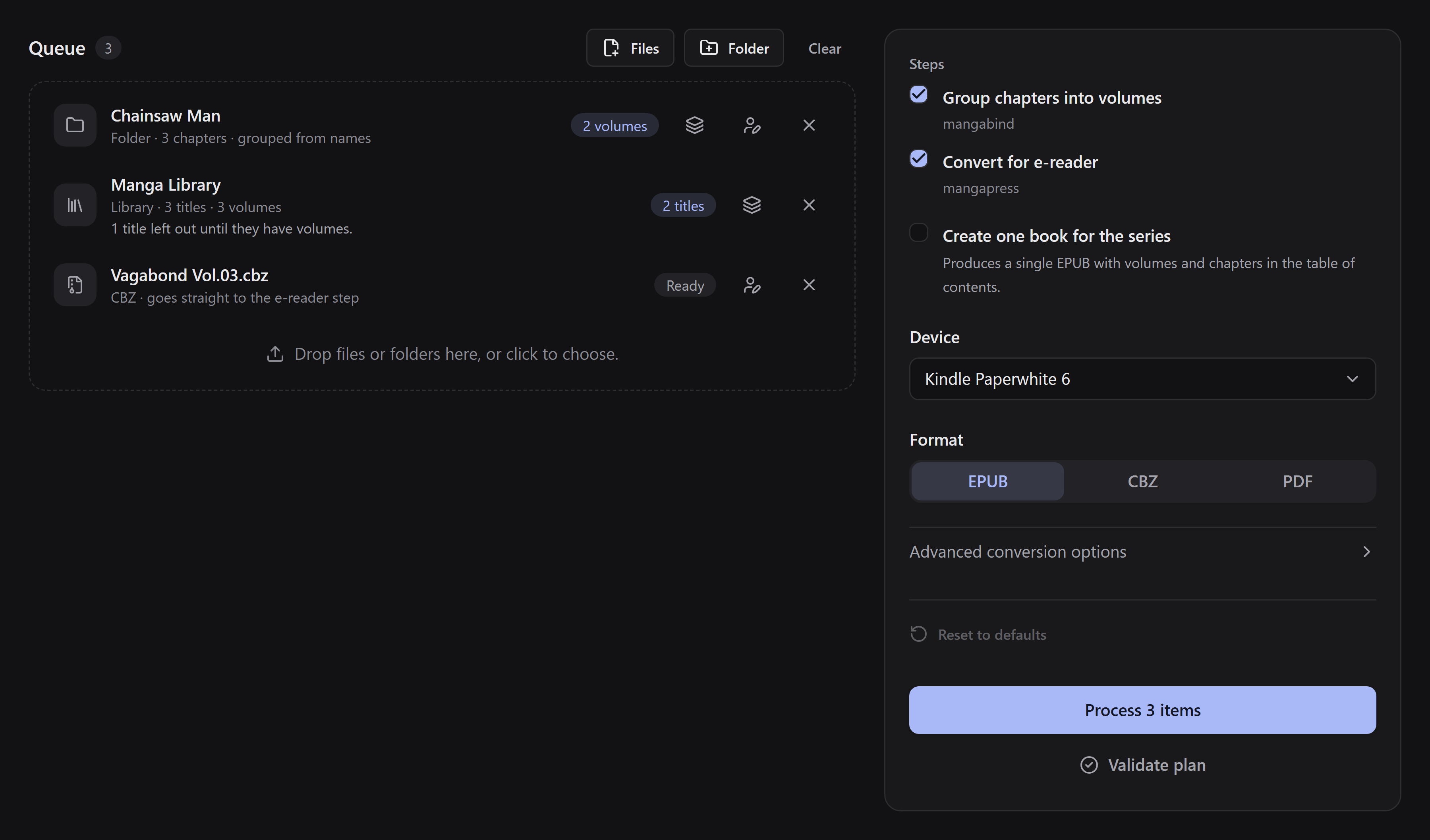
Section titled “1. Add your manga”Drag a manga folder or CBZ into the queue, or use Files or Folder. Clicking the drop area lets you choose what to add.
A folder holds separate chapters. A single CBZ is treated as one complete volume; for separate chapter CBZs, add their containing folder instead.
2. Check the volumes
Section titled “2. Check the volumes”For a chapter folder, use the Edit volumes action to check its mapping.
- File names summarizes volumes already recognized from chapter names.
- Manual lets you create volumes and assign selected chapters or a chapter range.
- Online source optionally searches MangaDex for a suggestion. Check its result before confirming.
If no volumes were recognized, the editor opens Manual with an explanation. You can organize everything offline; an online entry is not required. See volume mapping for the steps.
3. Choose your device and format
Section titled “3. Choose your device and format”In Steps, keep Group chapters into volumes and Convert for e-reader enabled to do both. Select Device and Format. Use Advanced conversion options only if you need to change image settings.
Want the entire series in one book? Enable Create one book for the series. This mode uses EPUB and keeps both steps enabled. Turn it off to change the format or steps.
4. Process
Section titled “4. Process”Click Process (or Process N items for a queue). The app shows overall progress; Show details reveals individual volume progress where available. Larger books take longer, and saving can continue after page processing finishes.
5. Save or share
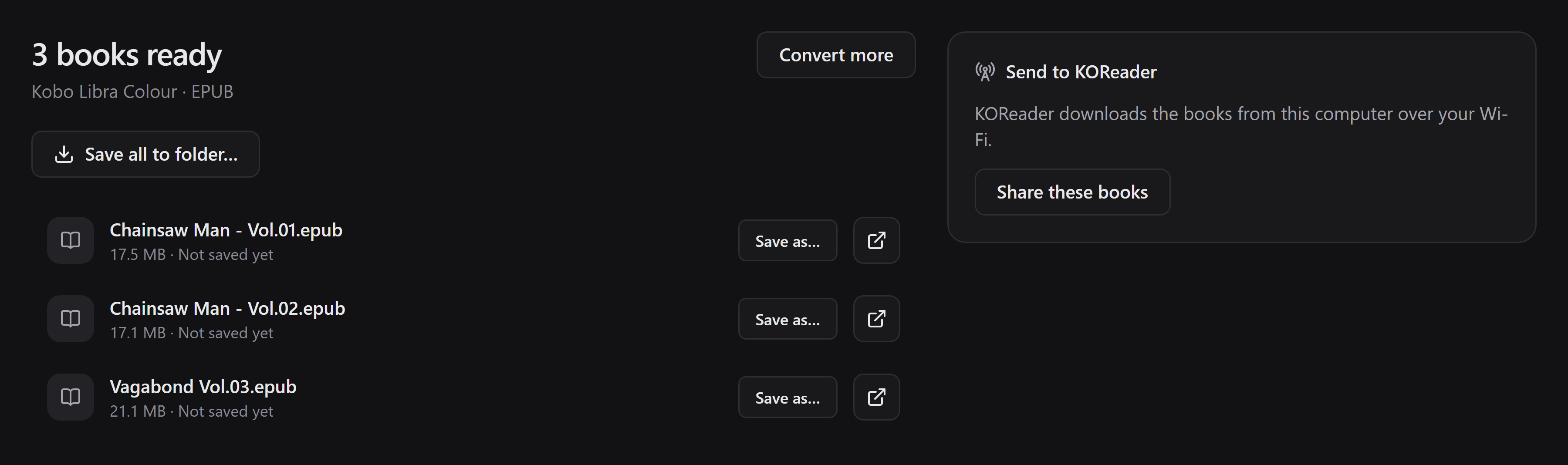
Section titled “5. Save or share”Use Save as… beside a book, or Save all to folder… for several books. You can save again to a different destination without converting again while the pending books remain available.
Share these books lets KOReader download them over your local network, even before you export a copy. Follow the sharing guide.