KOReader settings
Choose settings for your book
Section titled “Choose settings for your book”KOReader handles EPUB differently from CBZ and PDF, so the available page controls depend on the book format. CBZ is a straightforward choice for image-page controls; EPUB is useful for a chapter and volume table of contents.
Start with a few pages and adjust the settings below to suit your screen. Menu names and locations can vary with the KOReader version, language, and device. The official KOReader guide explains each format’s controls and how to search the menus.
The captures below were supplied from a Kindle 2024 running KOReader 2026.07.2-198. The menus are in English; the red outlines identify each option.
Overlap status bar
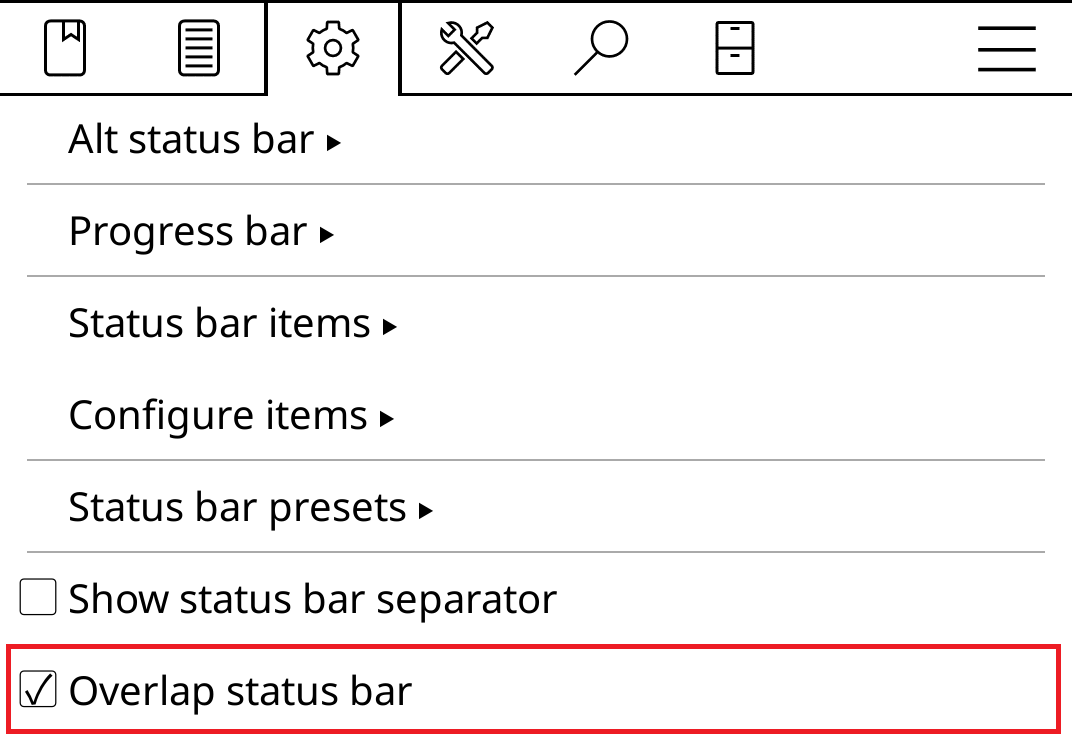
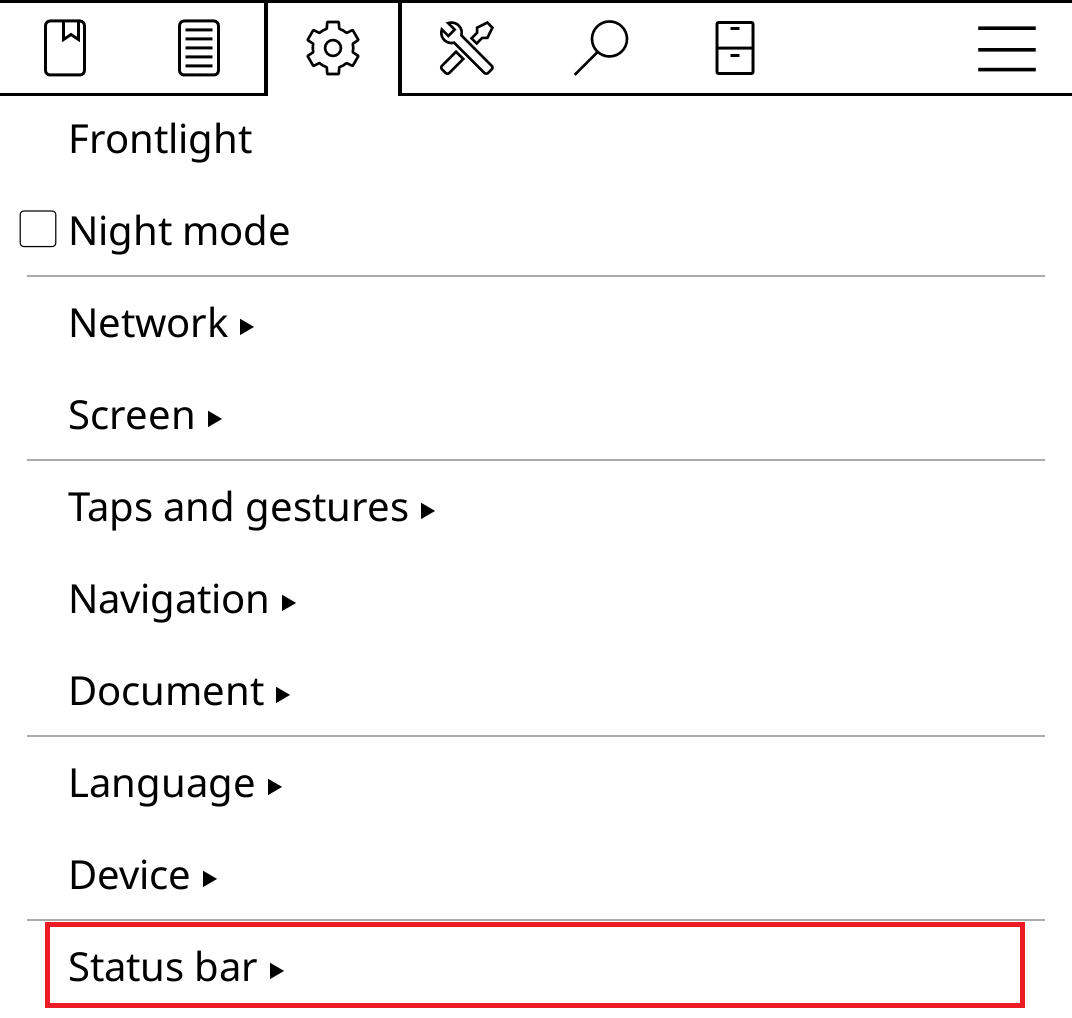
Section titled “Overlap status bar”With a book open, find Status bar → Overlap status bar. This lets the page use the area reserved for the status bar. Check that the bar does not cover artwork you want to see.
See KOReader’s status-bar settings.
Show the steps
- Open the top menu, select the gear icon and tap Status bar.
- Enable Overlap status bar.
Full refresh rate
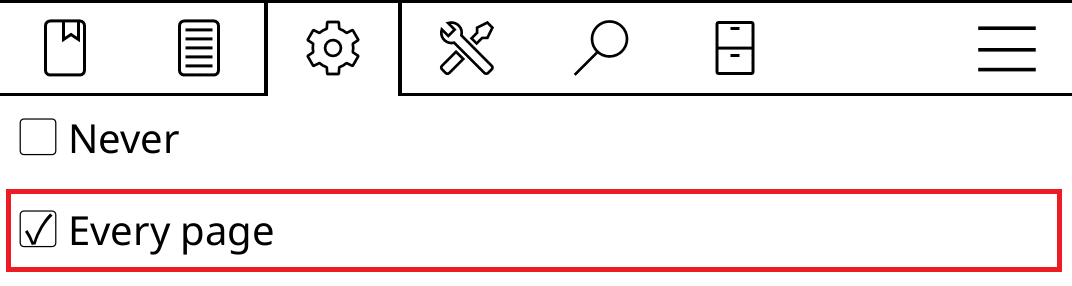
Section titled “Full refresh rate”On an e-ink reader, try Screen → E-ink settings → Full refresh rate → Every page if you see traces of the previous page.
A full refresh can reduce these traces, but may add a visible flash or slow page turns. Compare it with the default on your device. This setting applies to supported e-ink screens, not LCD displays. See the KOReader guide for refresh options.
Show the steps
- In the top menu, select the gear icon and open Screen.
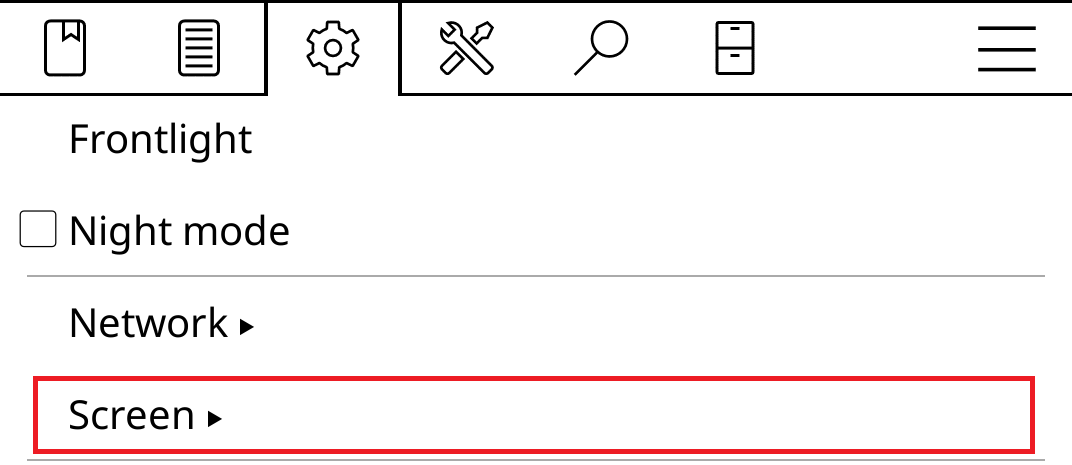
- Open E-ink settings.
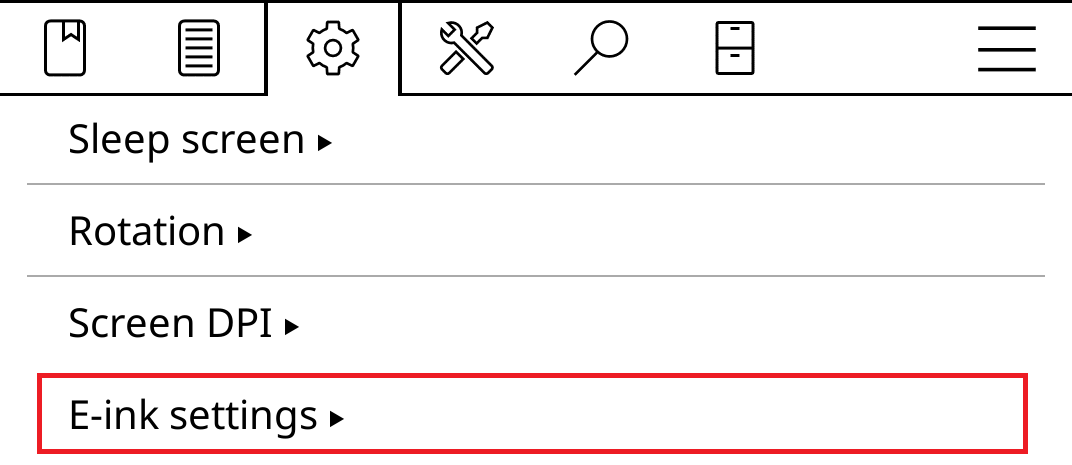
- Open Full refresh rate.

- Select Every page. You do not need to copy the other settings on your device.
CBZ/PDF page controls
Section titled “CBZ/PDF page controls”Try a page-based view and fit-to-page zoom to show each page as a whole. If the book already fills the screen, leave cropping off: the conversion may have removed margins, and another crop could cut off artwork.
These are CBZ/PDF controls. For EPUB, use the options available in its own reading menu. Change one setting at a time and compare a sample before saving your preferences.
Tweak document settings
Section titled “Tweak document settings”To give a manga folder different defaults from your text books, use KOReader’s advanced Tweak document settings plugin. It applies directory-specific defaults when a book is first opened.
The plugin uses a Lua configuration file rather than EPUB style tweaks. Follow the official setup instructions and back up your configuration before editing it. Books you have already opened can keep their individual settings.
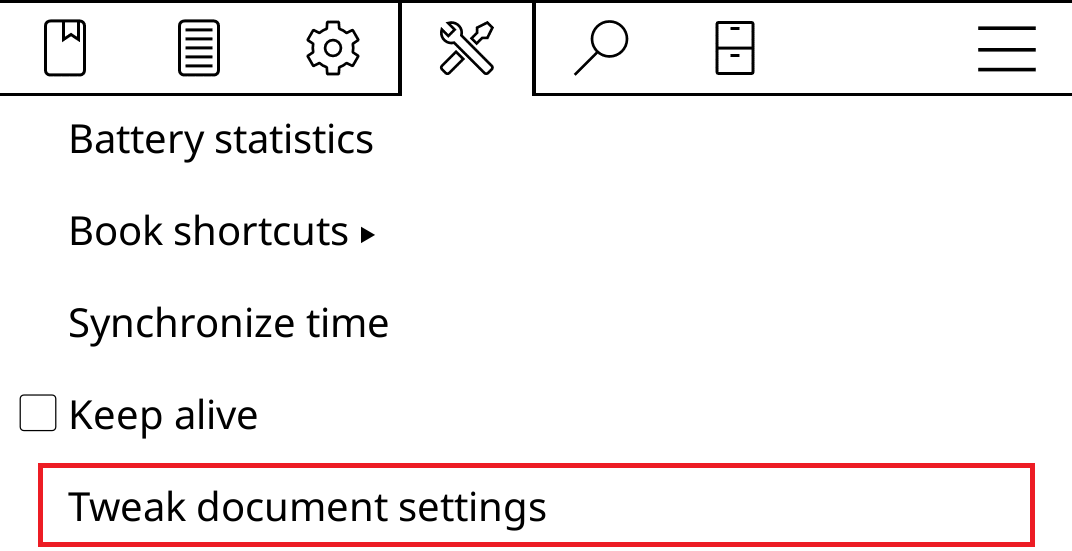
If the plugin is missing, enable Tweak document settings under Tools → Plugin management. Then open Tools → More tools → Tweak document settings.
Show the steps
- Select the tools icon in the top menu and open More tools.
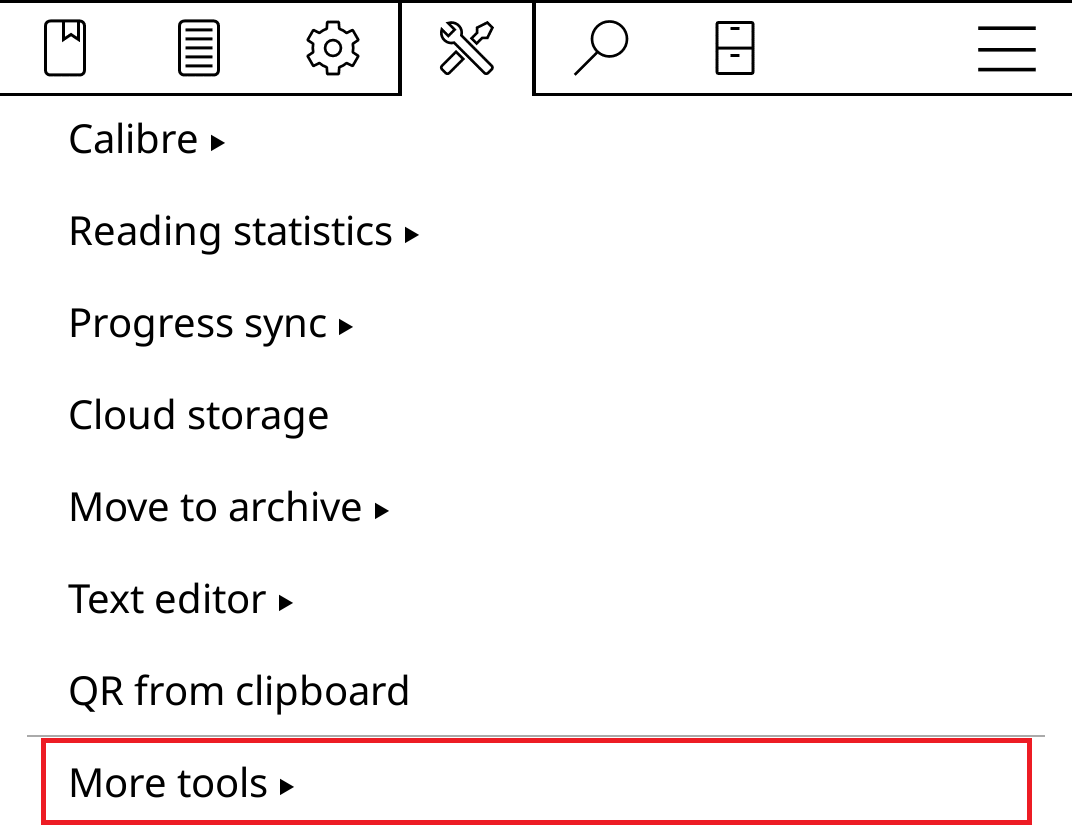
- Tap Tweak document settings to open directory_defaults.lua.
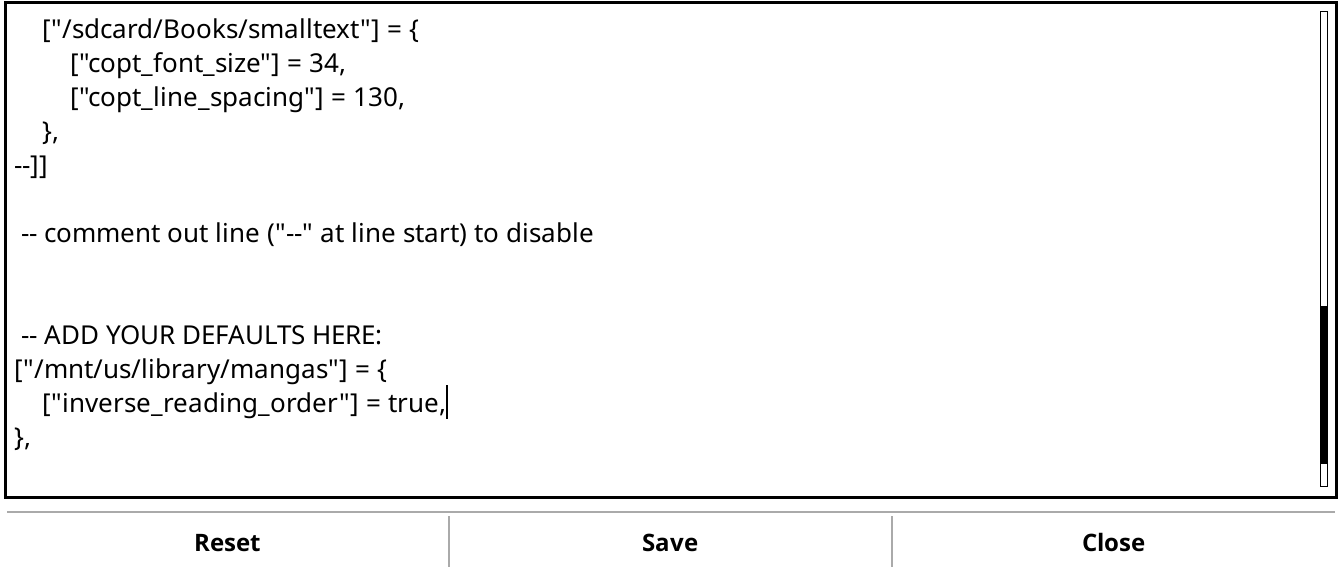
- Inside the existing table, add an entry like this. Replace the path with the manga folder on your reader; preserve the other entries and the file structure.
["/mnt/us/library/mangas"] = { ["inverse_reading_order"] = true,},This example swaps tap zones and swipe directions for right-to-left reading; it does not configure screen refresh or the status bar. The path is an example Kindle folder, not a folder created by Mangabound.
- Use Save to save. The defaults apply to books in that folder that have not been opened before; previously opened books may keep their settings.
Saving a default
Section titled “Saving a default”Some controls let you save a default with a long press; others open help or another dialog. Follow the confirmation shown for that control. Previously opened books may keep their own settings.
If a book still displays incorrectly, include the KOReader version, device, file format, and settings when asking for help.