Volume mapping
The mapping editor decides which local chapters belong to each volume. All three Chapters from tabs work on the same mapping; you can edit a suggestion just as you can build volumes from scratch.
File names
Section titled “File names”If names contain volume numbers, File names shows a summary of the recognized grouping. It does not infer volume boundaries from typical chapter counts.
Use Edit chapter mapping to open manual controls when a summary needs correction. Start over from the names restores the initial filename grouping, discarding edits.
Manual: no online lookup needed
Section titled “Manual: no online lookup needed”- Select Manual. If no volumes were found in names, this tab opens automatically.
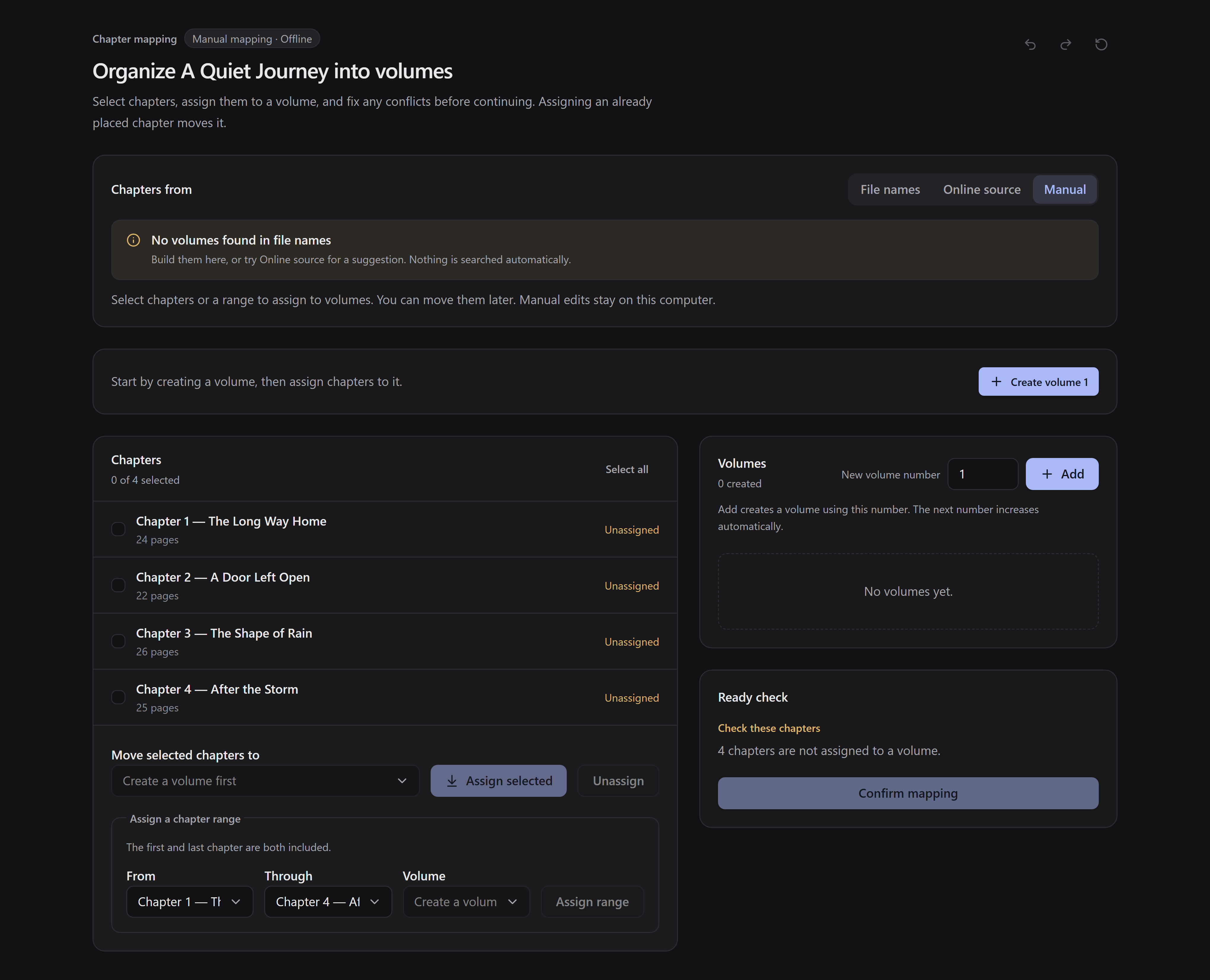
- Use Create volume 1 to add the first volume.
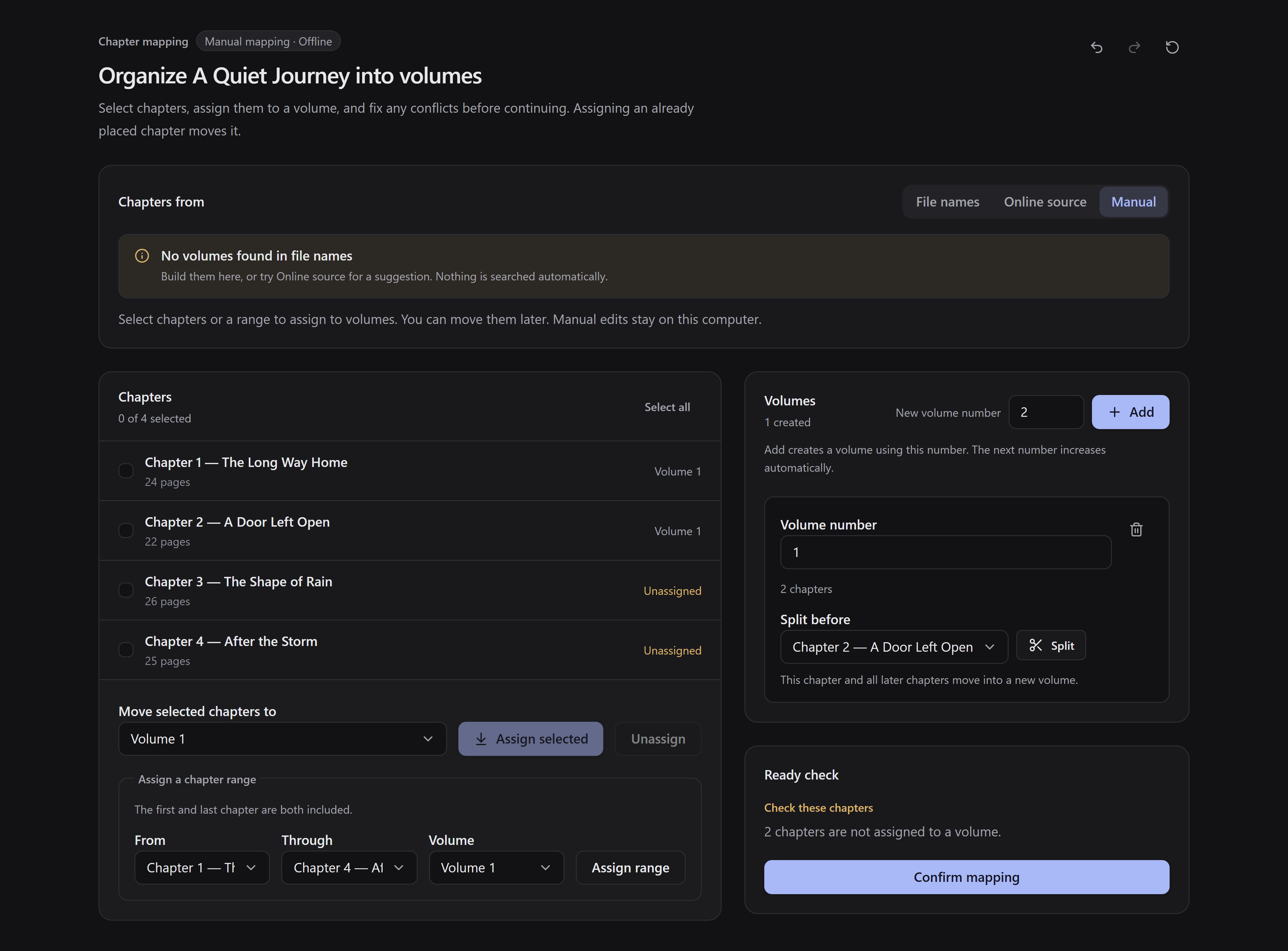
- Select chapters in the chapter list, choose the destination volume, and use Assign selected. For consecutive numbered chapters, use Assign range.
- Repeat for the other volumes. Assigning an already placed chapter moves it rather than duplicating it.
- Resolve the listed issues, then use Confirm mapping.
Use the editor’s controls to change volume numbers or merge volumes. The undo/redo buttons let you reverse changes.
Show the steps
Start in Manual and use Create volume 1.
Select chapters, choose the volume, then use Assign selected.
Online source: optional suggestions
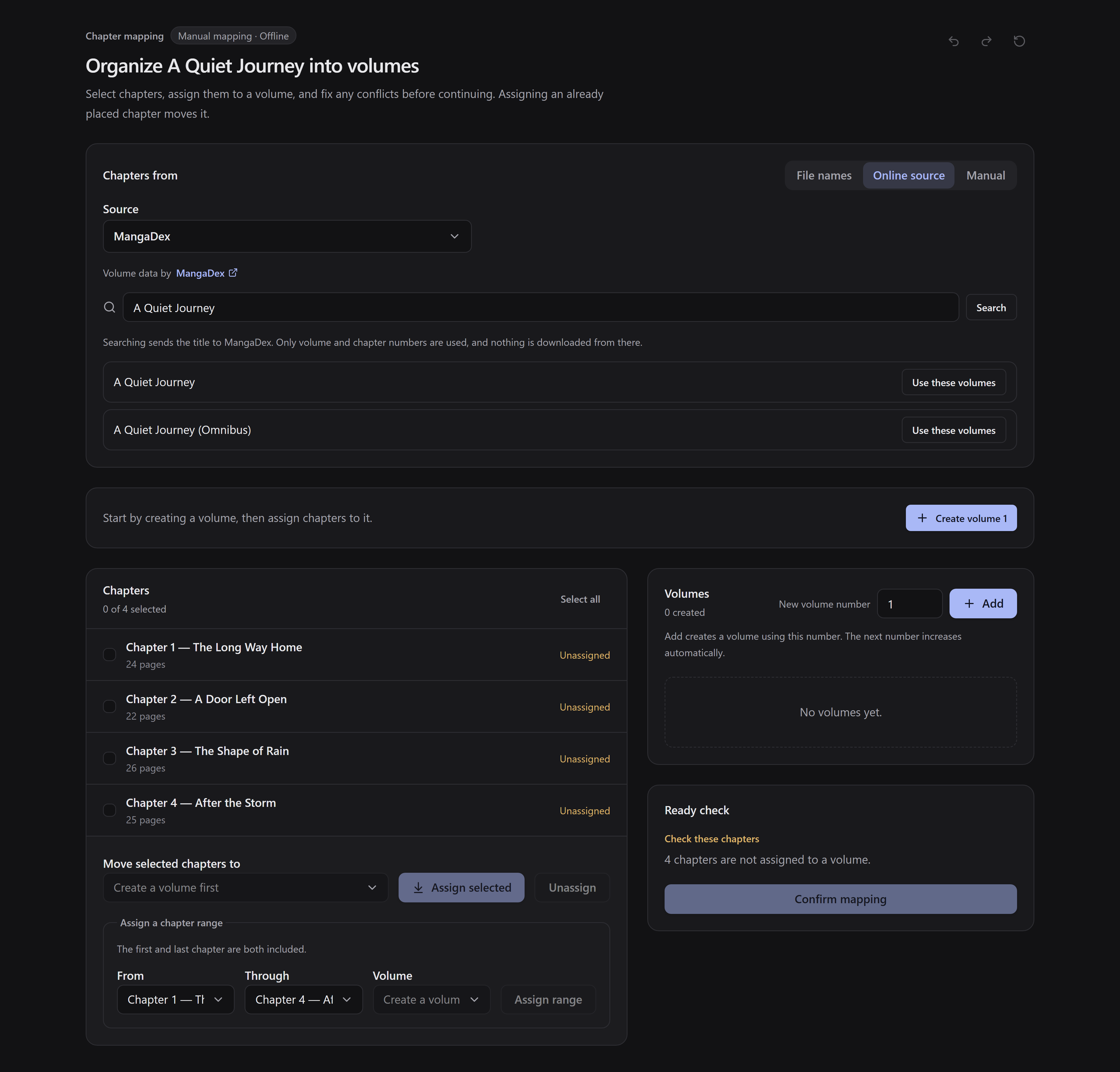
Section titled “Online source: optional suggestions”Choose Online source, select MangaDex, enter the title, and press Search.
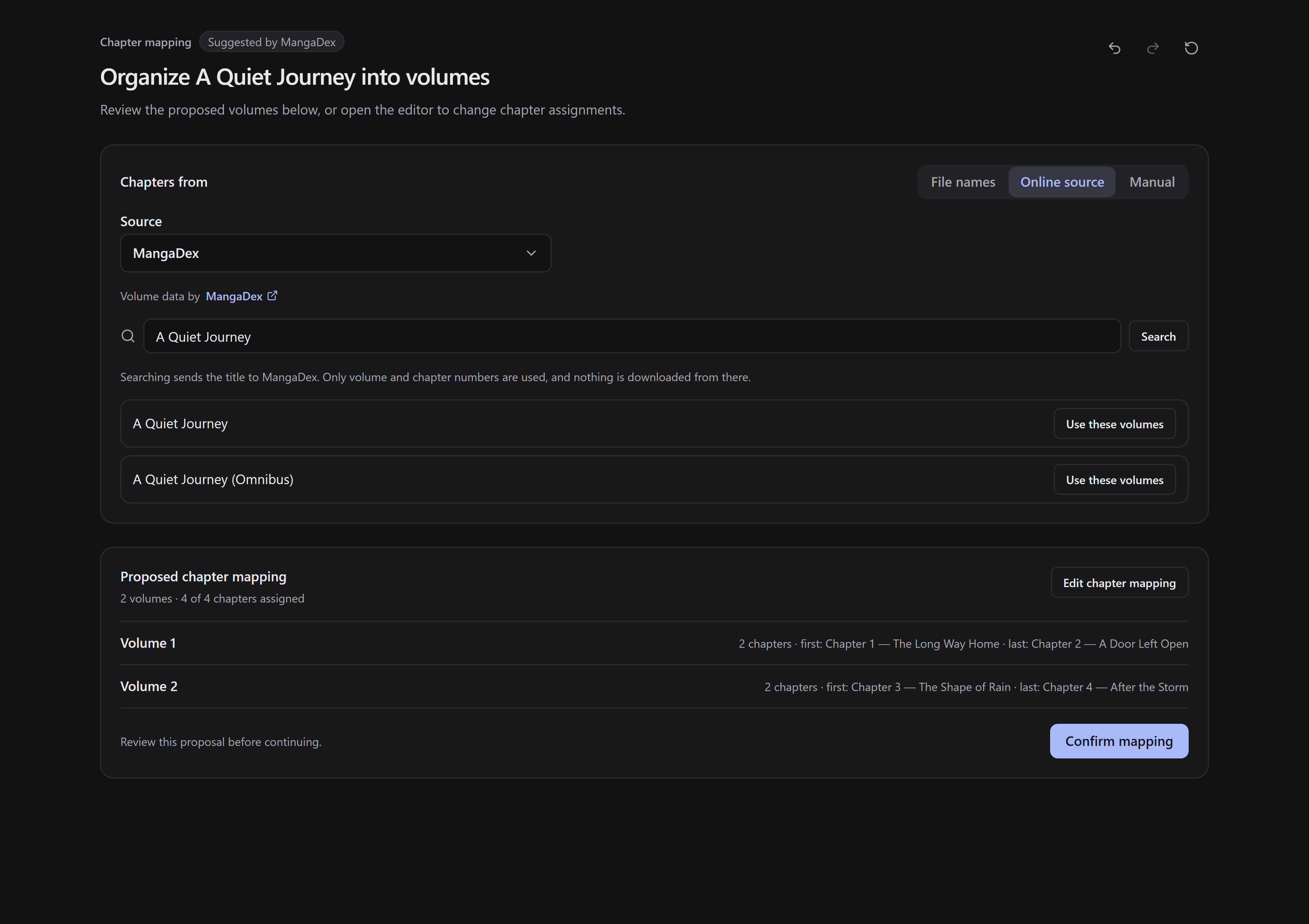
Select the matching work with Use these volumes, review the summary, then confirm it or use Edit chapter mapping. An online mapping may be incomplete or differ from your edition; verify special and decimal chapters. If the work is absent, use Manual.
Show the steps
Search for the title and select the matching result with Use these volumes.
Review the proposed volumes before confirming or editing the mapping.
Skipping grouping
Section titled “Skipping grouping”Skip grouping is available where the workflow allows conversion without regrouping. It is disabled in Create one book for the series mode because that mode needs mapped volumes for the nested EPUB contents.
The mapping is exchanged with mangabind through its documented metadata format. You do not need to edit JSON to use the editor.