
Seu navegador está em português, e este guia está disponível em português.
お使いのブラウザは日本語に設定されています。このガイドは日本語でも読めます。
Connecting KOReader
First start sharing in Manga2Ink, and connect your reader to the same local network.
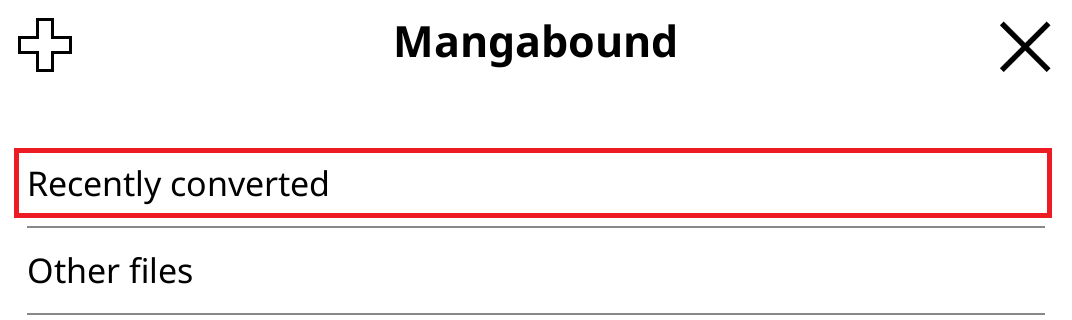
Add Manga2Ink as an OPDS catalog in KOReader. Recently converted lists the books you just processed, newest first. Other files lists the other books in a shared library.
Show the steps
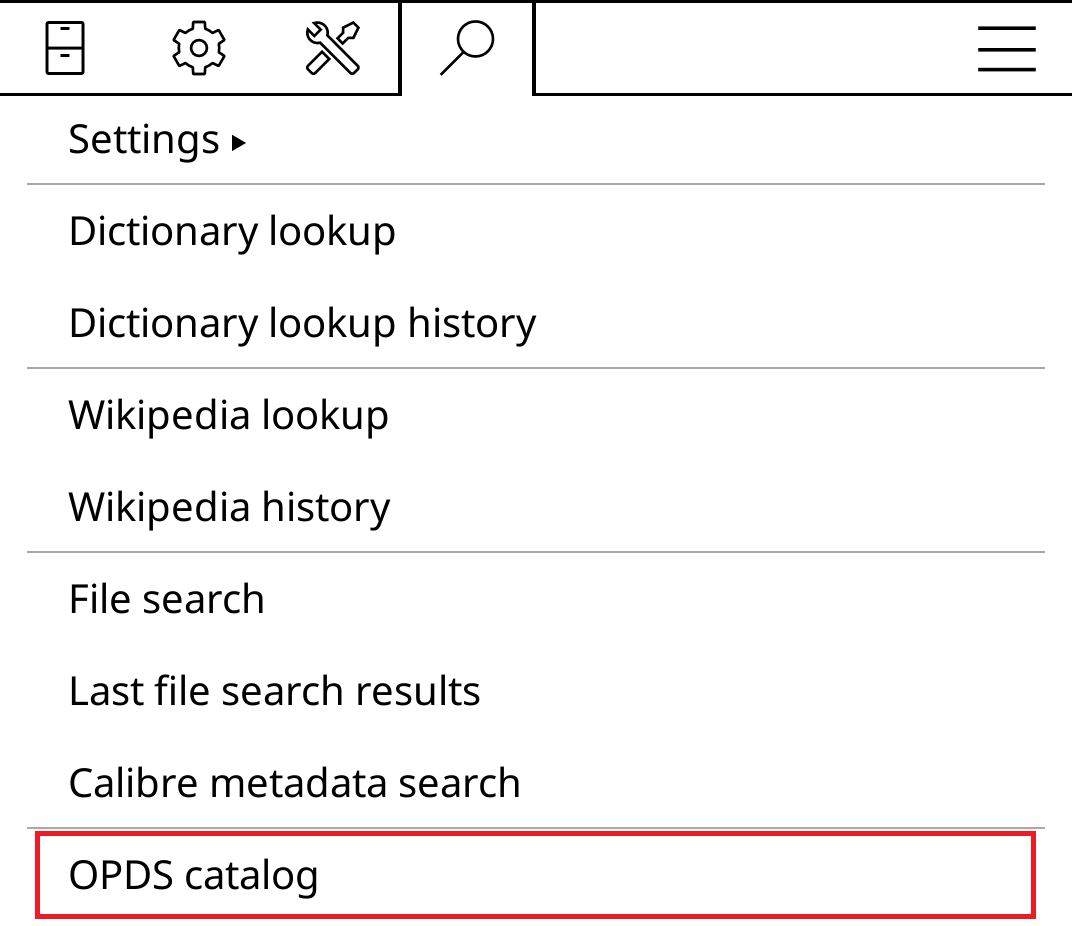
- In KOReader’s file browser, open the search menu (magnifying glass) and tap OPDS catalog.
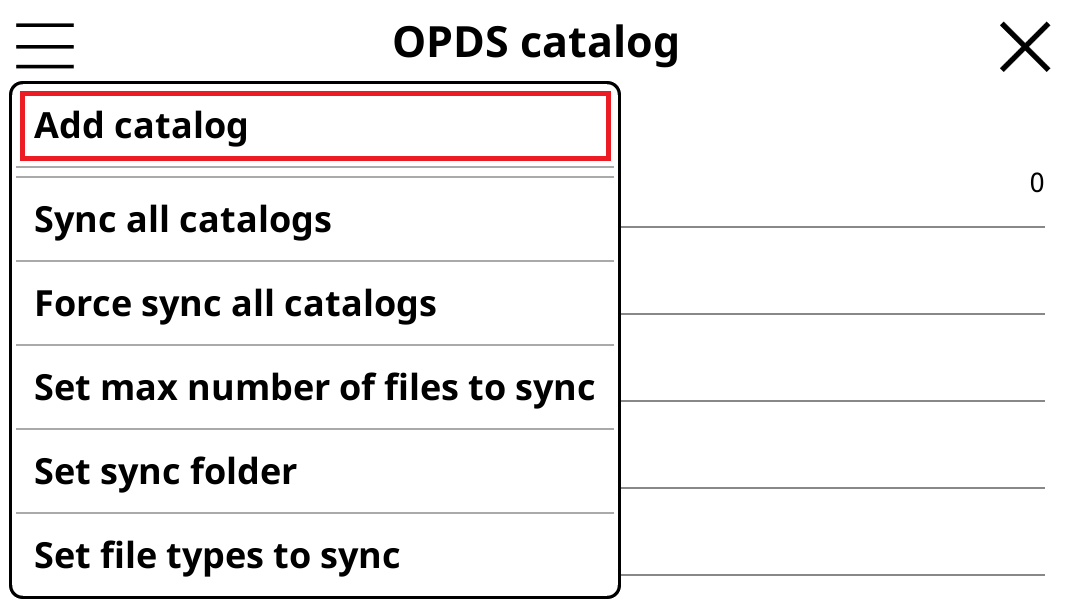
- Open the catalog menu (three horizontal lines) and tap Add catalog.
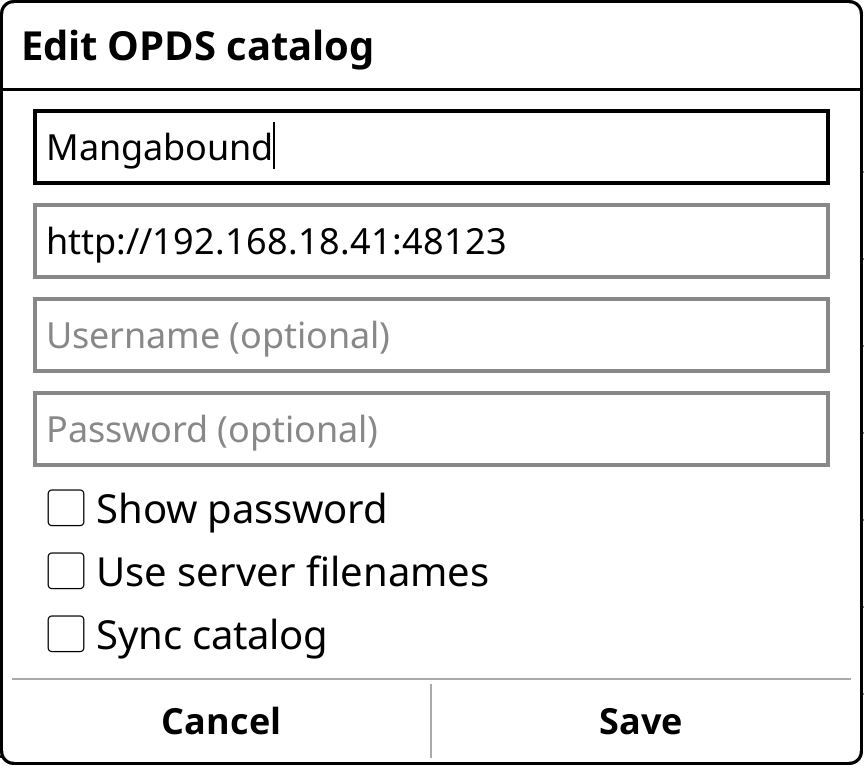
- Name the catalog Manga2Ink and enter the exact address shown by the app, not the example address in the image. Leave Username (optional) and Password (optional) blank unless you set them in Manga2Ink, then tap Save.
- Open Manga2Ink in the catalog list, then Recently converted.
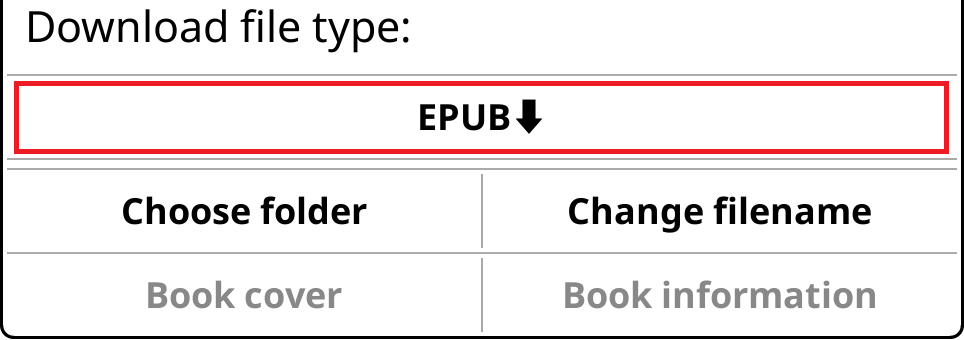
- Choose a book. To change where it will be saved, tap Choose folder before downloading. Tap the format button to download (EPUB in this example), then open the downloaded file with KOReader.
Once downloaded, the book is stored on your reader. Manga2Ink does not need to stay open for you to read it, only for further downloads. If your computer’s address stays the same, you can reuse the catalog the next time you start sharing.
For connection problems, see the sharing checklist. For display settings, see KOReader settings.