
Seu navegador está em português, e este guia está disponível em português.
お使いのブラウザは日本語に設定されています。このガイドは日本語でも読めます。
Adding manga
Which input should I add?
Section titled “Which input should I add?”| What you have | What to add |
|---|---|
| A manga’s chapter folders or separate chapter CBZs | Their containing manga folder |
| Several manga folders in one library directory | The library folder; inspect its individual titles before processing |
| A complete volume already in a CBZ | The CBZ itself |
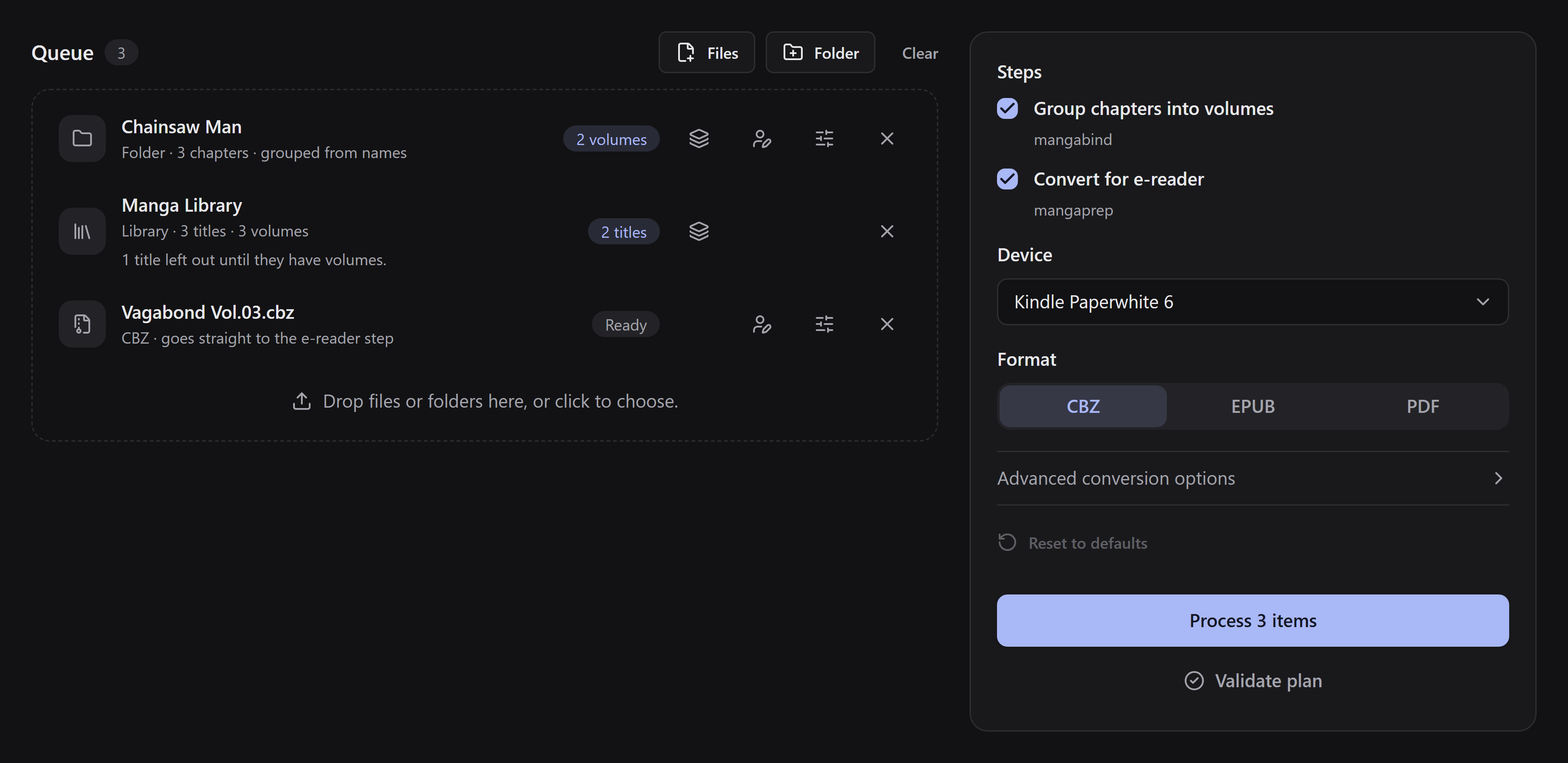
Use Files or Folder, or drag files and folders onto the queue. Clicking the drop area offers the same choices. Manga2Ink inspects what you add before converting. A chapter folder with missing or conflicting volume assignments may need your review.
Review an item
Section titled “Review an item”Use Edit books and volumes to choose how a series becomes books and, where needed, assign chapters to volumes. A library opens a list of its titles, where you choose the library’s books and review each title’s volumes. Removing an item from the queue does not delete its files.
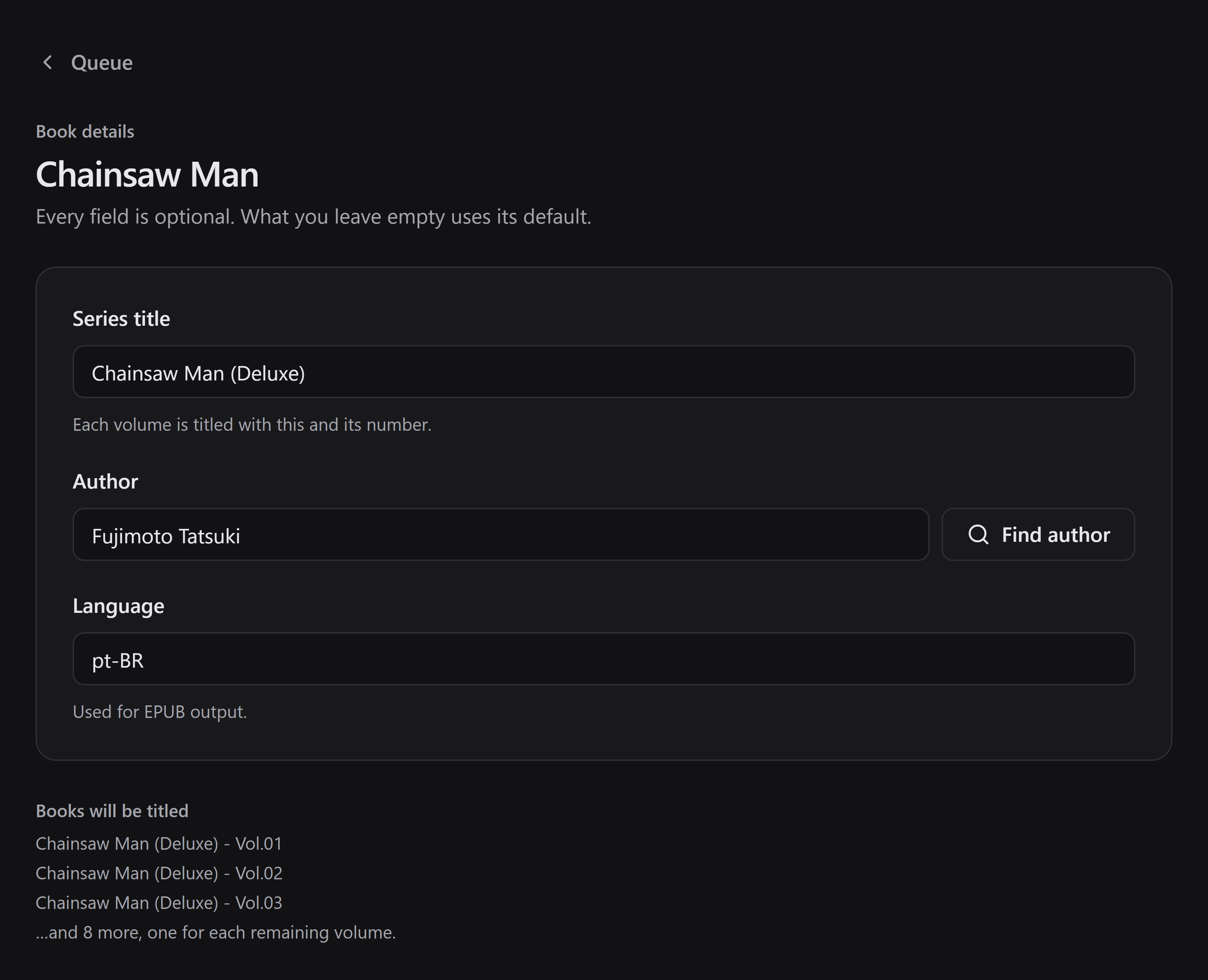
Use the book-details action to set the Series title or Book title, the Author and the Language of each item. You can type the author yourself or look it up online. For a library, set these details for each title.
If the folder names show that the manga is in a different language from the books you are making, and the book is an EPUB, the Language field offers a button to use it, such as Use pt-BR. Nothing changes until you click it. Only EPUB files carry a language, so for a CBZ or a PDF there is no button: the hint under the field says which language the folder names show and that only EPUB files carry one. The field stays open, so you can still type a language for when the item is made as an EPUB. You can type a language in any capitalization: books always use the standard form, so pt-br becomes pt-BR.
Options for one item
Section titled “Options for one item”The sliders button on a row opens the conversion options for that item only. It opens the same page as Advanced conversion options, so the device, the format and every other choice are there, and what you change applies to this item alone. A library has the button on each of its titles.
A colored button means the item has options of its own. Use the queue’s options on that page removes them again.
On that page, an option is shown in color when it differs from the queue’s. The arrow beside it, Use the queue’s value, sets that one option back to the queue’s value. Use the queue’s options does this for all of them. Once an option is set back, the item follows the queue for it again.
When some items have options of their own, the queue’s Advanced conversion options page shows a notice that says how many. Use the queue’s options for all removes all of them at once. Reset to defaults on that page only resets the queue’s own options. It leaves what the items set.
An item keeps following the queue for everything it has not set. If you change the queue’s device later, an item that never chose a device of its own changes with it.
The options of an item are kept while the queue is open. They are not saved for the next time you start the app.
The button is not shown when you only join volumes, because no conversion runs then.
A cover of your own
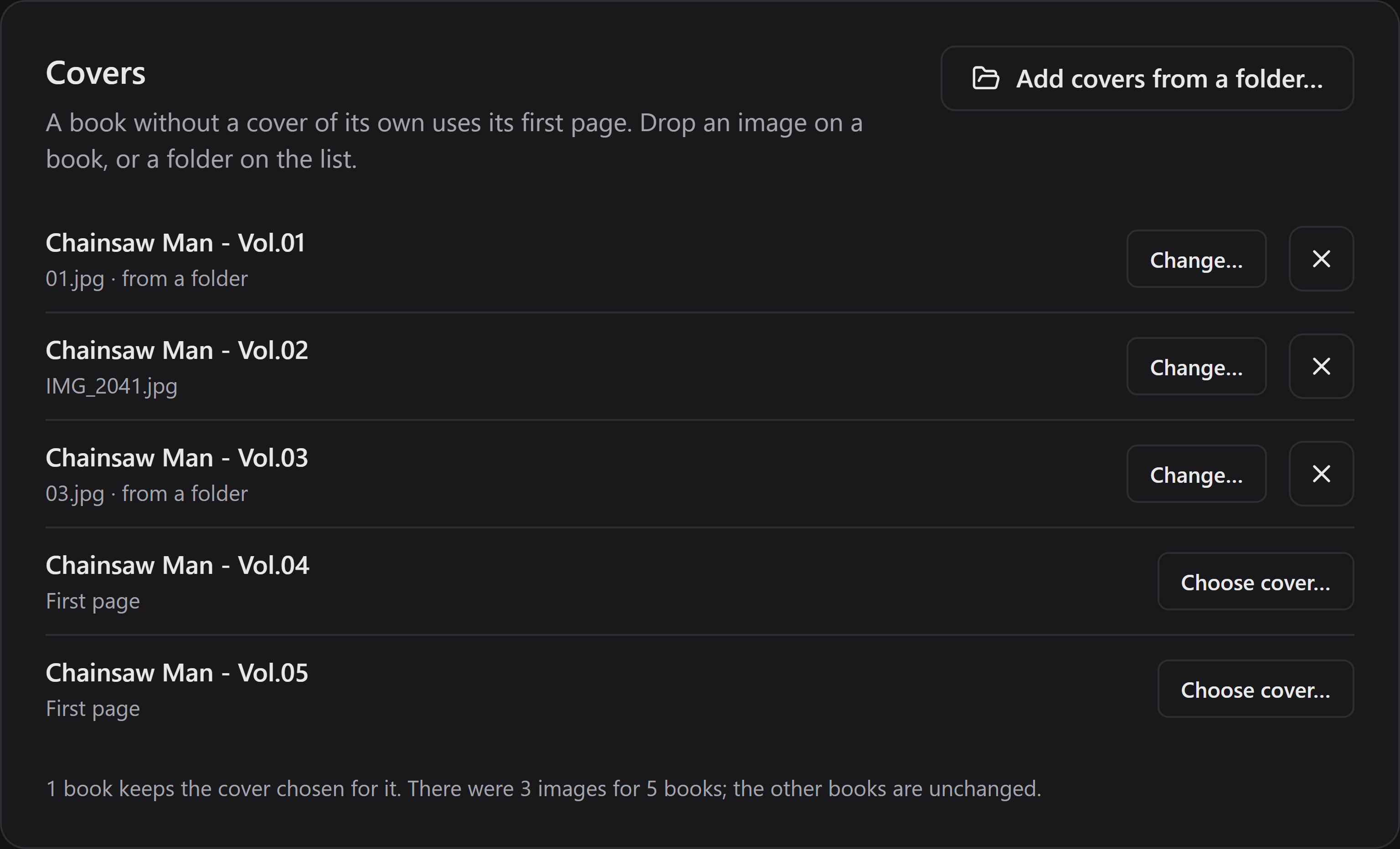
Section titled “A cover of your own”The same page has Covers, with one line for each book the item makes. A book without a cover of its own uses its first page.
- Choose cover… picks an image for that book. You can also drop an image on the line. The image can be anywhere and have any name. Manga2Ink keeps its own copy, so you can move or delete the original afterwards.
- Add covers from a folder… gives the folder’s images to the books in order of name: the first image to the first book, the second to the second, and so on. You can also drop a folder, or several images, on the list. A cover you chose by hand is never replaced this way. A cover that came from an earlier folder is.
- You can change or remove each cover on its line. Covers are remembered for that folder or file and come back the next time you add it.
Covers can be JPEG, PNG, WebP, GIF or BMP images. When you choose a file, Manga2Ink checks that it really is an image. A damaged file, or one that only has an image’s name, is not used, and the page tells you.
In a folder, an image that cannot be used keeps its place in the order. The images after it still go to the books they line up with, and its book keeps its first page.
If a cover still cannot be used when the book is made, the error names the book and tells you to remove the cover or choose another image on this page.
The cover options in the conversion options apply to your covers too. A CBZ keeps a cover of your own whatever those options are. A PDF has no cover. The Cover page shows what each option does.
Chapters have no volume names
Section titled “Chapters have no volume names”Open Edit books and volumes and choose One book for the whole series under Books if you want a single book. For a chapter folder, no volumes or online lookup are required; if it has no volumes, press Done.
If you want one book per volume, use the volumes recognized in File names, create them in Manual, or optionally review an Online source suggestion. A library still needs volumes for each title, even with One book for each title. Follow books and volume mapping for the details.
A single chapter CBZ that you add as a file is treated as a complete volume. Add its folder instead if you want it grouped with other chapters.