
Seu navegador está em português, e este guia está disponível em português.
お使いのブラウザは日本語に設定されています。このガイドは日本語でも読めます。
Reading
The Reading section of Advanced conversion options says what the images are and which way they are read. It has two controls: Content, which tells mangaprep whether each image is a page or a piece of a long strip, and Manga reading order.
Content
Section titled “Content”Manga or comic pages is the starting choice: each image is one page. Webtoon strips is for a webtoon. A webtoon is drawn as one long vertical strip, but it is handed out cut into images wherever a file ended. Read one image at a time, a panel can end up split between two pages. With Webtoon strips, mangaprep joins the images of each chapter into one strip and cuts it again into pages between panels. --webtoon turns it on, and -w is its short form.
Pepper&Carrot is not a webtoon, but three of its pages one under the other make a strip of the same shape: 992 × 4119 pixels, with white gaps between the panels. Cut every 1500 pixels into three images, it looks like what a webtoon site hands out: each cut falls wherever an image ends, not between panels. The first row converts those three images as pages. The second converts the same three as strips.
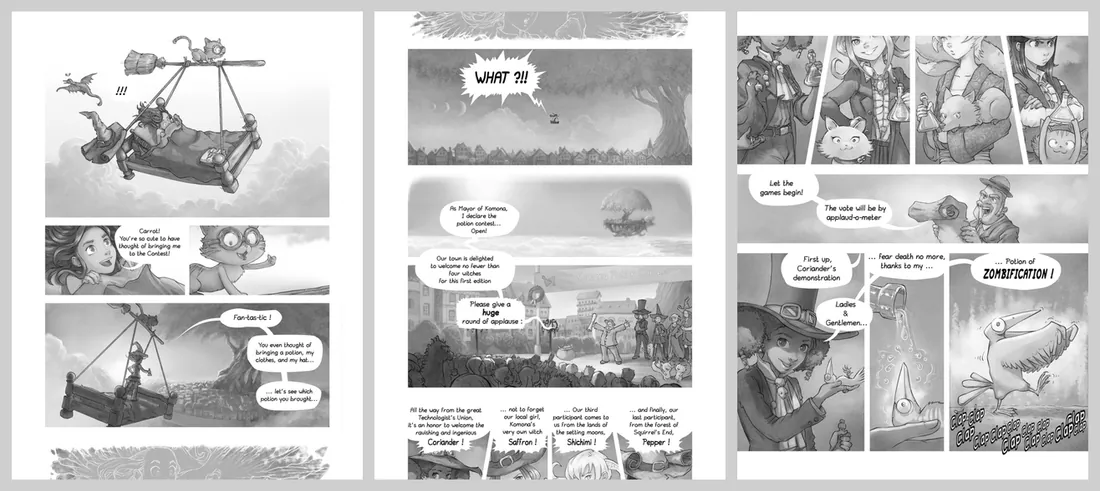
no flag3 pages: 1272 × 1696, 1272 × 1696, 1272 × 1696 px, 914 KB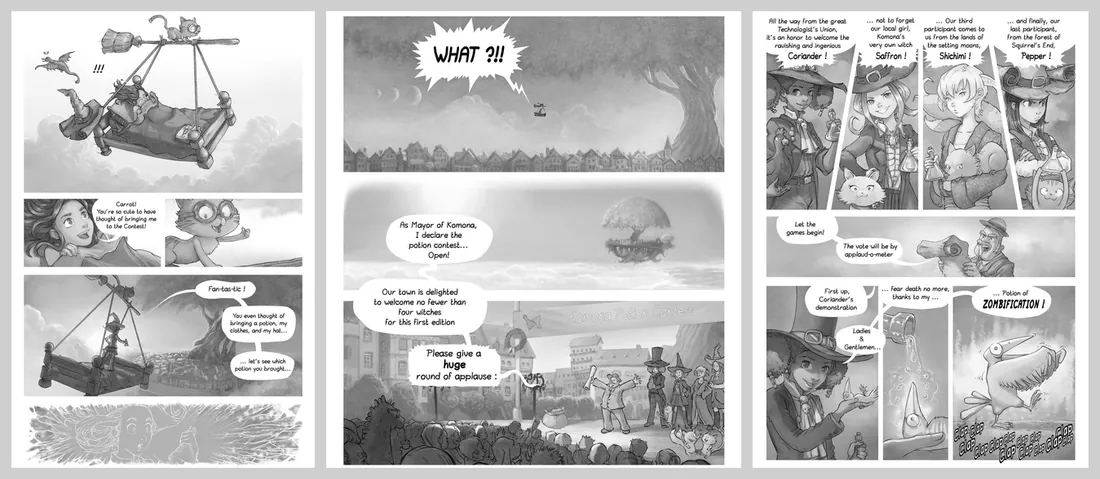
--webtoon3 pages: 992 × 1494, 992 × 1092, 992 × 1347 px, 751 KBArt:Pepper&Carrot, episode 6 by David Revoy (CC BY 4.0). Converted with mangaprep 0.9.0.
As pages, the three images give three pages of 1272 × 1696 pixels, the size of the screen, and the cuts are where the images ended. As strips, the images are joined and cut again between panels, so no panel is split. The pages come out 992 pixels wide, as wide as the source, and 1494, 1092 and 1347 pixels tall, because each cut is placed at a gap between panels.
What else changes with it
Section titled “What else changes with it”The table gives the size of every page that mangaprep wrote for the same three images. Every row was converted with Manga2Ink’s starting settings, which include enlarging small pages and manga reading order, and the flags named are what the row adds.
| Setting | On the command line | Pages |
|---|---|---|
| Content: Manga or comic pages | no flag | 3 pages: 1272 × 1696, 1272 × 1696, 1272 × 1696 |
| Content: Webtoon strips | --webtoon | 3 pages: 992 × 1494, 992 × 1092, 992 × 1347 |
| Webtoon strips, with Page size: Crop to fill the screen | --webtoon --wallpaper | 3 pages: 1272 × 1696, 1272 × 1696, 1272 × 1696 |
| Webtoon strips, with Page size: Stretch to the screen | --webtoon --stretch | 3 pages: 1272 × 1696, 1272 × 1696, 1272 × 1696 |
| Webtoon strips, with Inter-panel cropping: Horizontal gaps | --webtoon --ipc horizontal | 3 pages: 992 × 1494, 992 × 1004, 992 × 1303 |
| Webtoon strips, with Borders: Black | --webtoon --blackborders | 3 pages: 992 × 1494, 992 × 1092, 992 × 1347 |
| Webtoon strips, with Page cropping: Disabled | --webtoon --cropping disabled | 3 pages: 992 × 1494, 992 × 1092, 992 × 1347 |
| Webtoon strips, with Use the images as they are | --webtoon --noprocessing | 3 pages: 992 × 1494, 992 × 1092, 992 × 1347 |
- Pages are not enlarged. The second row was converted with the setting that enlarges small pages, and its pages are still 992 pixels wide. Under Page size the app says it: “Webtoon strips are never enlarged.”
- Stretching and cropping to fill still work. In the third and fourth rows each cut page is made the size of the screen, as in Size and borders.
- Inter-panel cropping still works. The fifth row closes the gaps between panels, so the second and third pages are shorter, as in Cropping.
- Borders and margin cropping are not used. The sixth and seventh rows are the second row again, with the same sizes. Mangaprep’s own description of the mode says it implies white borders and no margin cropping, so Borders, Page cropping and its three numbers are dimmed while Webtoon strips is on.
- A webtoon is never split or turned. Wide pages, the three whole-spread options and Restack 4-panel strips as 2×2 are dimmed, and so are Autocontrast and Manga reading order, described below.
- The cut still happens when the images are left as they are. The last row turns on Use the images as they are: the pages are not recoded, and the strip is still cut into the same pages.
Each of these is dimmed in the app with its reason, and what you had chosen comes back when you return to Manga or comic pages.
Manga reading order
Section titled “Manga reading order”Manga reading order is on in the starting settings. It makes the book read right to left, and puts the right half of a wide page first when it is split: the pictures for that are in Double-page spreads. --manga-style turns it on, and -m is its short form.
Whether the book itself says which way it turns depends on the format. The table was read back from books converted from the same three pages:
| Setting | On the command line | Reading direction |
|---|---|---|
| EPUB, Manga reading order: On | --manga-style | right to left (rtl) |
| EPUB, Manga reading order: Off | no flag | left to right (ltr) |
| EPUB, Webtoon strips, with Manga reading order on | --webtoon --manga-style | left to right (ltr) |
| PDF, Manga reading order: On | --manga-style | not in the book |
| CBZ, Manga reading order: On | --manga-style | not in the book |
- An EPUB records the direction in its package file, as
page-progression-direction:rtlwith the option on andltrwith it off, unless Invert page turns in the two-page view reverses it. A reader that follows the direction of the book turns the pages that way. - With Webtoon strips an EPUB is left to right even when Manga reading order is on: mangaprep’s description of the mode says it implies left-to-right order. That is why the control is dimmed.
- A PDF and a CBZ made by mangaprep record no direction, so the reader’s own setting decides how they turn. The KOReader settings page has an example that swaps the tap zones and swipes for right-to-left reading.