
Seu navegador está em português, e este guia está disponível em português.
お使いのブラウザは日本語に設定されています。このガイドは日本語でも読めます。
Conversion settings
Device and format
Section titled “Device and format”Choose your model under Device. To set the page size yourself, open Advanced conversion options and fill in Custom width and Custom height, in pixels. With the Other device, both are required. On the command line these settings are --profile, --format, --customwidth and --customheight. The mangaprep CLI page shows what each does.
| Format | When to choose it |
|---|---|
| CBZ | The format Manga2Ink starts with. Processed images in a ZIP archive. KOReader’s own guide recommends it for manga |
| EPUB | A book with chapter navigation and an author |
| Fixed pages for a reader or tablet that supports PDF |
What works depends on the reading app as well as the device. A Kindle’s own reader does not open an EPUB directly: send the file with a service that converts it, such as Amazon’s Send to Kindle, or read it in an app you installed, such as KOReader. KOReader treats an EPUB differently from a CBZ or PDF. It lays the EPUB out like text, with its own margins and status bar around each page, so a page can come out smaller than the screen. See reader settings.
For Kobo EPUBs, special characters such as ! and % in the filename become _; the title inside the book stays as you typed it. When you copy books to the Kobo, also avoid special characters in the names of its destination folders.
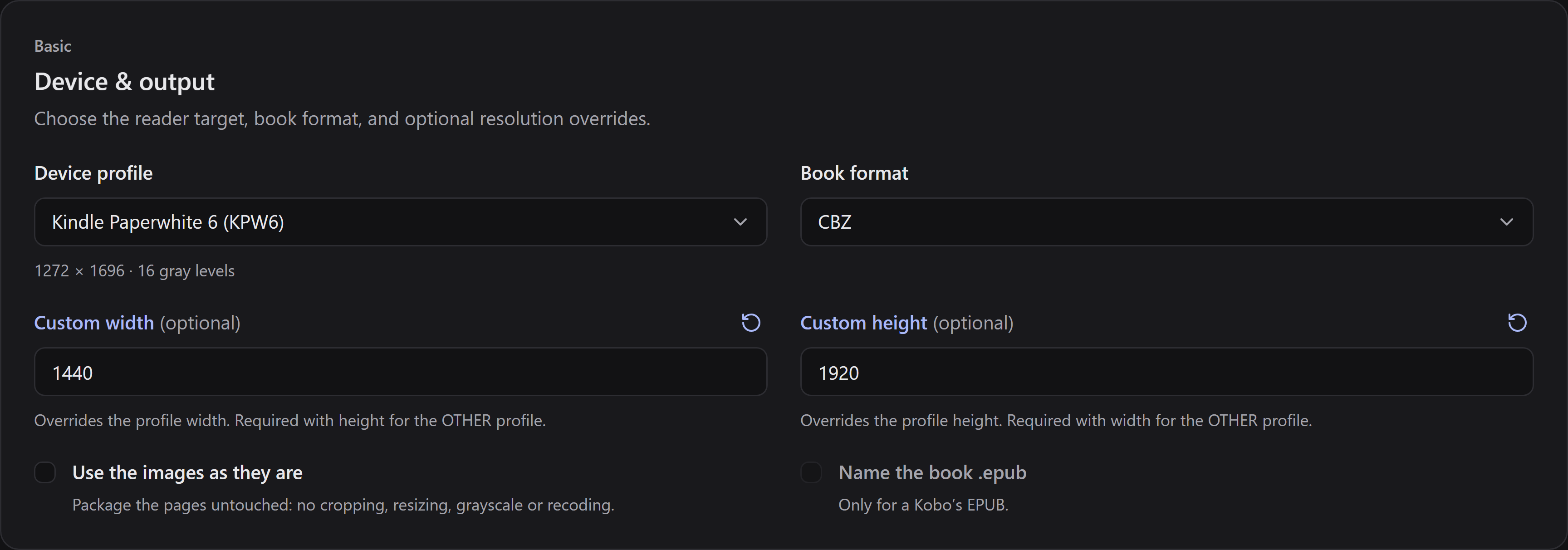
These dimensions are an example; use the size appropriate for your screen.
Advanced conversion options
Section titled “Advanced conversion options”Advanced conversion options has the settings of mangaprep, grouped by purpose: Reading, Double-page spreads, Size and borders, Cropping, Two-page view, Color and tone, Page images, Cover and Book metadata. Start with the defaults of your device, change one setting at a time and check the book you get. If artwork is cut off, reduce cropping or turn it off.
Every group has its own page in the overview. There, the same page is converted with and without each option, and every option is listed with the command-line flag that sets it.
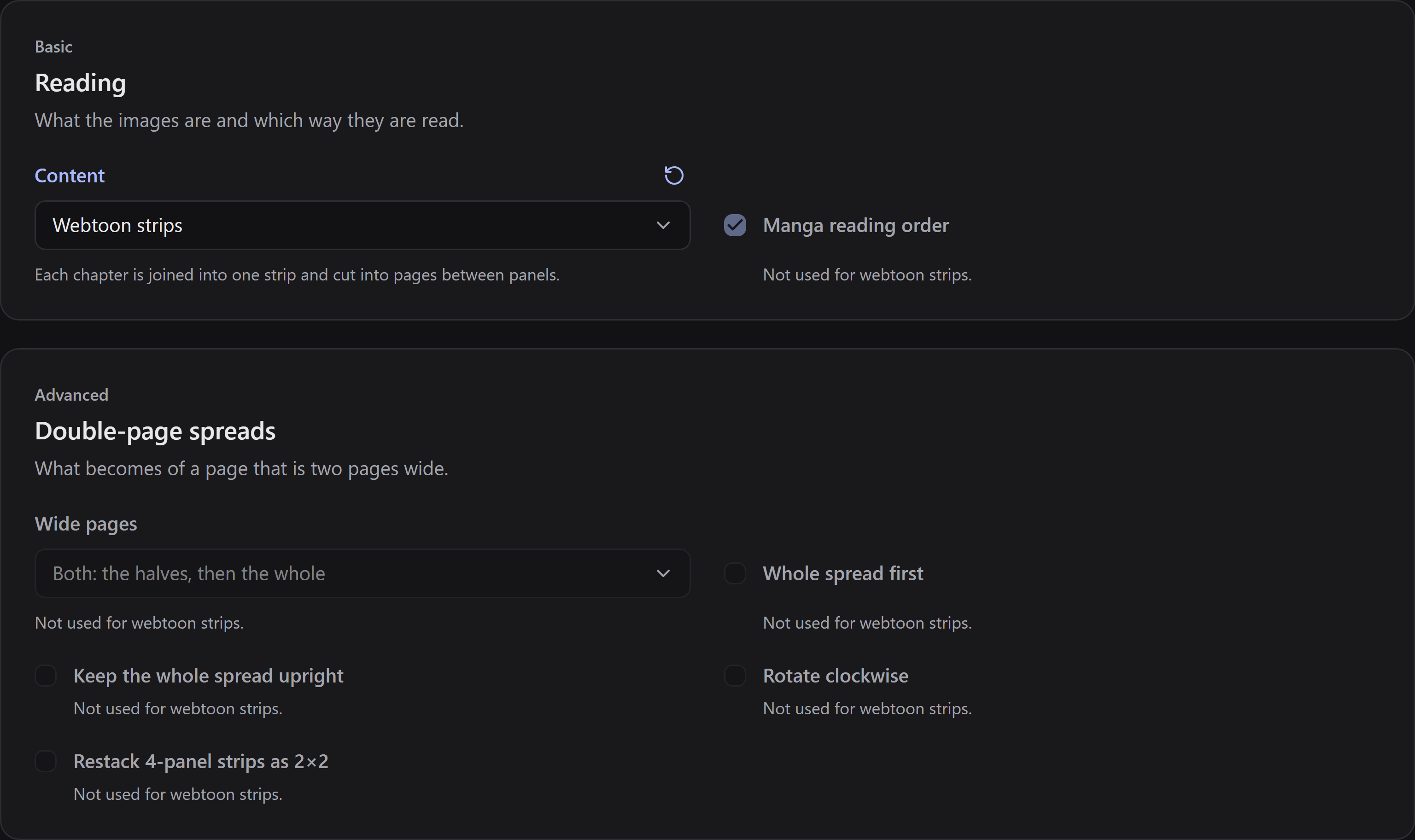
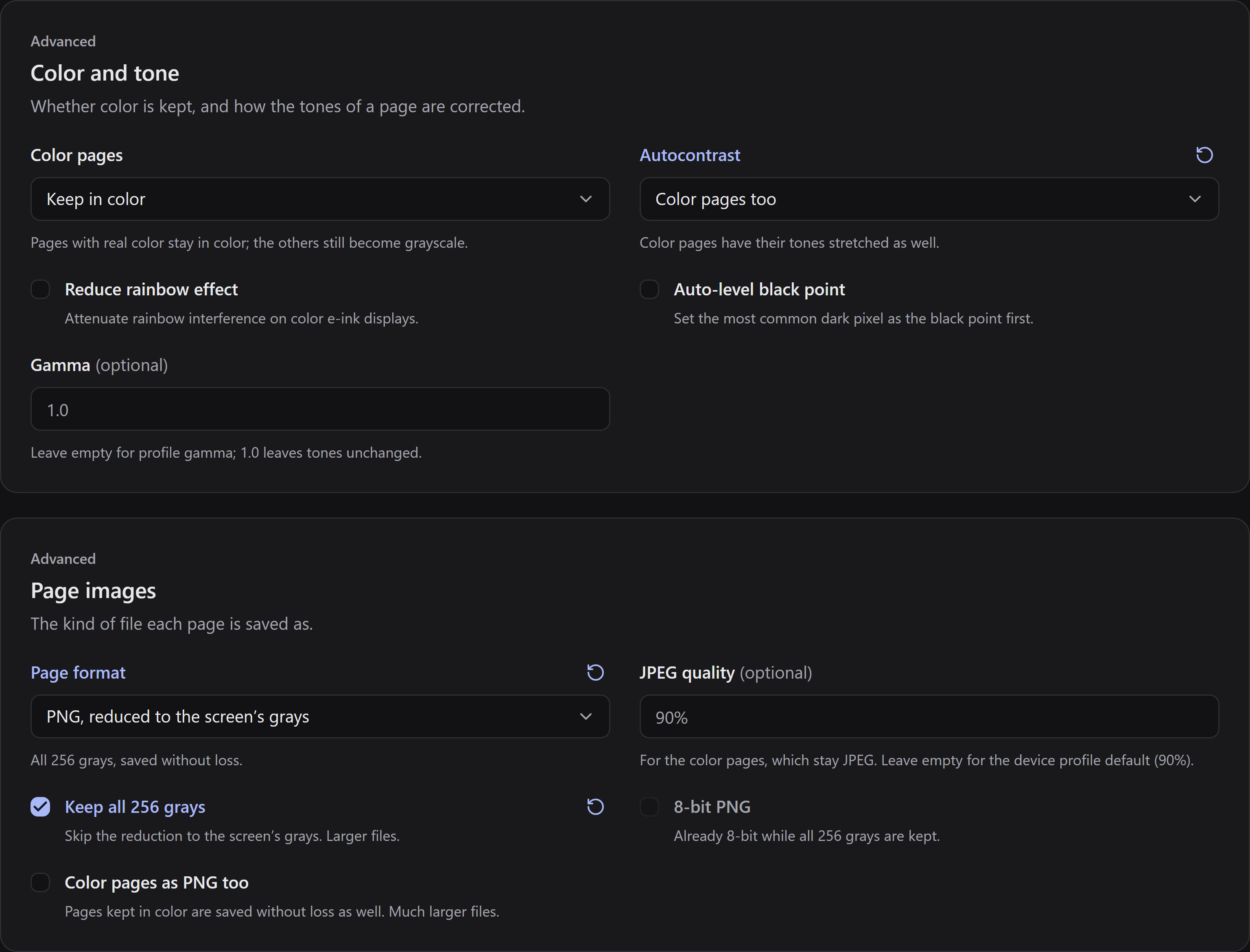
Some options only matter after another. For example, pages kept in color stay JPEG even when Page format is PNG, until Color pages as PNG too is on. The controls below show this, and the Page images page measures what each choice costs.
Two options sit beside the device. Use the images as they are packages the pages untouched (Page images). Name the book .epub keeps a Kobo’s EPUB from being named .kepub.epub (Book metadata).
An option that another choice makes useless stays visible, dimmed, and says why. For example, Webtoon strips locks the options a webtoon never uses (Reading lists them). What you had chosen comes back when you return to pages.
You can reset a changed field on its own, or all of them with Reset to defaults. Your settings are kept between launches.
One book for the series
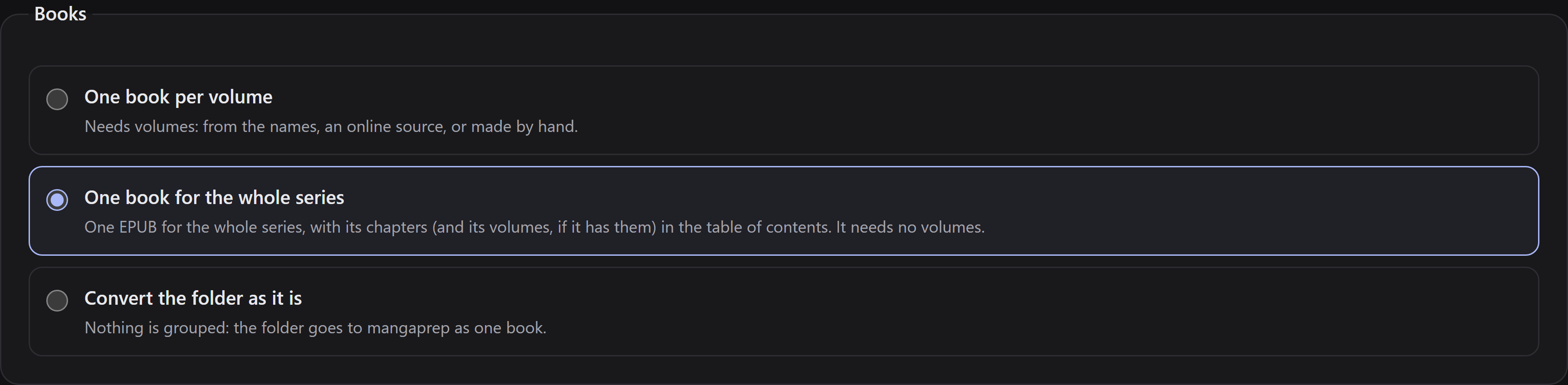
Section titled “One book for the series”How a series becomes books is the choice of each series, so it is made where its chapters are grouped: press the layers button on its row (Edit books and volumes) and, under Books, choose One book for the whole series instead of One book per volume. A folder that says Needs volumes is waiting for exactly this, or for volumes. One queue can hold a series made into one book and others made of their volumes, each as you chose, and the next series you add is one book for each volume again. It works in every format and never locks the process steps.
The series needs no volumes for it. With none, the book has its chapters, named by their numbers, in its table of contents. With volumes you made, or that the folder names give, the chapters are under their volumes. Press Validate plan to see, before anything is made, the file the book will be, the chapters it will hold, and any file left out because you chose another version of its chapter.
The format stays yours to choose, and it decides what the book holds:
- EPUB has a table of contents, with the chapters (under their volumes, where there are any).
- CBZ keeps the chapters, and the volumes if there are any, as folders, so a reader that orders pages by name, as KOReader does, shows them in order. It has no table of contents.
- PDF has the pages in order and bookmarks, with the chapters (under their volumes, where there are any). Your reader lists them beside the pages.
To jump between the chapters of a long series, choose EPUB or PDF. A large combined book can take longer to open on an e-reader.
The command-line tool has its own defaults, which are not the app’s. For terminal use, see mangaprep.