
Seu navegador está em português, e este guia está disponível em português.
お使いのブラウザは日本語に設定されています。このガイドは日本語でも読めます。
App settings
Open App settings with the gear on the right of the title bar, or press Ctrl+, on Windows and Linux or Cmd+, on a Mac. Each change is kept as you make it, so there is nothing to save, and Esc closes the dialog. It has four tabs. What you choose here is about the app itself, not about the books: the conversion options stay in the queue.
Interface
Section titled “Interface”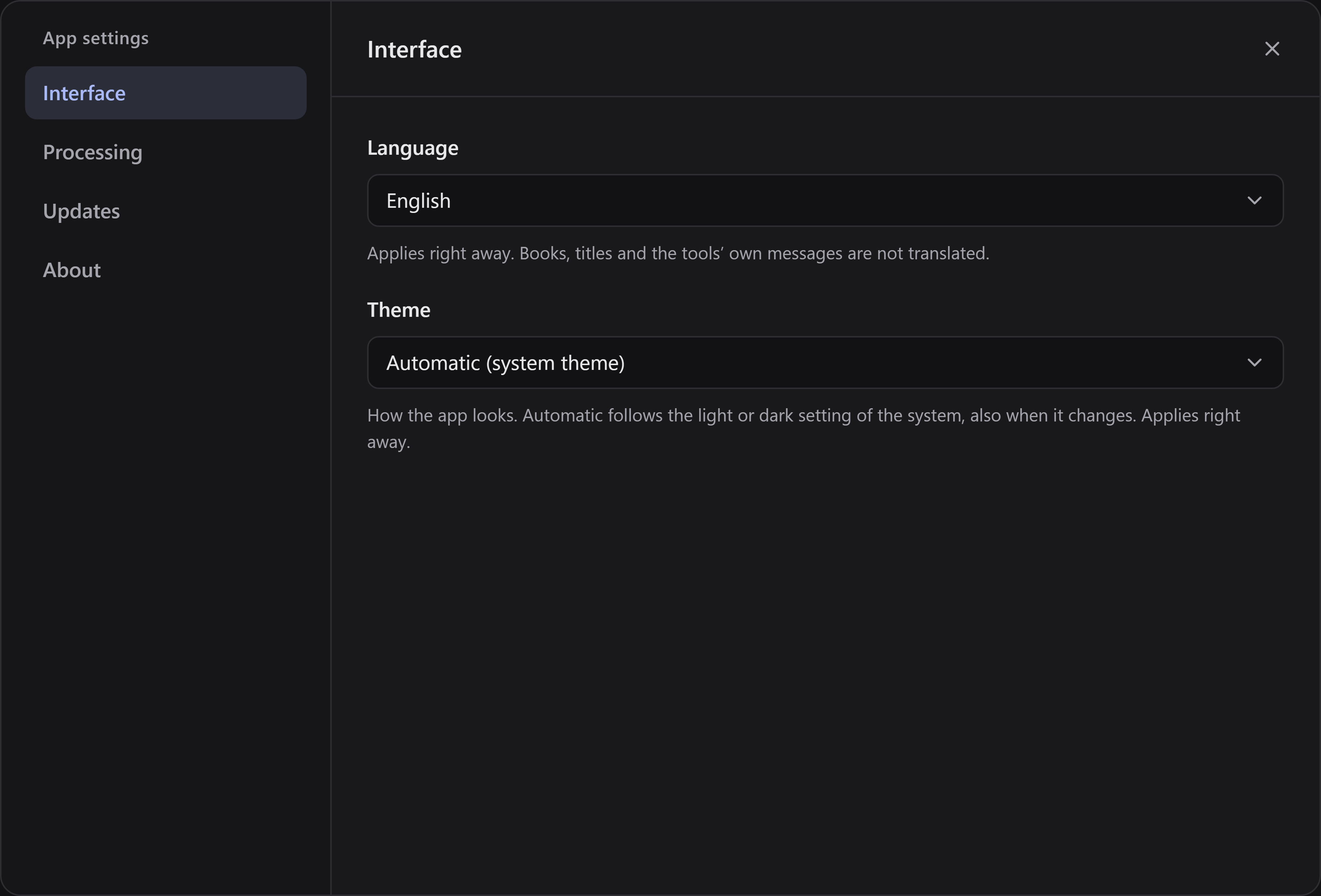
- Language is Automatic (system language), which follows your system’s, English, Português (Brasil) or 日本語. It applies at once. Books, titles and the converters’ own messages are not translated. The Japanese was written with the help of AI and few people who speak the language have read it yet: while the app is in Japanese, a note under the choice says so and has a button that opens the page where a mistake can be reported.
- Theme is Automatic (system theme), which the app starts in and which looks as your system does, dark or light, and follows it when you change it while the app is open; Dark (graphite); or Light (paper). It applies at once, the window’s title bar included. The pictures in this guide are of the dark theme.
Processing
Section titled “Processing”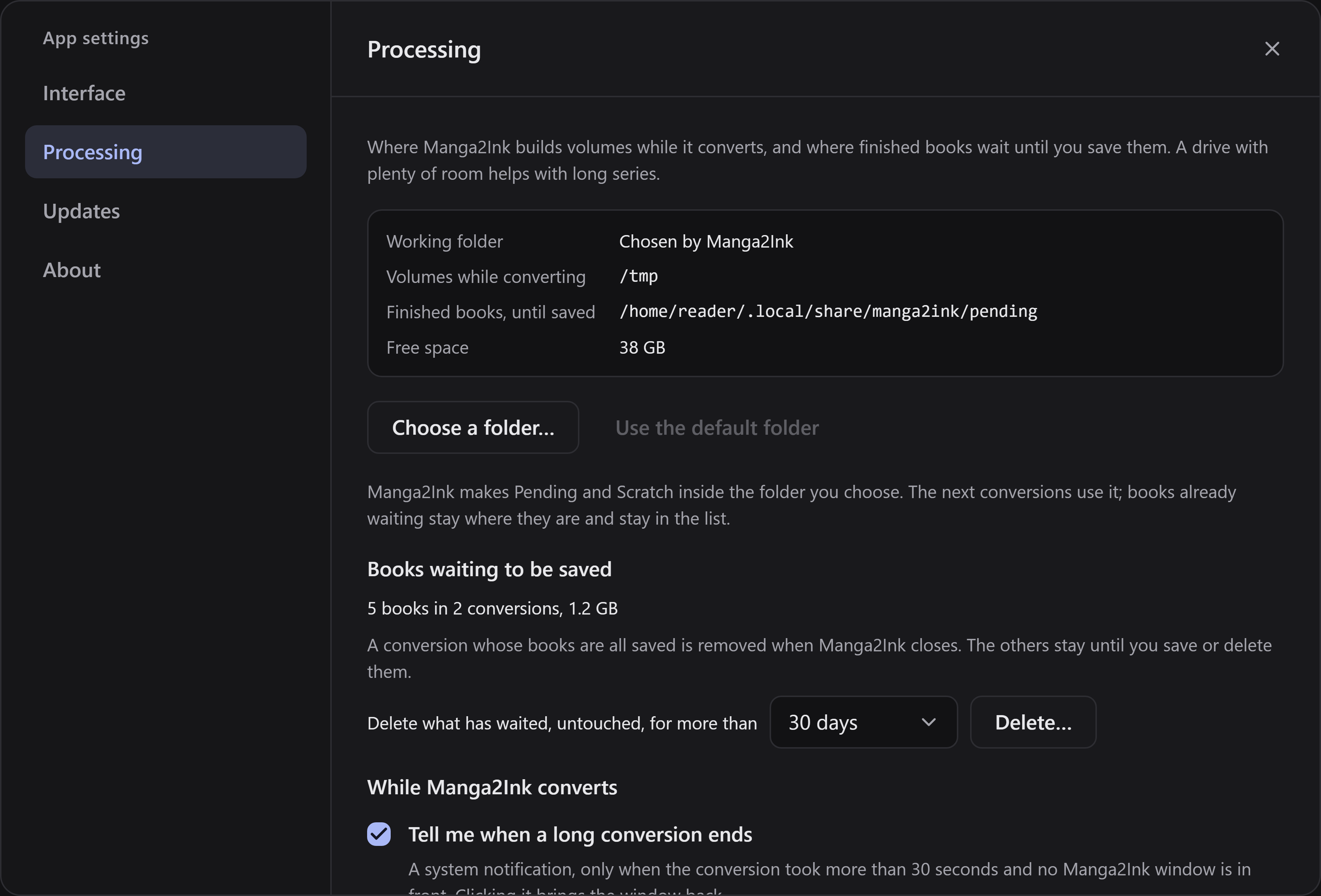
This tab is about where the app works and what it does while it converts.
- Working folder is where Manga2Ink builds volumes while it converts and keeps finished books until you save them. It is Chosen by Manga2Ink until you pick one: Choose a folder… shows the space left, and Use the default folder goes back. Where does Manga2Ink work? says what changes and what does not.
- Books waiting to be saved says how many books are waiting, in how many conversions, and how much room they take, and clears what nothing has touched for 7, 30 or 90 days, after asking: see Delete pending books.
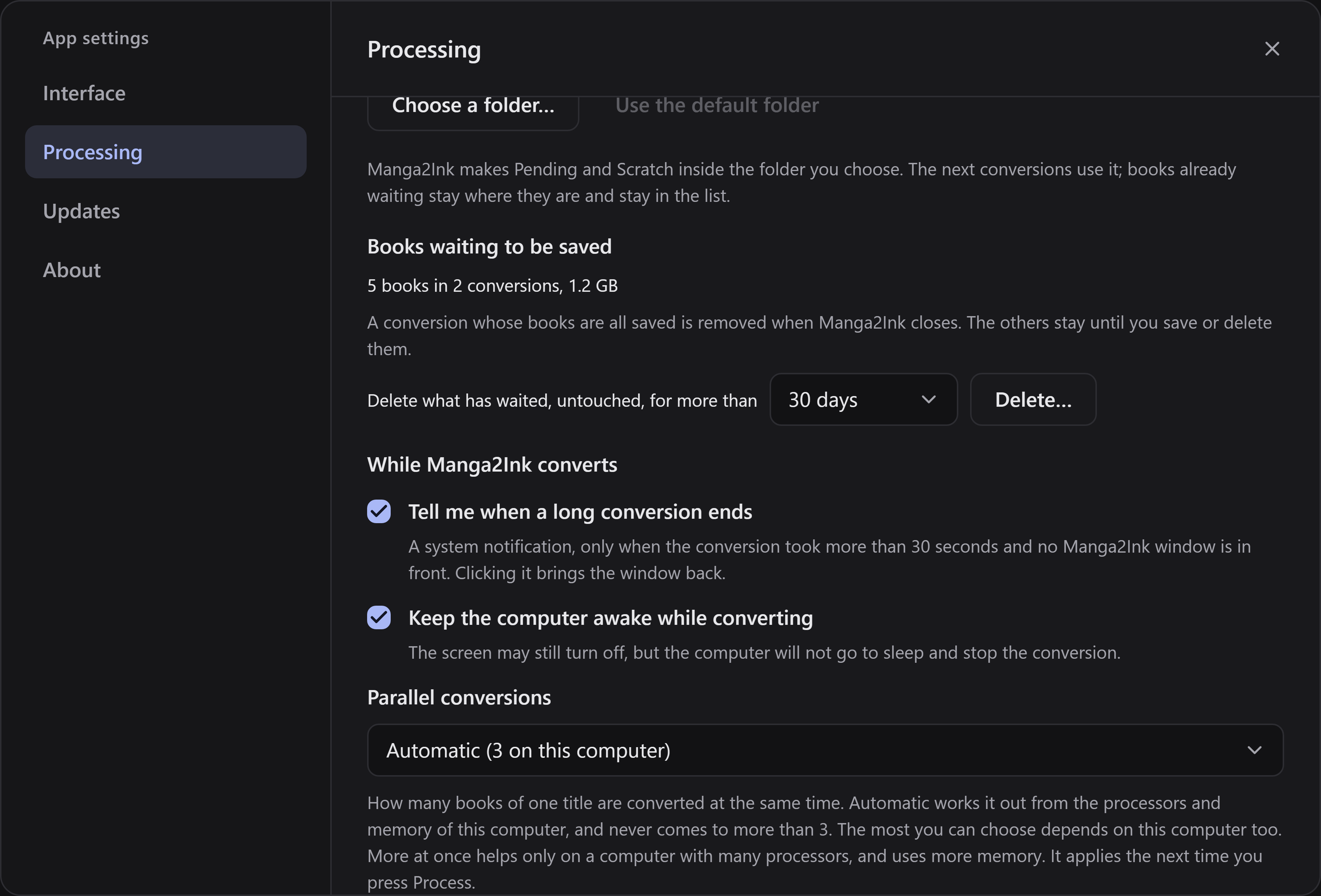
- While Manga2Ink converts has three choices. A change applies to the next time you press Process, not to a conversion that is running. Two are on until you turn them off. Tell me when a long conversion ends shows a notification from your system when a conversion that took more than 30 seconds ends and no Manga2Ink window is in front. Keep the computer awake while converting stops the computer from going to sleep until the conversion ends; the screen can still turn off. Parallel conversions is how many books of one title are converted at the same time: Automatic, which shows the number it comes to on your computer, until you choose a number. While Manga2Ink converts has the details.
Updates
Section titled “Updates”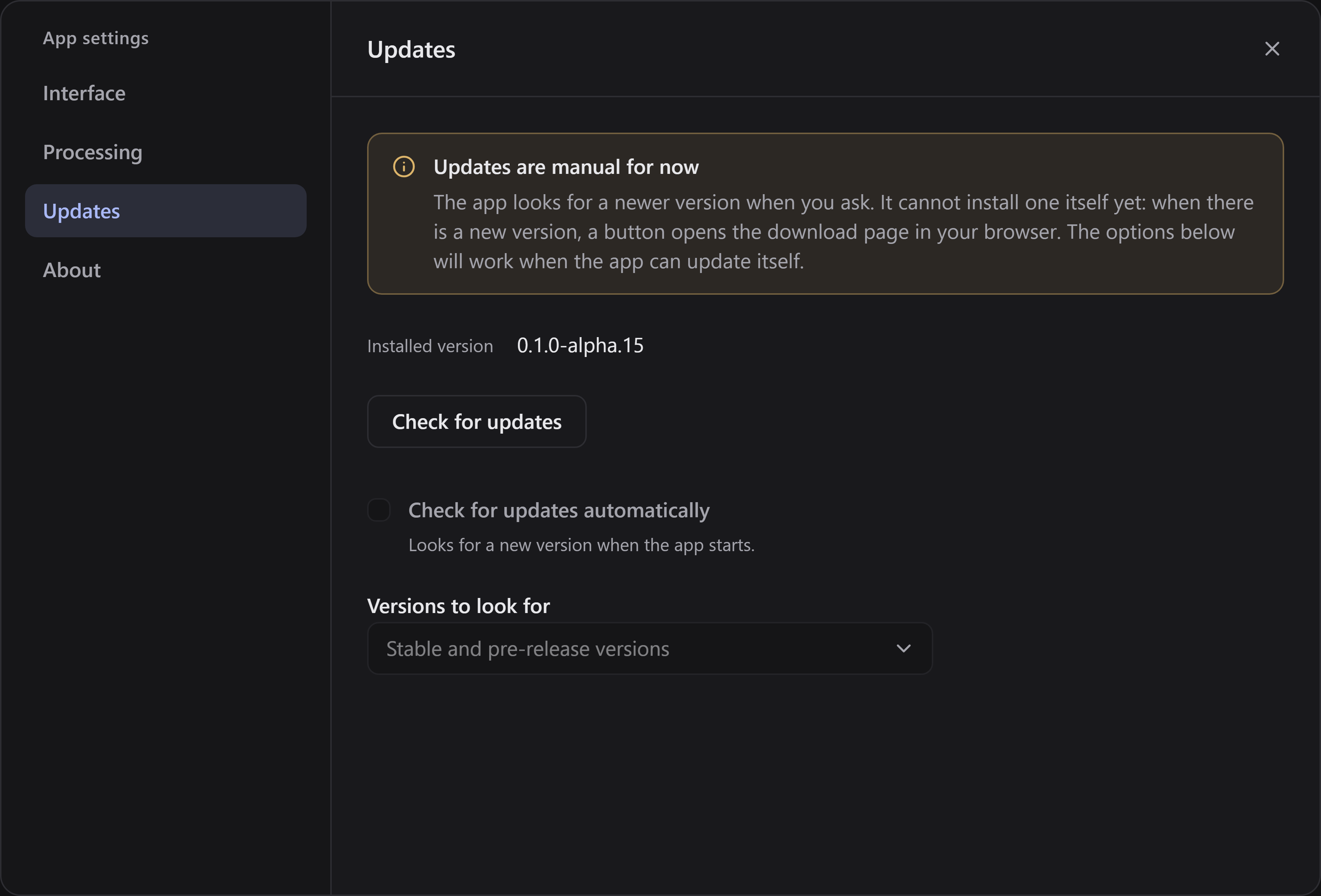
The tab says which version is installed. Check for updates asks GitHub whether a newer one is out, and only when you click: it says which one and the day it was published, and Download the update opens the download page in your browser. The app does not install it for you yet: download the file for your system and install it over the one you have, as in Updating.
Check for updates automatically and Versions to look for are shown but cannot be changed yet. They will work when the app can update itself. Until then the check looks for stable and pre-release versions, since every release so far is a pre-release.
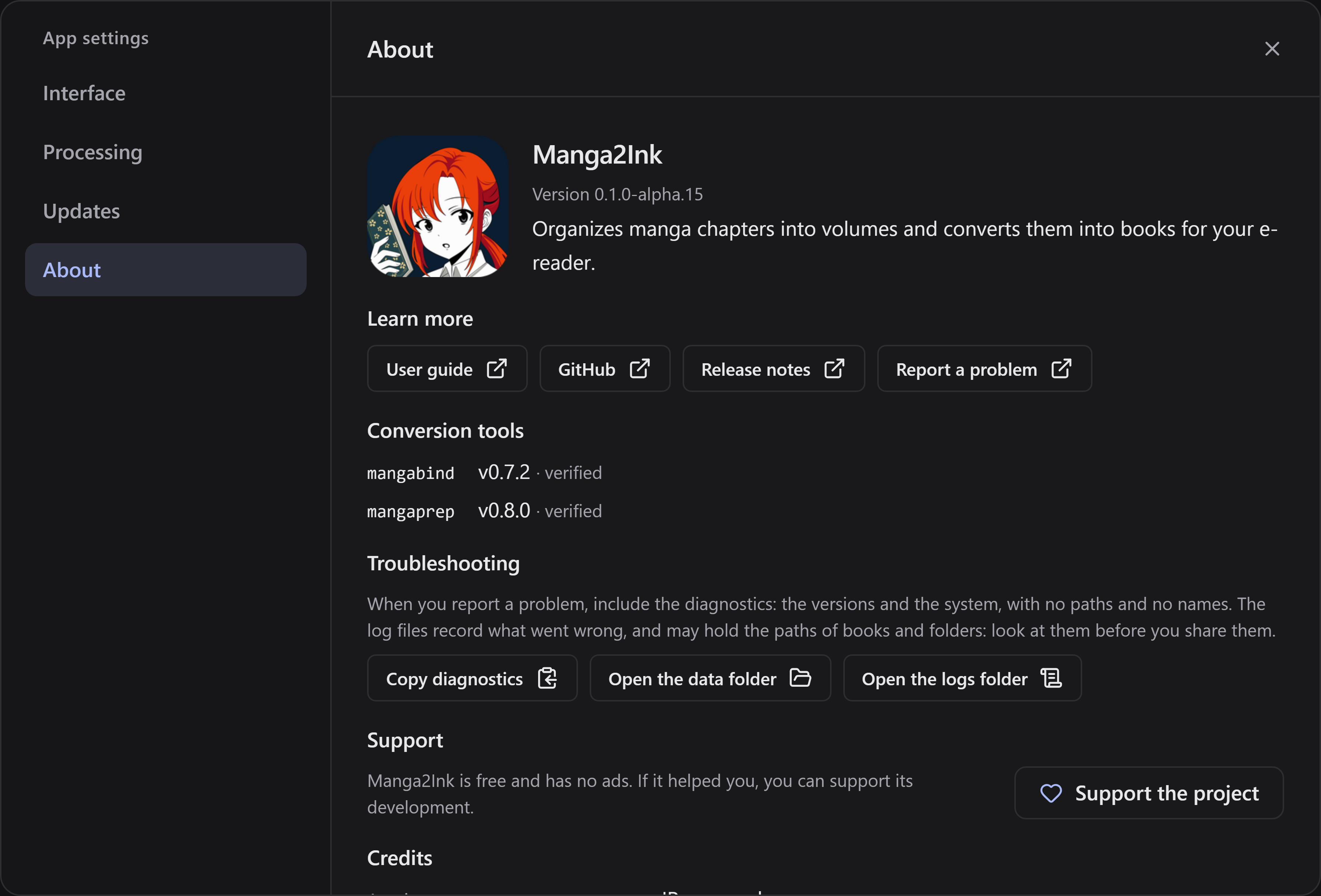
About says what the app is and which version is running. It links to the User guide, GitHub, the Release notes of the version you have and Report a problem, and it lists the Conversion tools, mangabind and mangaprep, with their versions and whether each passed the check the app makes every time it starts.
Troubleshooting, in the same tab, helps with a report of a problem:
- Copy diagnostics puts on the clipboard the version of the app and of what it runs on, your system and machine (the system version, the processors and the memory), the language of the window, whether you chose a working folder (not which one), and whether the conversion tools passed their check. It holds no path and no name of a book or a folder, and nothing from the log. Paste it into your report: see Reporting a problem.
- Open the data folder and Open the logs folder open them in your file manager. The log files record what went wrong, and may hold the paths of books and folders: look at them before you share them.
Nothing is sent anywhere by any of this. Support the project opens the page where the project can be supported, and the tab ends with the credits and the license.
What the app remembers
Section titled “What the app remembers”- What you choose in App settings, in a file of its own that the reset of the conversion options leaves alone.
- The size and place of the window. Manga2Ink opens as you left it: its size, whether it was maximized and, where the system lets a program place its window, its position. Under Wayland on Linux a program cannot place its window, so only the size and whether it was maximized are kept there, and a tiling window manager decides the size of a tiled window itself.
- The conversion options, as before. Saving and ready books says what a restart keeps of the books.