
Seu navegador está em português, e este guia está disponível em português.
お使いのブラウザは日本語に設定されています。このガイドは日本語でも読めます。
KOReader settings
Choose settings for your book
Section titled “Choose settings for your book”KOReader treats EPUB differently from CBZ and PDF, so the page controls you get depend on the book format. CBZ is the format Manga2Ink starts with and the one KOReader’s own guide recommends for manga. It has the image-page controls described below. EPUB is useful if you want a table of contents with chapters and volumes, but KOReader draws its pages with margins and a status bar around them.
Start with a few pages and adjust the settings below to suit your screen. Menu names and places can change with the KOReader version, language and device. The official KOReader guide explains the controls of each format and how to search the menus.
The captures below were taken on a Kindle 2024 running KOReader 2026.07.2-198. The menus are in English, and the red outlines mark each option.
Overlap status bar
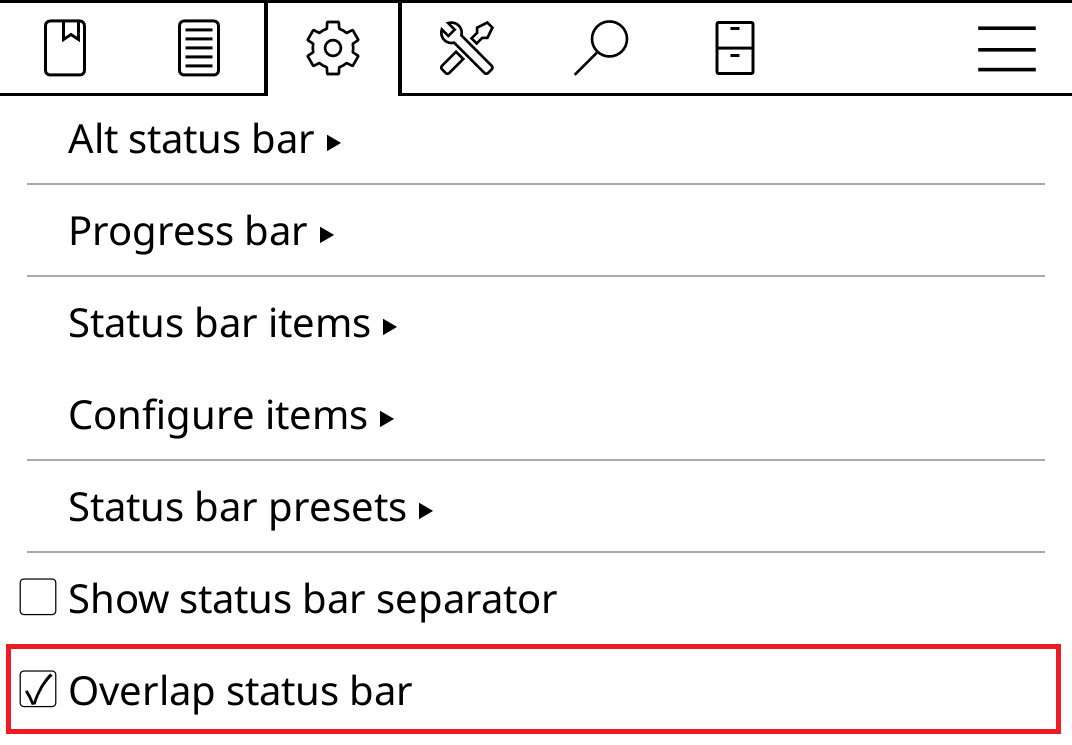
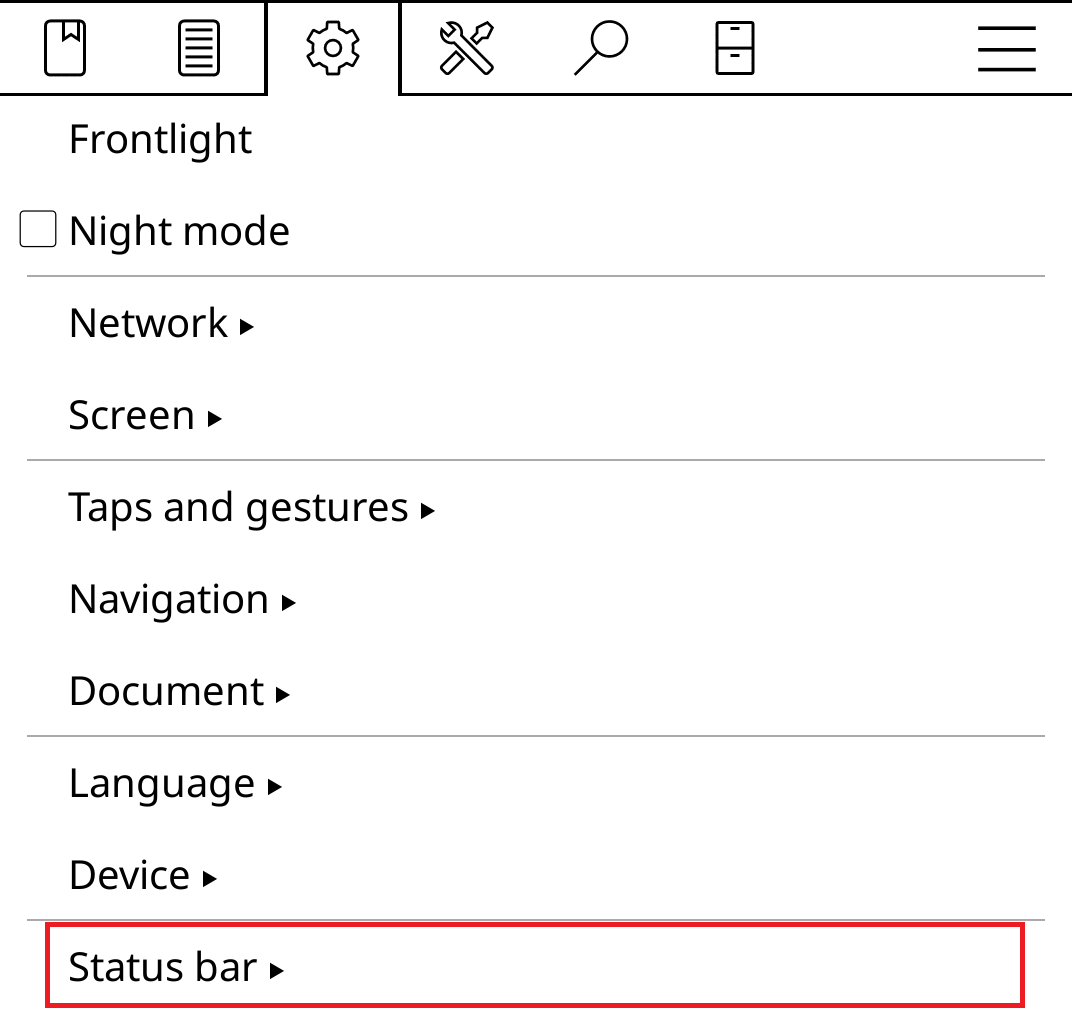
Section titled “Overlap status bar”With a book open, find Status bar → Overlap status bar. This lets the page use the area reserved for the status bar. Check that the bar does not cover artwork you want to see.
Show the steps
- Open the top menu, select the gear icon and tap Status bar.
- Enable Overlap status bar.
Full refresh rate
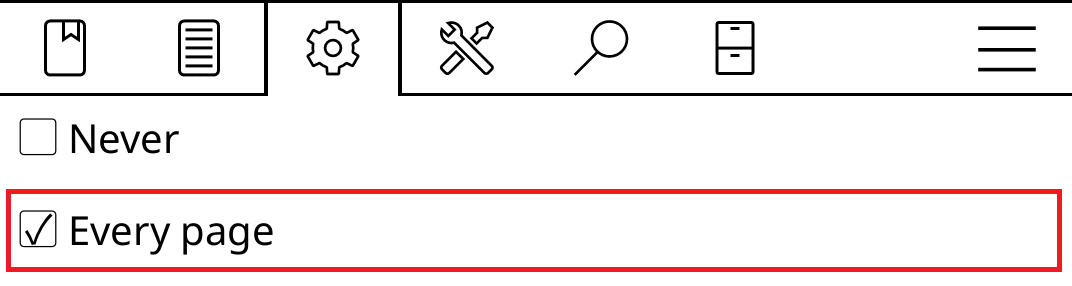
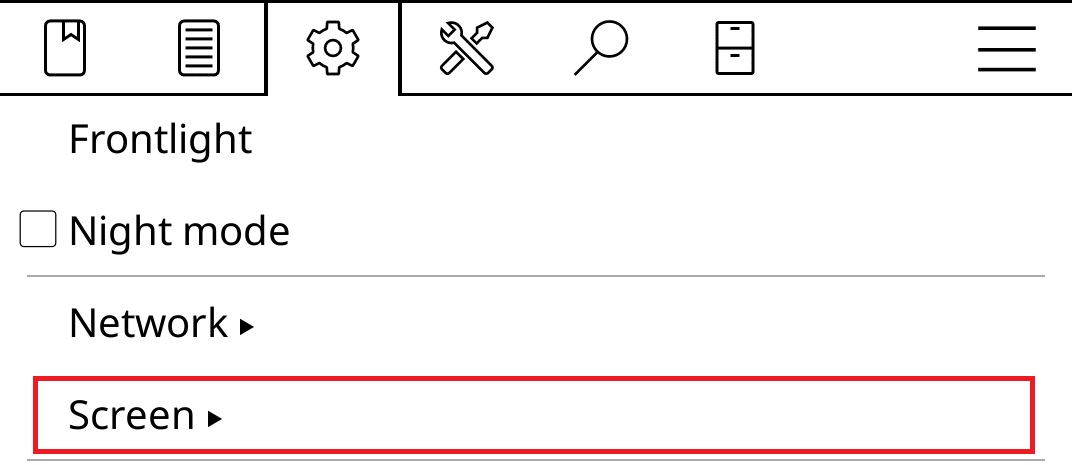
Section titled “Full refresh rate”On an e-ink reader, try Screen → E-ink settings → Full refresh rate → Every page if you see traces of the previous page.
A full refresh can reduce these traces, but may add a visible flash or slow page turns. Compare it with the default on your device. This setting applies to supported e-ink screens, not LCD displays. See the KOReader guide for refresh options.
Show the steps
- In the top menu, select the gear icon and open Screen.
- Open E-ink settings.
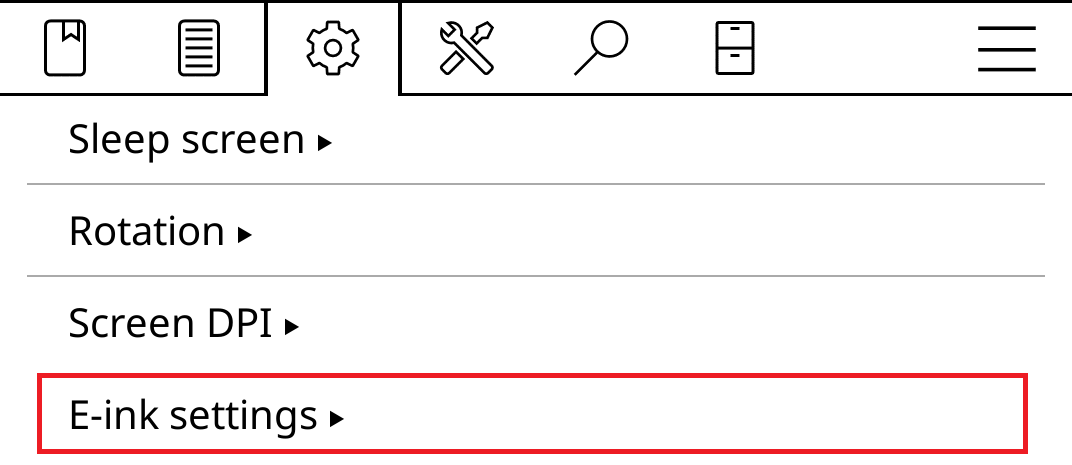
- Open Full refresh rate.

- Select Every page. You do not need to copy the other settings on your device.
CBZ/PDF page controls
Section titled “CBZ/PDF page controls”These controls are for CBZ and PDF. For EPUB, use the options in its own reading menu. Change one setting at a time and compare a few pages before you save your preferences.
The steps below follow a video by Eink Dude on reading manga in KOReader. The menu names are the ones KOReader uses.
Show one whole page at a time
Section titled “Show one whole page at a time”With a book open, tap the bottom of the screen to open the bottom menu. It holds the reading settings of the book, in tabs.
- In the tab with View Mode, choose page. The other choice, continuous, scrolls the pages as a web page does.
- In the tab with Zoom to and Fit, set Zoom to to page and Fit to full. Each page then shows whole on the screen.
Show the steps
- With a book open, tap the bottom of the screen. The bottom menu appears.
- In the tab with View Mode, choose page.
- In the tab with Zoom to and Fit, set Zoom to to page and Fit to full.
Turn page cropping off
Section titled “Turn page cropping off”In the bottom menu, open the tab with Page Crop and choose none. KOReader’s own choice is auto: it looks for the margins of every page before it shows the page. Manga2Ink’s starting settings already crop the margins in the conversion (Margins and page numbers), so a second crop costs time and can cut off artwork. In the video, none makes page turns much faster, and the battery probably lasts longer.
Choose which way pages turn
Section titled “Choose which way pages turn”A CBZ that mangaprep makes does not say which way it turns, so you choose it in KOReader. Open the top menu, tap the gear icon, and go to Taps and gestures → Page turns. Tick Invert page turn taps and swipes for a book you read from right to left.
Long-press that item to choose what newly opened books use, LTR or RTL. To set it for one folder only, use Tweak document settings.
Turn off the taps you do not want
Section titled “Turn off the taps you do not want”While you read manga, a tap in the wrong place can open a menu, switch the front light on or change the status bar. Each of these can be turned off.
Front light
Section titled “Front light”Open the top menu, tap the gear icon, and go to Taps and gestures → Gesture manager → Tap corner → Bottom left. Choose Nothing. On a device with a front light, tapping this corner switches the light on and off unless you change it.
Status bar
Section titled “Status bar”In the same menu, go to Status bar → Lock status bar. Tapping the bar then no longer changes it.
Go to Taps and gestures → Activate menu and untick With a tap. The top and bottom menus then open only with a swipe. Keep With a swipe ticked, so that you can still open them.
KOReader also has Panel Zoom for manga and comics. It is in the top menu, under the document icon, and works with CBZ and PDF: a long press on a panel zooms in on it. The official guide has the details.
Tweak document settings
Section titled “Tweak document settings”To give a manga folder different defaults from your text books, use KOReader’s advanced Tweak document settings plugin. It applies defaults for a folder when a book is opened for the first time.
The plugin uses a Lua configuration file, not EPUB style tweaks. Follow the official setup instructions and back up your configuration before you edit it. Books you have already opened can keep their own settings.
If the plugin is missing, enable Tweak document settings under Tools → Plugin management. Then open Tools → More tools → Tweak document settings.
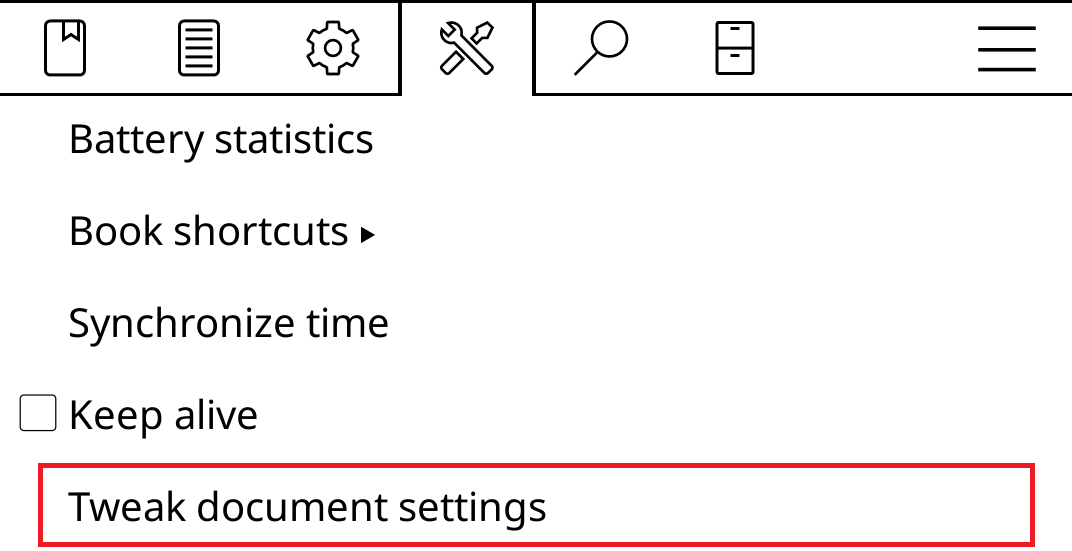
Show the steps
- Select the tools icon in the top menu and open More tools.
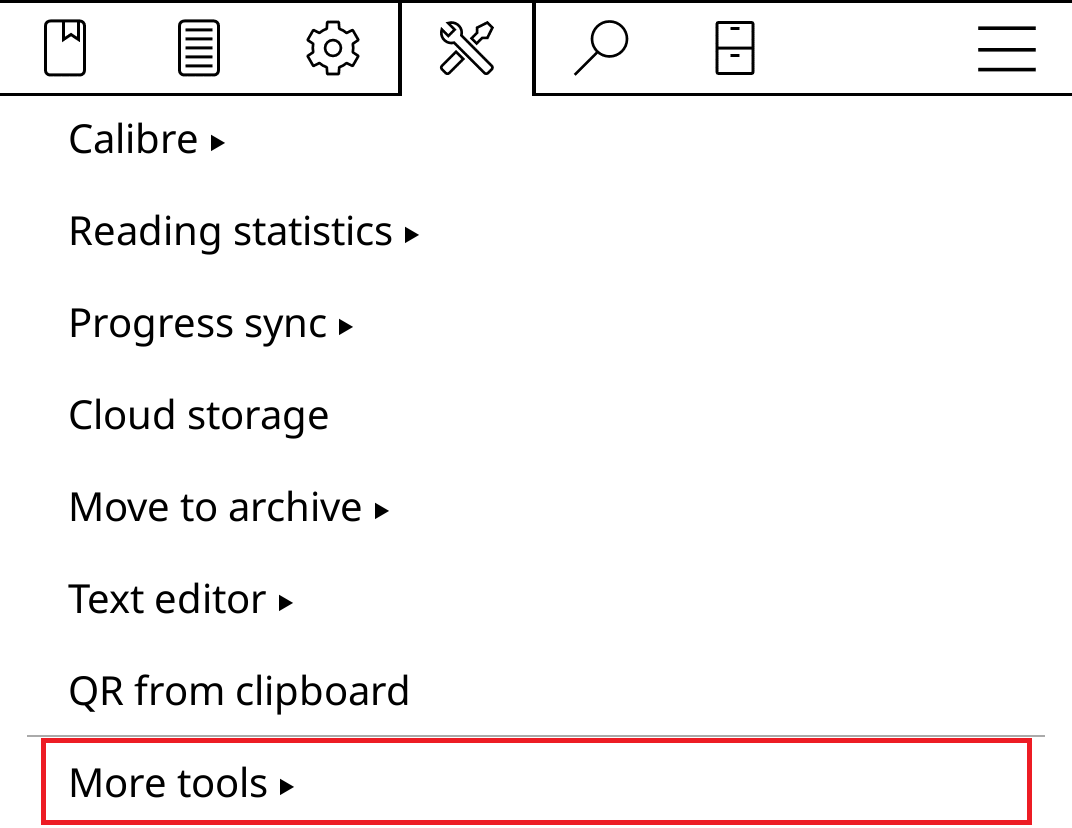
- Tap Tweak document settings to open directory_defaults.lua.
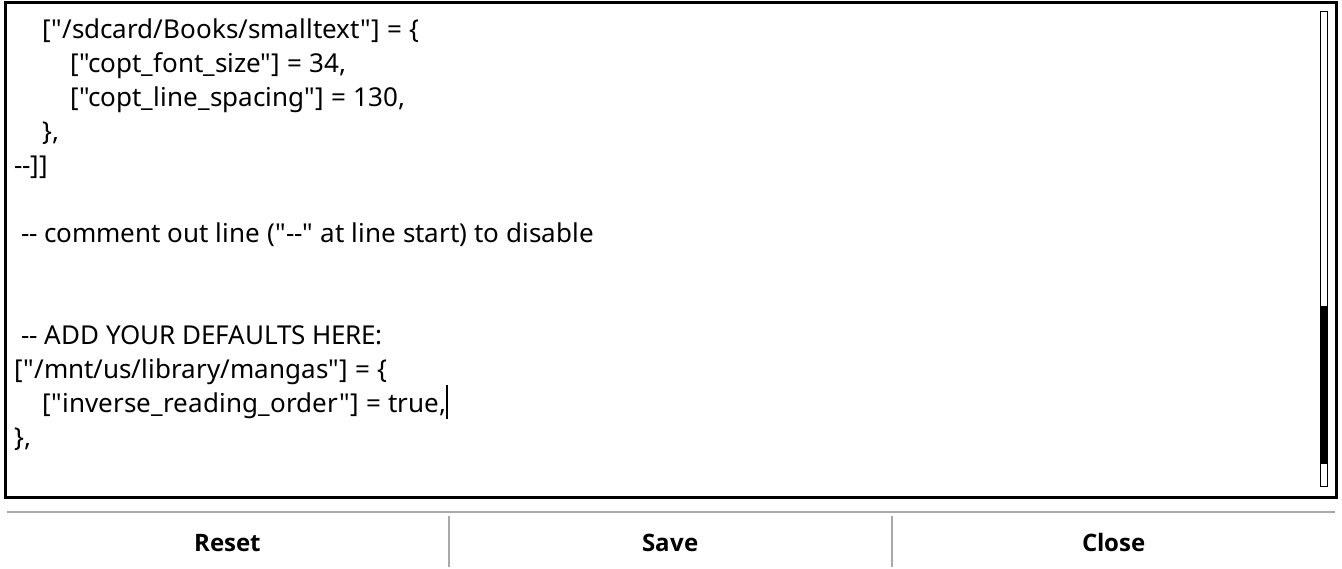
- Inside the existing table, add an entry like this. Replace the path with the manga folder on your reader; preserve the other entries and the file structure.
["/mnt/us/library/mangas"] = { ["inverse_reading_order"] = true,},This example swaps tap zones and swipe directions for right-to-left reading; it does not configure screen refresh or the status bar. The path is an example Kindle folder, not a folder created by Manga2Ink.
- Use Save to save. The defaults apply to books in that folder that have not been opened before; previously opened books may keep their settings.
Saving a default
Section titled “Saving a default”In the bottom menu, long-press a value you chose. KOReader asks “Set default … to …?” and offers Set as default, so books you open later start with it.
To save all the settings of the open book at once, open the top menu, the tab with the document icon, and choose Document settings → Save document settings as default.
Books you have already opened may keep their own settings.
If a book still displays incorrectly, include the KOReader version, the device, the file format and your settings when you ask for help.