
Seu navegador está em português, e este guia está disponível em português.
お使いのブラウザは日本語に設定されています。このガイドは日本語でも読めます。
Volume mapping
Open Edit books and volumes to choose how a series becomes books and, where needed, assign chapters to volumes. If the row says Choose versions, decide which files to keep first. When using volumes, all three Chapters from tabs work on the same mapping, so you can edit a suggestion just as you can build volumes from scratch.
How the books are made
Section titled “How the books are made”At the top of a folder’s editor, choose how to make the series’ books under Books:
- One book per volume is the starting choice for each series. Volumes can be recognized from file names, suggested by an online source or assigned manually.
- One book for the whole series needs no volumes. Chapters form the table of contents of an EPUB, the bookmarks of a PDF, or ordered folders in a CBZ. If the series has volumes, those are the first level of that structure. The editor describes the book in the format you chose. With no volumes, press Done.
- Convert the folder as it is sends the folder to mangaprep as one book without grouping chapters. The choice applies only to that folder.
The last is not offered for a folder whose chapters are CBZ files (Ch.0001.cbz, Ch.0002.cbz, …): the converter cannot read pages from inside the files of a folder, so the chapters have to be joined first, and the choice says so. A comic file has no choice of books, since it is one book already. For a library, Books is on the screen that lists its titles: One book per volume, or One book for each title (a title still needs its volumes).
The choice is kept with the row of the queue and not between sessions. The steps beside the queue are not locked by it: they are the queue’s, and what you chose for one series is above them. If you turned a step off and a series ignores it, its row says so: The steps of the queue do not apply here.
File names
Section titled “File names”If the names contain volume numbers, File names shows a summary of the volumes it recognized. It does not guess where a volume ends from the usual number of chapters.
If the summary needs correcting, use Edit chapter mapping to open the manual controls. Start over from the names goes back to the volumes found in the names and discards your edits.
Manual: no online lookup needed
Section titled “Manual: no online lookup needed”- Select Manual. If no volumes were found in names, this tab opens automatically.
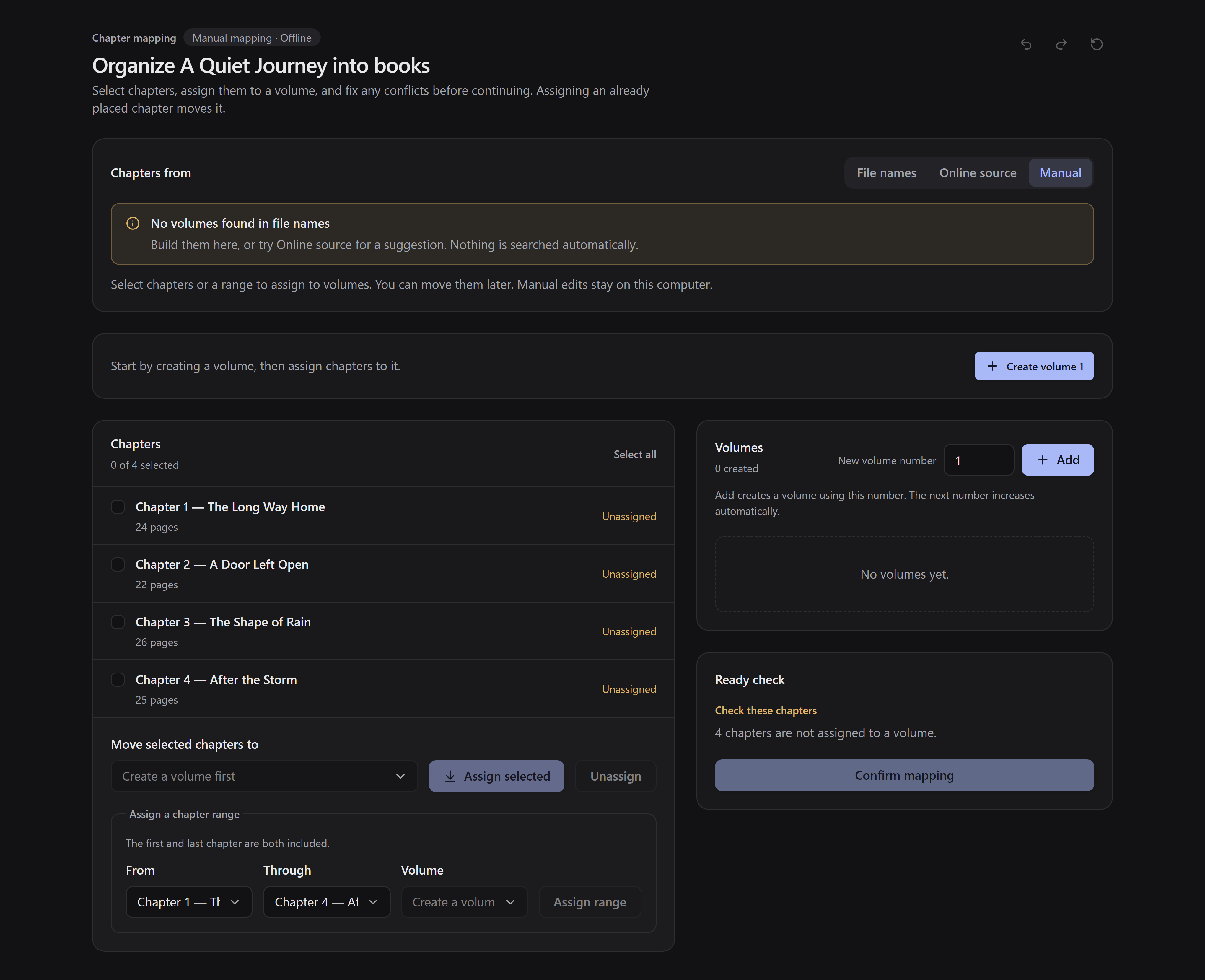
- Use Create volume 1 to add the first volume.
- Select chapters in the chapter list, choose the destination volume, and use Assign selected. For consecutive numbered chapters, use Assign range.
- Repeat for the other volumes. Assigning an already placed chapter moves it rather than duplicating it, unless its name gives its volume, as explained below.
- Resolve the listed issues, then use Confirm mapping.
Use the editor’s controls to change volume numbers or merge volumes. The undo and redo buttons reverse your changes.
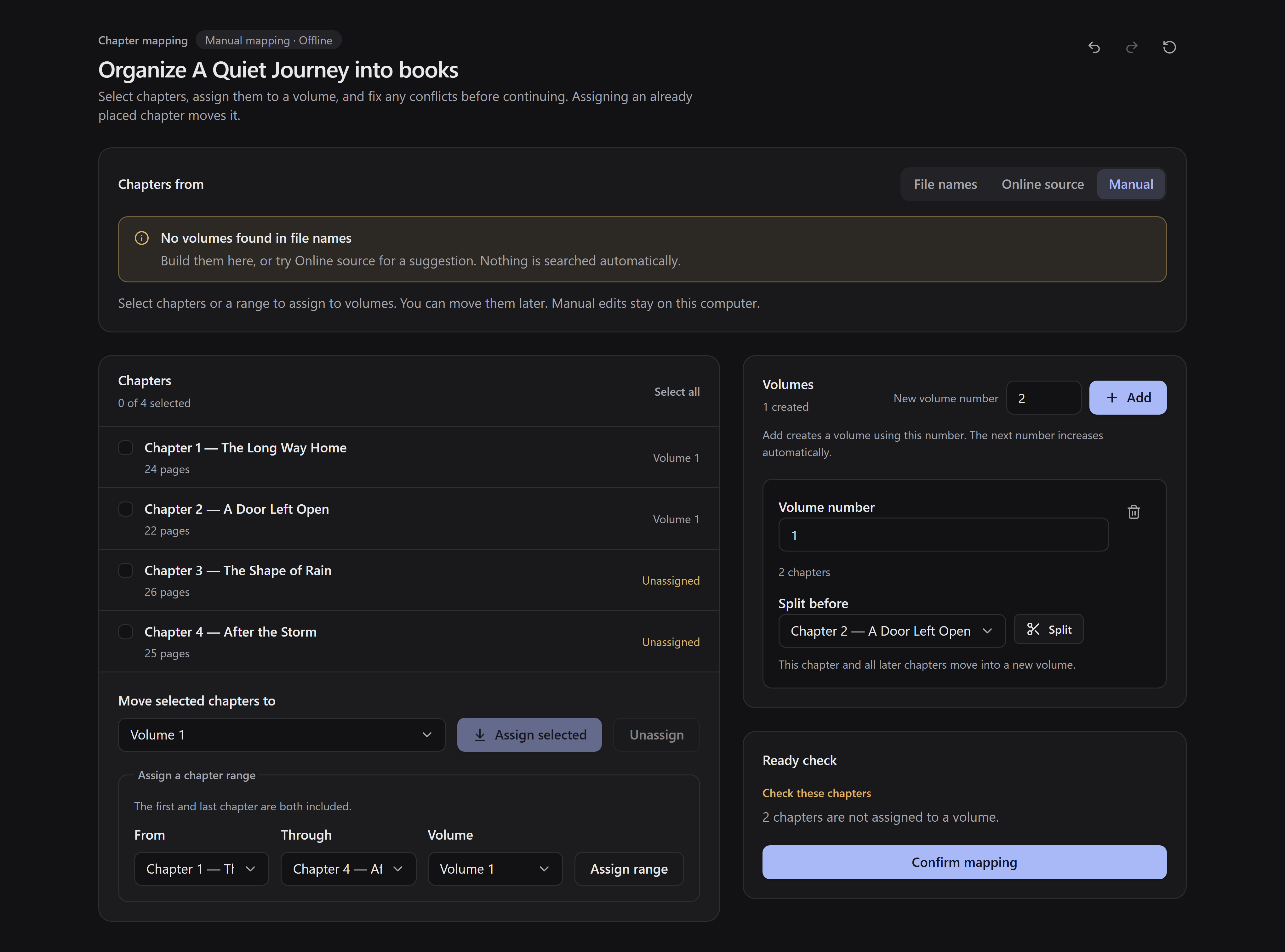
Show the steps
Start in Manual and use Create volume 1.
Select chapters, choose the volume, then use Assign selected.
A chapter whose name gives its volume
Section titled “A chapter whose name gives its volume”A chapter whose folder name gives a volume, such as Vol.02 Ch.010, stays in that volume: mangabind always keeps the volume a chapter’s name gives, whatever the mapping says. The editor lets you move such a chapter, but then lists an error, for example Vol.02 Ch.010 names volume 2, which mangabind will keep instead of volume 3., and Confirm mapping stays unavailable. Put the chapter back in its volume. If the volume in the name is wrong, rename the chapter’s folder and add the manga folder again.
The same chapter twice
Section titled “The same chapter twice”A folder sometimes holds the same chapter more than once, for example Ch.0006 [GroupA].cbz and Ch.0006 [GroupB].cbz: two scan groups, two languages, or a re-release. Manga2Ink does not choose between them for you, and it never asks you to move, rename or delete anything.
The row says Choose versions and waits, and the folder cannot be grouped until you have chosen. Press Edit books and volumes on the row: it opens with every file of each such chapter, and goes on to the grouping when every chapter is decided. For each file it shows its full name, its first page, whether it is a folder or a CBZ file, and how many pages it has. For each chapter you can:
- Use one version. Only that file is in the book. The others stay where they are.
- Keep all versions. They are in the book one after the other, each named with
(version 1 of 2),(version 2 of 2), and the chapter keeps its own number in the table of contents. - Leave the chapter out.
Manga2Ink never picks a version for you by size or by number of pages, and nothing runs until every chapter is decided. In the volume editor, a chapter with more than one version is one chapter.
Your choice is kept with the folder, in its mangabind.json, and used when you add the folder again. If a file came after your choice, or changed since, the chapter is asked again, with your earlier choice offered.
If a book is made anyway and something was left out of it, the results say so under the book. For example, they can say that chapters with more than one copy, chapters missing inside a volume, chapters with no pages, or links that lead outside the folder were left out. These notices are listed in Saving and ready books.
A link in a manga folder is followed only when it leads to a file inside that folder. This keeps a folder from someone else from putting a file of yours into a book. To keep such a page, put a copy of the file in the folder.
Folders whose names are not chapter names
Section titled “Folders whose names are not chapter names”Numbered names such as Ch.004 [GroupA] and Ch.0001 (en) are recognized. A folder that mangabind cannot identify, such as Omake with no chapter or volume number, ends up in no volume and in no book; the editor cannot place it because it does not know which chapter it is. The queue row and the editor list these folders by name under Folders left out.
Rename the folders so that they include a chapter number, for example Ch.005, and add the folder again. For a library, the queue row shows each title with the folders left out of it, and the editor of that title lists them. After renaming, add the library again.
A series kept in a library as a link to a folder is not read either, because links to a series are not followed. The screen with the library’s titles lists the folders that were left out, by name, above the list. If every folder of the library is a link, its queue row says so, rather than asking you to turn grouping off. Put the real folders in the library and add it again.
Online source: optional suggestions
Section titled “Online source: optional suggestions”Choose Online source, select MangaDex, enter the title, and press Search.
Choose the matching work with Use these volumes. If the suggestion has volumes for this folder’s chapters, review the summary, then confirm it or use Edit chapter mapping. An online suggestion may be incomplete or differ from your edition, so check special and decimal chapters. If the work is not listed, use Manual.
The search can find the series without providing volumes for the chapters in your folder:
- No volumes there means the series is listed, but its chapters are not grouped into volumes there. No mapping is applied. For a chapter folder, choose One book for the whole series under Books if you want one book without volumes, or group the chapters manually. For a library title, keep its recognized volumes or assign them manually.
- Nothing to group means the source has volumes, but none matches the chapters in this folder. No mapping is applied. Check the chapter numbers and the selected work, or group the chapters manually.
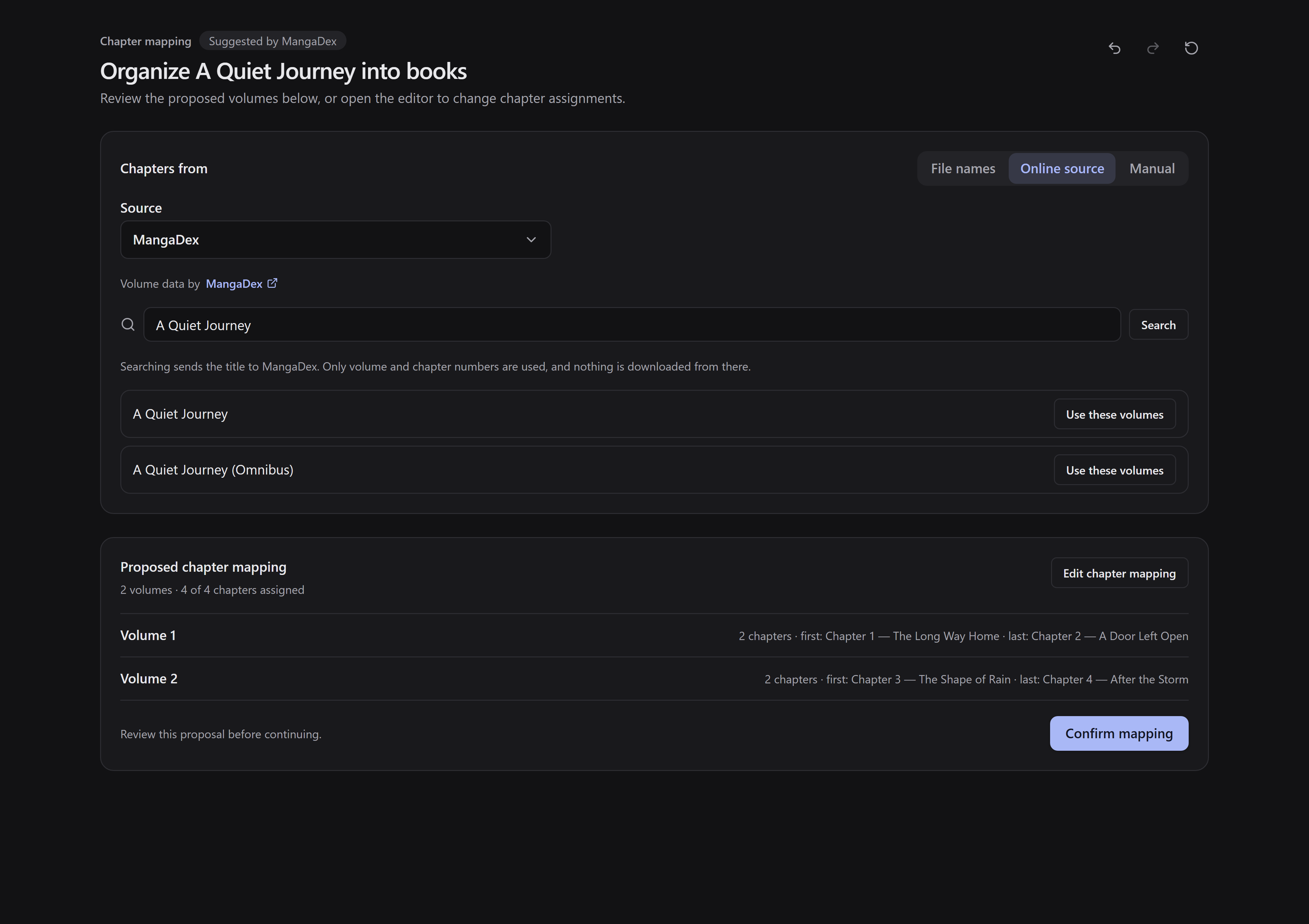
Show the steps
Search for the title and select the matching result with Use these volumes.
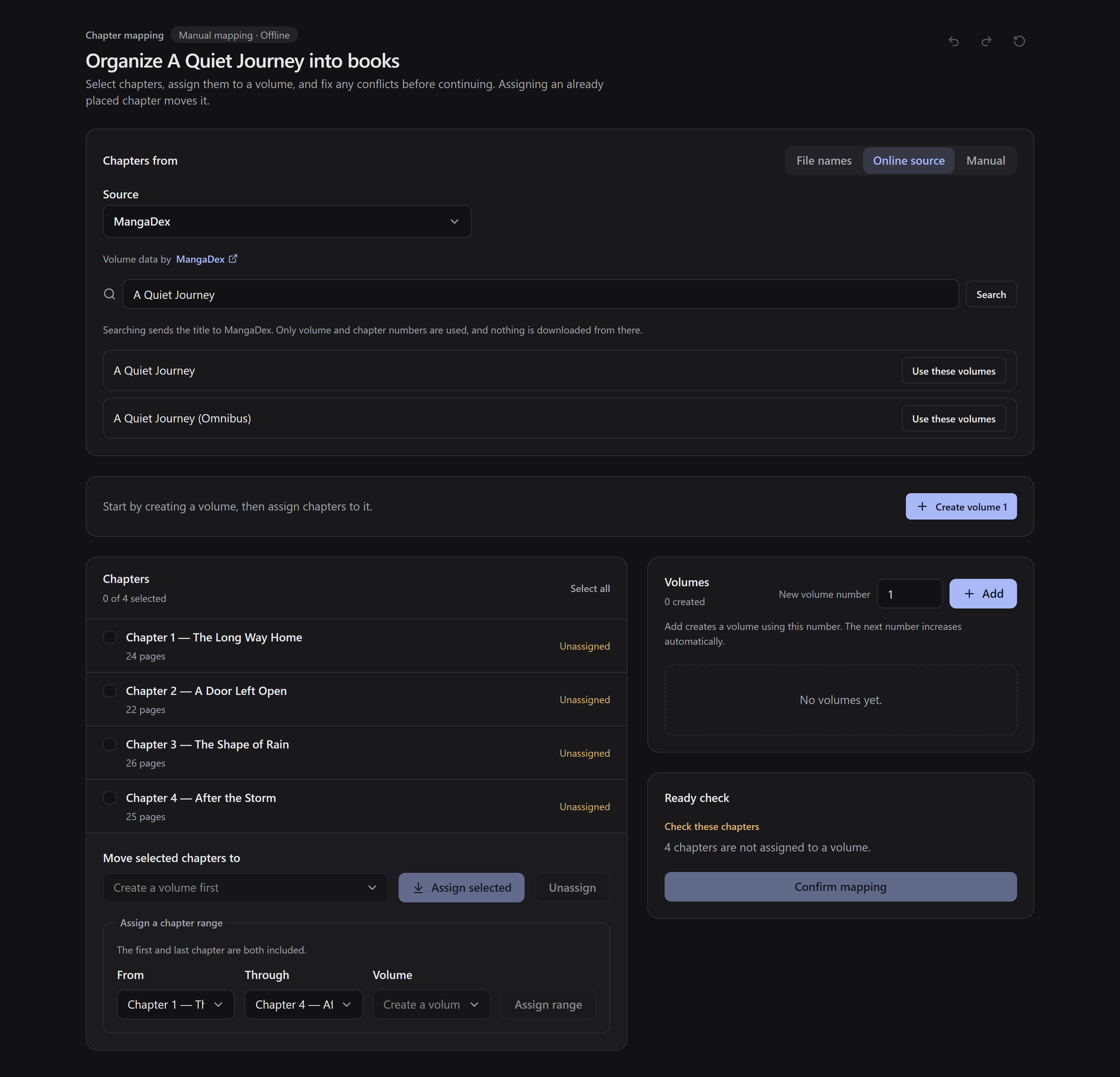
Review the proposed volumes before confirming or editing the mapping.
Where your volumes are kept
Section titled “Where your volumes are kept”The editor passes your volumes to mangabind in a documented metadata format. You never need to edit that file yourself.
When you change the volumes mangabind proposed, Manga2Ink also saves them in the manga folder, in its mangabind.json, so they are there the next time you add the folder. If the folder cannot be written, or its mangabind.json is not valid JSON, the books are still made with your volumes, and a warning under them, The volumes you edited were not kept with the folder, says that you will have to edit them again next time. A mangabind.json that is not valid JSON is left as it was.
A title of a library is different: that file is how mangabind gets its volumes. If it cannot be saved, Confirm mapping says so, and the title still needs volumes until the folder can be written.