
Seu navegador está em português, e este guia está disponível em português.
お使いのブラウザは日本語に設定されています。このガイドは日本語でも読めます。
Color and tone
The Color and tone section of Advanced conversion options decides whether a page keeps its color and how its tones are corrected. The examples are pages of Pepper&Carrot, which is drawn in color. Where a caption gives numbers, they are measured on the page mangaprep wrote: the darkest pixel (0 is black) and the average brightness of the whole page (255 is white).
Color pages
Section titled “Color pages”Convert to grayscale turns every page gray. Keep in color keeps the color of the pages that have real color; a page without any is still turned gray. Which one starts selected depends on the device: it is Keep in color for Kindle Colorsoft, Kindle Scribe Colorsoft, Kobo Clara Colour, Kobo Libra Colour, reMarkable Paper Pro and Paper Pro Move, and Convert to grayscale for every other device. Choosing another device puts it back to what that device starts with.
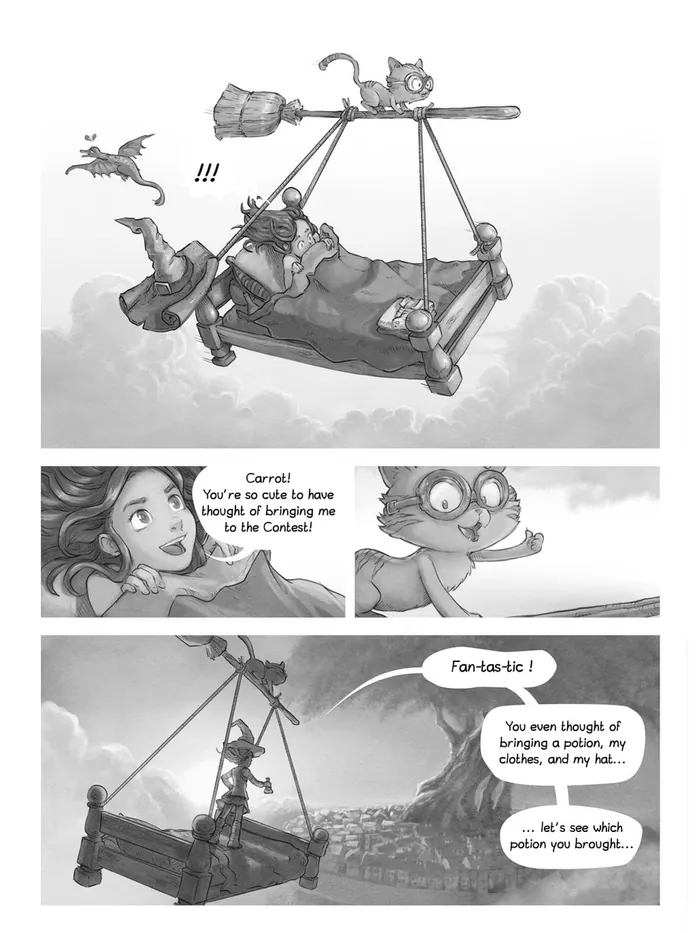
no flag1272 × 1696 px, 255 KB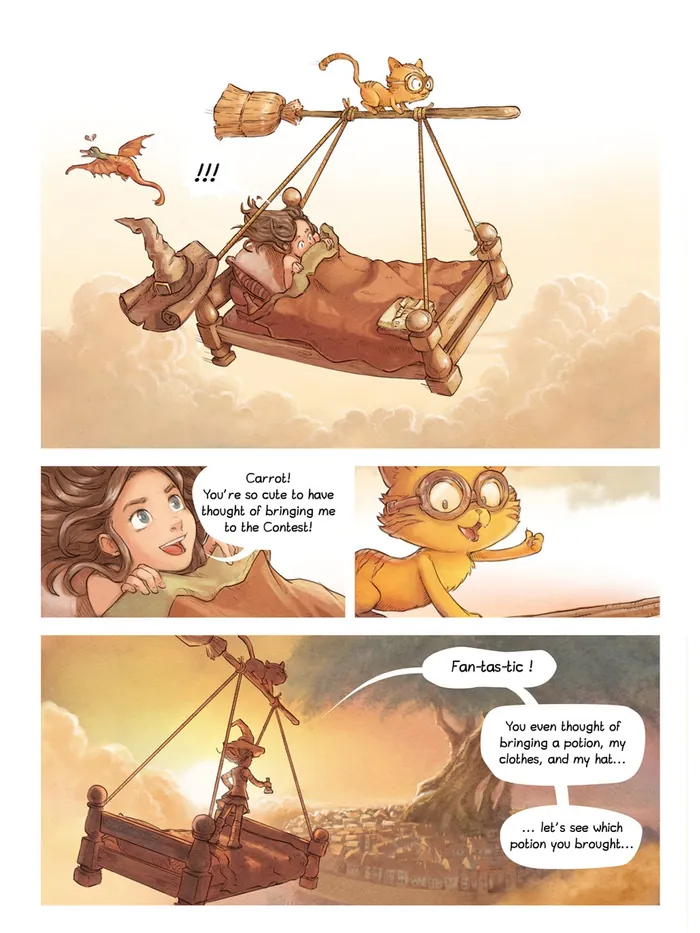
--forcecolor1272 × 1696 px, 293 KBArt:Pepper&Carrot, episode 6 by David Revoy (CC BY 4.0). Converted with mangaprep 0.9.0.
A color page is a bigger file than a gray one: compare the sizes under the pictures. A black-and-white screen cannot show the color, so keep it for a color screen. --forcecolor is the flag; without it, every page is gray.
With Use the images as they are on, this setting is dimmed for CBZ and PDF; Page images says what else it dims.
Autocontrast
Section titled “Autocontrast”Autocontrast stretches the tones of a page toward black and white. It has three values:
- Black-and-white pages only, the default: pages with no real color are stretched, pages with color are not.
- Color pages too: every page is stretched.
--colorautocontrast. - Off: no page is stretched.
--noautocontrast, which wins if--colorautocontrastis given too.
The example page has color, so the default leaves it alone. The first picture is that, and the second is Color pages too: the darkest pixel goes from 5 to 0 and the page gets darker overall.
Auto-level black point adds one step before the stretch: it takes the most common dark tone of the page as black. It only matters on a page that is being stretched: on this page, under the default, the converted page is byte for byte the same with it on or off. It is dimmed while Autocontrast is Off. The third picture is Color pages too with it on, and the page is darker again. --autolevel.
Next to each page is the count of its tones, a histogram: one bar for each group of tones, from black on the left to white on the right, as tall as the share of the page that has them. A bar too tall for the picture is cut and broken. The dashed line is the same count for the page converted with Off, so what differs from the bars is what the setting moved. The first picture sits on its line, because nothing was done to the page. In the second the shadows move a little toward black, and the white end stays where it was, since the lightest pixel was already white. In the third the shadows are cut at the black point and about a fifth of the page ends up pure black, which is the broken bar on the left.
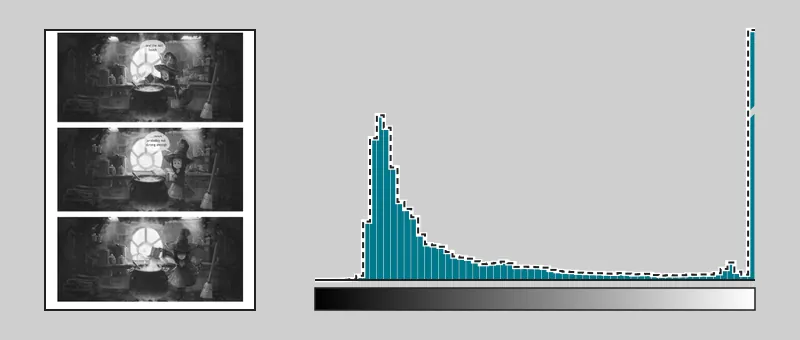
no flag1272 × 1696 px, 210 KBDarkest pixel 5, average brightness 108.6 of 255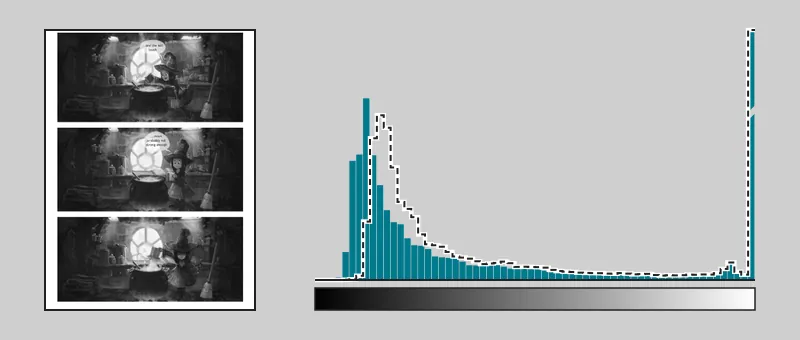
--colorautocontrast1272 × 1696 px, 217 KBDarkest pixel 0, average brightness 101.6 of 255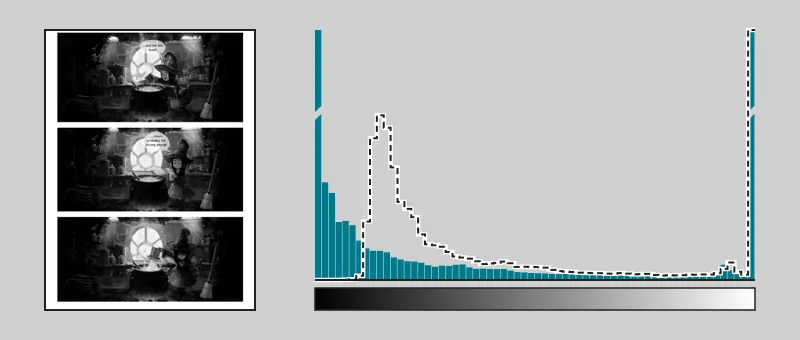
--colorautocontrast --autolevel1272 × 1696 px, 213 KBDarkest pixel 0, average brightness 82.9 of 255Art:Pepper&Carrot, episode 1 by David Revoy (CC BY 4.0). Converted with mangaprep 0.9.0.
Gamma lightens or darkens the page. Left empty, the device profile’s own gamma is used, which is 1.0 for every profile today: no change. Above 1 the page gets darker, below 1 lighter. The app accepts 0.1 to 4: a gamma of 18, typed by mistake for 1.8, turns every page almost black, and the conversion still ends as a success, so the field refuses it. --gamma, or -g.
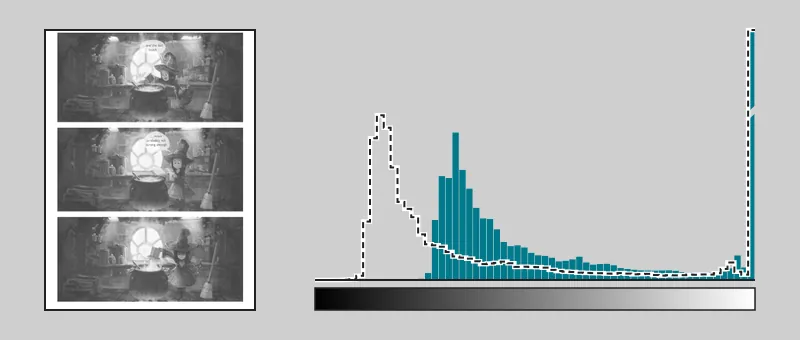
--gamma 0.61272 × 1696 px, 211 KBDarkest pixel 32, average brightness 141.6 of 255--gamma 1.01272 × 1696 px, 210 KBDarkest pixel 5, average brightness 108.6 of 255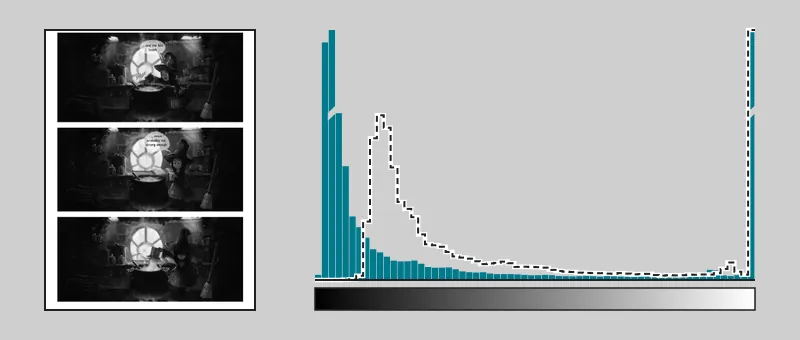
--gamma 1.81272 × 1696 px, 183 KBDarkest pixel 0, average brightness 78.5 of 255Art:Pepper&Carrot, episode 1 by David Revoy (CC BY 4.0). Converted with mangaprep 0.9.0.
Each page has its histogram next to it, read as under Autocontrast, and the dashed line is the page at gamma 1.0. Below 1 the shadows move toward white and above 1 they move toward black; pure black and pure white do not move at any gamma, only the tones between them. The numbers under the pictures show how far each value moves the page. A gamma of 1.0 gives the same bytes as leaving the field empty.
Reduce rainbow effect
Section titled “Reduce rainbow effect”Reduce rainbow effect is mangaprep’s way of erasing the rainbow effect of color e-ink screens, by attenuating the frequencies that interfere. It changes the pixels of every page it is applied to, grayscale pages too: the pages mangaprep writes with and without it are not the same. Leave it off unless your screen is a color e-ink one. --eraserainbow.
A computer screen cannot show this one. The effect it fights belongs to the reader’s screen, not to the file, so nothing in the converted page looks different on a monitor. A photograph of the screen does show it, and KCC’s README has one, taken on a Kobo Clara Colour: its picture of the rainbow eraser. The same panel is shown three times: with rainbow fringes of color on the screen, after a plain blur like the one Kobo’s own option applies, which smooths the fringes away along with the detail, and after KCC’s eraser, which leaves a fine diagonal texture and no colored fringe. KCC says its eraser works without blur, and mangaprep follows it: its checks against KCC 12.0.0 include this option.

What the option changes in the file is very little: on a page of 1272 × 1696 pixels, converted for the Kindle Paperwhite 6 and saved without loss, about 60% of the pixel values differ with the option on, by about one level of 255 on average and by 33 to 52 at most, on a color page and on a black-and-white one alike. To judge it on your own reader, convert a page both ways and compare them there.