
Seu navegador está em português, e este guia está disponível em português.
お使いのブラウザは日本語に設定されています。このガイドは日本語でも読めます。
Saving and ready books
Save a copy
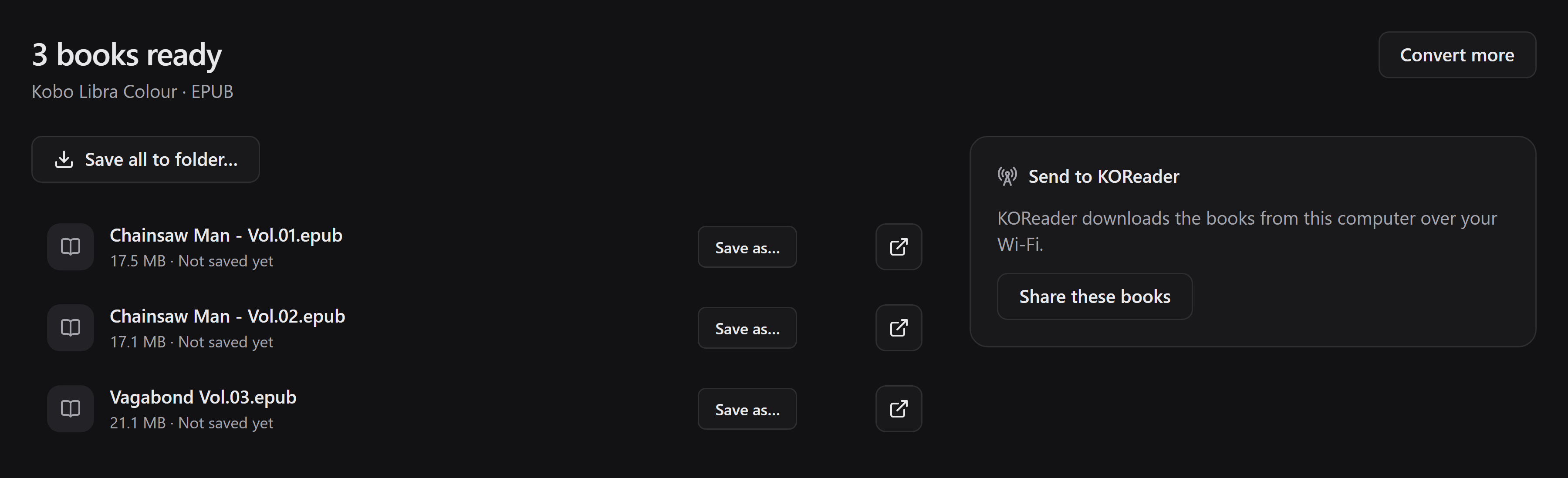
Section titled “Save a copy”Use Save as… beside a book to choose its name and destination. For multiple books, Save all to folder… copies them into the selected folder.
You can save again as long as the pending books are still there. Save all to folder… never replaces existing files. It picks a free numbered name instead, so saving repeatedly can leave extra copies. Save as… uses your system’s save dialog, which asks before it overwrites a file.
If saving fails or shows a warning, read the message and try again. Manga2Ink also records each saved book in a list inside the destination folder, which is what sharing uses. A book may have been copied even though that record failed, so check the folder before you copy it again. The pending copy stays available.
Warnings about the books
Section titled “Warnings about the books”Sometimes there is something worth knowing about a book that was still made. The results then say so below the books: once for each kind of warning, naming the books it applies to. The books are ready all the same. A warning is advice, not a failure.
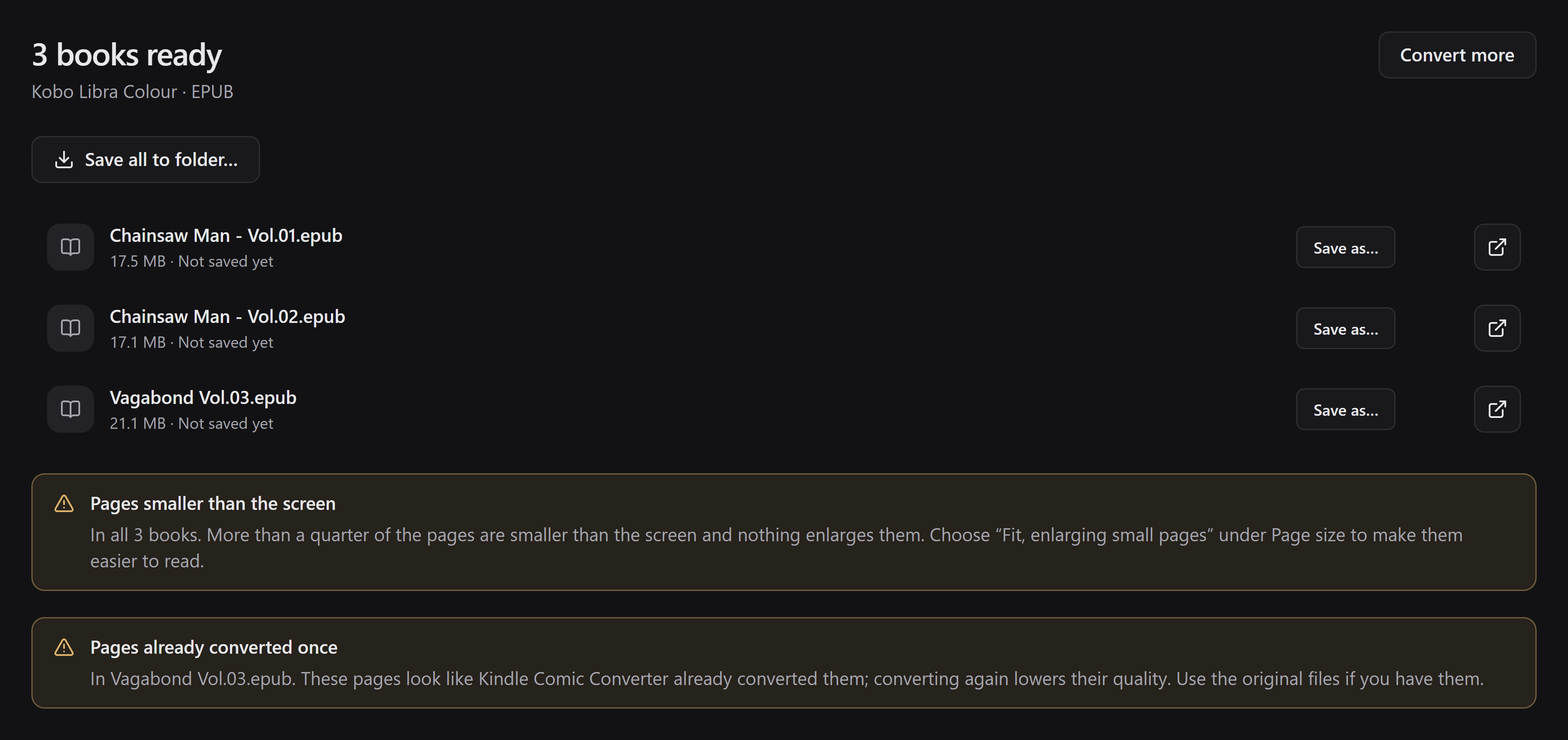
- Pages smaller than the screen: more than a quarter of the pages are smaller than the screen and nothing enlarges them. Choose Fit, enlarging small pages under Page size in the conversion options and convert again.
- Pages already converted once: the pages look like Kindle Comic Converter already converted them. Converting again lowers their quality; use the original files if you have them.
- Files that are not images were left out: what you added holds files that are not page images, so they are not in the book.
- A .json file beside the book was not used and Some labelled spreads were not joined: mangaprep looks for a
.jsonfile of spread labels next to a CBZ that you add. The first notice says that the file was not a list of spread labels, so the book was made without it. The second says that a labelled position had no page to be joined with. - Saved under another name: the book would have replaced the file it was made from, so it got another name.
- Pages that end early have a blank part: a page’s file ends before the whole image is there, usually because a download stopped. The book keeps what could be read, and the rest of that page is blank. Download the chapter again to get the whole page.
The step that joins the chapters into volumes, done by mangabind, adds notices of its own when it leaves something out of a book:
- Chapters with more than one copy were left out: a chapter is in the folder more than once, so none of its copies is in the book. Add the folder on its own and open Edit books and volumes to say which copy to use, or remove all but one, and convert again.
- Chapters are missing inside a volume and Chapters with no pages were left out: a chapter number is missing between the first and the last of a volume, or a chapter holds no pages.
- Links that lead outside the folder were left out: a file in the folder is a link that does not lead to a file inside it, so it was not copied. Put a copy of the file in the folder if it is meant to be there.
- Files in a chapter that are not page images were left out: the names of these files do not say they are images (JPEG, PNG, WebP, GIF, BMP, AVIF, JPEG XL or TIFF). If one is a page, give it the extension of its format and convert again. Hidden system files such as
.DS_Storeare left out without a warning. - Pages that expand to too much were left out: a page inside a CBZ claims to unpack to far more than any page could be (over 256 MiB, or over a thousand times its size in the archive). That is what a file built to fill a computer’s memory looks like, so it was left out.
Manga2Ink adds one of its own:
- The volumes you edited were not kept with the folder: the books follow the volumes you edited, but they could not be saved in the manga folder’s
mangabind.json, because the folder cannot be written or that file is not valid JSON. The next time you add the folder, edit its volumes again. See Volume mapping.
If a newer mangaprep sends a kind of warning that this version does not know, it is shown in mangaprep’s own words, under A note from mangaprep. Warnings appear with the results of the conversion that produced them. Books you reopen later from Ready books are listed without them.
Open or share
Section titled “Open or share”- The open action beside a book opens it in your system’s default application. If none is set for EPUB, CBZ or PDF, install a compatible reader or choose one in your system settings.
- The folder action appears for a saved book and shows where it was saved.
- Share these books shares all the ready books, from every pending conversion, with KOReader over your local network. You do not have to save them first. See local sharing.
What survives a restart?
Section titled “What survives a restart?”Pending books are kept in Manga2Ink’s own app data on your computer, or in the working folder you chose (see Where does Manga2Ink work?), not in a temporary folder. A conversion that is unsaved, partly saved or has warnings stays under Ready books in the queue. View books opens its results.
If you close Manga2Ink while a conversion is running, it asks first, because the conversion stops and the books it had not finished are lost. Choose Keep converting to stay. On macOS closing the window alone does not stop it.
When every book of a finished conversion has been saved and recorded, Manga2Ink can clean up its pending copies when you close the app. The copies you saved stay where you saved them. Keep your own backups: the pending books are not a permanent library.

Where does Manga2Ink work?
Section titled “Where does Manga2Ink work?”By default, Manga2Ink builds volumes in your system’s temporary folder while it converts, and keeps finished books in its own app data folder until you save them. On a computer whose temporary folder is small, or whose disk is nearly full, a long series can run out of room.
Until version 0.1.0-alpha.17 the app was called Mangabound. The first time Manga2Ink starts, it moves Mangabound’s settings and the books it had not saved into its own folders, so nothing is lost.
To use a drive with more space, open App settings (the gear in the title bar, or Ctrl+, on Windows and Linux and Cmd+, on a Mac), choose Processing and select Choose a folder…. Manga2Ink makes two folders inside the one you choose: Pending for the finished books and Scratch for the volumes it builds while converting. The tab shows both paths and how much space is free.
- The change applies to the next conversion. Books that were already waiting stay where they are and stay under Ready books: you can still save or delete them, and share them from their results. The tab lists the folders that still hold books, and Manga2Ink stops looking in one once it is empty.
- You cannot change the folder while a conversion or a share is running.
- If the folder’s drive is not connected, Manga2Ink says so and does not convert until it is, rather than quietly working somewhere else. Use the default folder puts everything back the way it was.
- Books you saved to another folder are not affected.
Before you press Process, Manga2Ink estimates how much room the queue may take (about a megabyte a page, in each place it uses) and compares it with what is free. If a drive has less than that, or under 1 GB, a warning under the button says how much is free and how much the queue may take. It is only a warning: the estimate is a guess, and Process still works. Comic files (.cbz) are not counted, because their pages are not known until they are opened.
Delete pending books
Section titled “Delete pending books”In the queue’s Ready books section, each group of conversions has a Delete action. After you confirm, it permanently removes all the pending books of that group. It is not just a list entry, and it is not limited to one volume.
It does not remove your original files or the copies you saved to another folder. You cannot delete while a conversion is running, or while that group’s books are being saved or shared. Stop sharing, or wait for the operation to finish, and try again.
To clear many at once, open App settings, choose Processing and look at Books waiting to be saved: it says how many books are waiting, in how many conversions, and how much space they take. Choose 7, 30 or 90 days and select Delete…. Manga2Ink says how many conversions, books and how much space that would remove, and deletes them only after you confirm. It takes the conversions that nothing has changed in for that long, whole: the books in them that you did not save are lost too. A conversion whose books are all saved is removed when Manga2Ink closes, so there is no need to do it by hand.
While Manga2Ink converts
Section titled “While Manga2Ink converts”Three choices in App settings, under Processing, say what Manga2Ink does while a conversion runs. A change applies to the next time you press Process: it does not touch a conversion that is already running. The two below are on by default.
- Keep the computer awake while converting stops the computer from going to sleep until the conversion ends. The screen can still turn off. It is about the computer sitting idle: closing a laptop’s lid may still put it to sleep.
- Tell me when a long conversion ends shows a notification from your system when a conversion that took more than 30 seconds has ended and no Manga2Ink window is in front. It says how many books are ready, or that some failed. Selecting the notification brings Manga2Ink back. Nothing is shown if you stopped the conversion yourself, or if you were looking at the window.
The notification is your system’s, so it is shown only if notifications are allowed for Manga2Ink.
Parallel conversions says how many books of one title are converted at the same time: the volumes of a folder, or of one title in a library. The items of the queue still go one after the other. Automatic works the number out from the computer, at most 3: one for every 4 processors and one for every 4 GiB of memory, whichever is fewer, and never less than 1. A computer with 8 processors and 8 GiB gets 2. The list shows what Automatic comes to on your computer (as “Automatic (3 on this computer)”), and then the numbers from 1 up to the most your computer can be asked for: one for every 2 processor threads and one for every 2 GiB of memory, whichever is fewer, and never more than 12 (6 on a computer of 12 threads and 32 GiB). Automatic never goes past 3, but a number you choose can. A number kept on a bigger computer is lowered to what this one can be asked for. More at once helps only while the processors have work left: on a computer with 12 processor threads, 3 at once finished a series about 15% to 20% sooner than 1, and more than 3 gained nothing. A computer with many more threads may gain from 4, 6 or 8, but that was not measured on one. More at once also uses more memory, about half a gigabyte for each in that test. If the computer becomes slow while converting, choose Automatic or 1. A book that is converted on its own is not affected.
On Windows and Linux, closing the window as soon as you press Process, or between two items of the queue, asks first, as it already does while a book is being made. On a Mac, closing the window leaves Manga2Ink open and the conversion running (it asks only when you quit), but the computer is no longer kept awake once the window is gone.