
Seu navegador está em português, e este guia está disponível em português.
お使いのブラウザは日本語に設定されています。このガイドは日本語でも読めます。
Local sharing
Share books with KOReader over your local network. Open Manga2Ink’s OPDS catalog on the reader and choose which books to download.
Start sharing
Section titled “Start sharing”-
Use Share these books in the results to share the books that are ready to save. Or use Share in the title bar to choose an existing library folder.
Share these books shares every ready book: those of this conversion and those of any earlier conversion still under Ready books. A book you convert while sharing is running also shows up on the reader. While books are shared, you cannot delete a pending conversion. Stop sharing first.
-
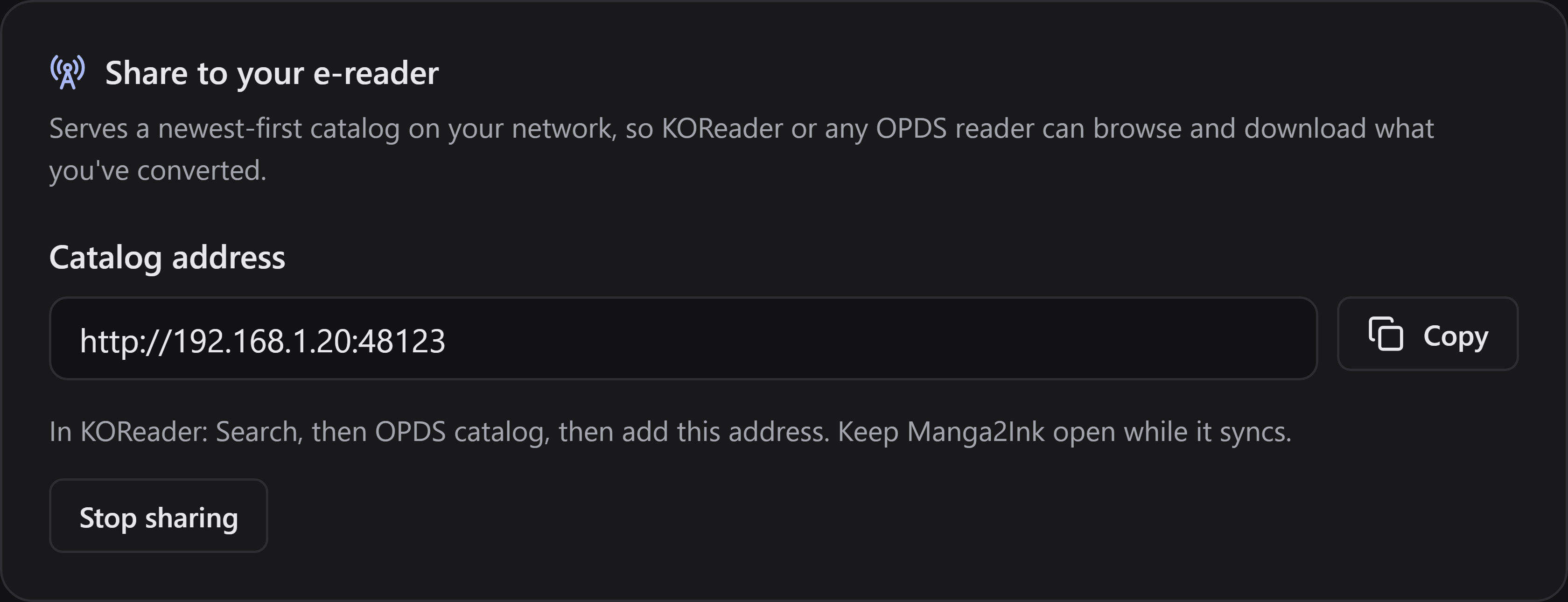
Select the Network interface for the network your reader can reach. Ethernet is fine even if the reader uses Wi-Fi. Avoid a VPN adapter unless both devices can reach that network. Manga2Ink remembers your choice.
-
Optionally fill in both Username and Password, or leave both empty.
-
Select Start sharing, then Copy the address the app displays. Keep Manga2Ink open until downloads finish.
The address looks like http://192.168.1.150:48123/. Use the one shown in your app.
Open Recently converted to find your latest books first. Other files lists additional books from the shared library.
Show the steps
Choose the network interface your reader can reach and use Start sharing.
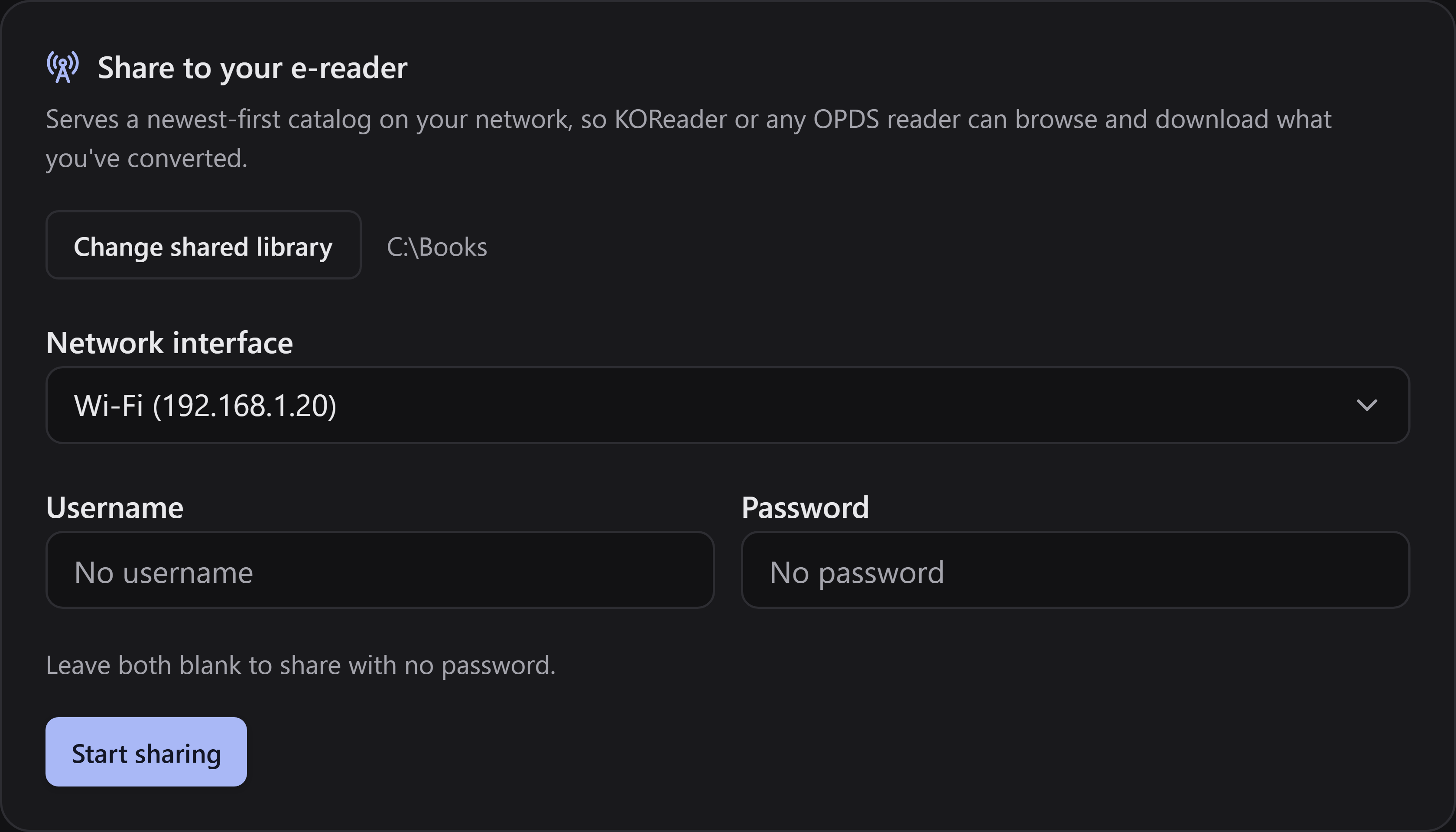
Use the catalog address shown after sharing starts. Keep Manga2Ink open during downloads.
Continue with connecting KOReader.
Use Stop sharing when you are finished. It ends right away, and a book that is still downloading at that moment is cut off. Manga2Ink also drops a connection that has been silent for a minute, for example an e-reader that went to sleep in the middle of a download.
If a book does not show up
Section titled “If a book does not show up”Manga2Ink shares only files that are inside the shared folder. A subfolder that is a link (a symlink or a junction) to a place outside it is not followed, so its books are not shared, and the app’s log says which book was left out. Share the folder where the books really are instead.
If your reader cannot connect
Section titled “If your reader cannot connect”Check that:
- both devices are on the same local network;
- the network interface you chose is the right one;
- sharing is still on;
- your firewall allows the app on that trusted network.
Guest Wi-Fi with client isolation, and VPNs, can block access even when both devices have internet. If your computer’s IP address changes, update the catalog address in KOReader.
Manga2Ink answers only to an address of the computer it runs on: the numbers it shows (such as 192.168.1.150), localhost or the computer’s own name. A request that arrives under any other name is refused. This keeps a web page you happen to visit from reaching your catalog through your browser. If your router gives the computer a name of its own and your reader uses it, use the address shown in the app instead. The app’s log says which name was refused.