
Seu navegador está em português, e este guia está disponível em português.
お使いのブラウザは日本語に設定されています。このガイドは日本語でも読めます。
Cover
The Cover section of Advanced conversion options is about the cover a reader shows in its library. By default it is made from the first image of each book. It has two controls: Cut the front cover from a wide image and Crop the cover to fill the screen. You can also give a book a cover of your own, as described in Adding manga.
How the cover is made
Section titled “How the cover is made”The cover is not a page. mangaprep makes it from the first image of the book as it came, apart from the pages: whatever happens to the first page, such as its margins cropped, a wide one split in two or a page turned, the cover is the whole image, upright. The cover is gray unless Color pages keeps color, it is never enlarged, only shrunk to fit inside the screen, and it is saved as a JPEG at the pages’ quality.
The pictures show the cover of an EPUB made from the first page of Pepper&Carrot, episode 6, which is 992 × 1373 pixels, on the Kindle Paperwhite 6 screen of 1272 × 1696. The gray is the screen around the cover.
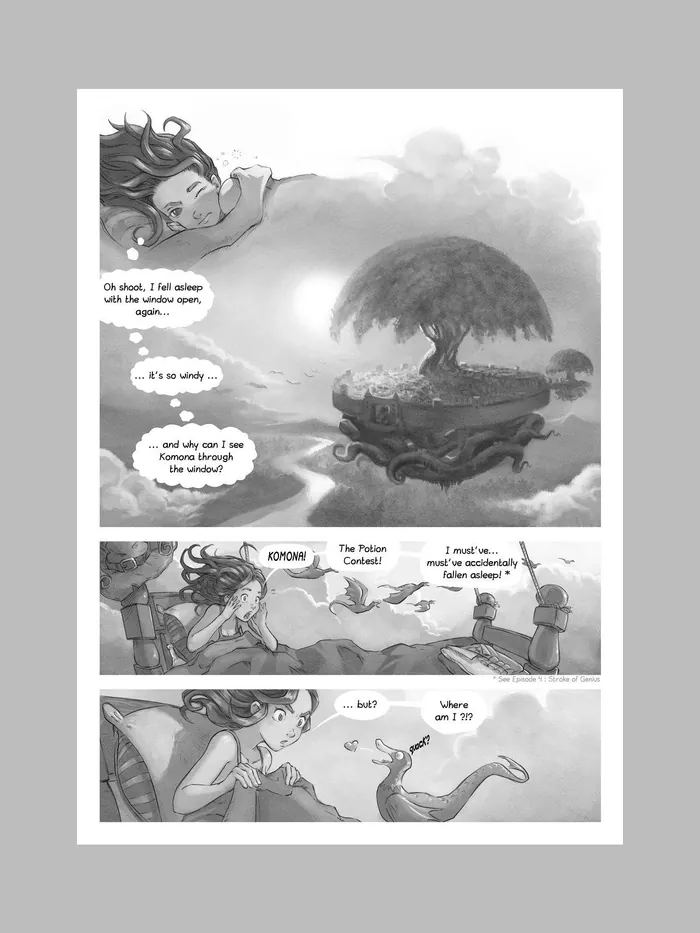
no flag992 × 1373 px, 246 KB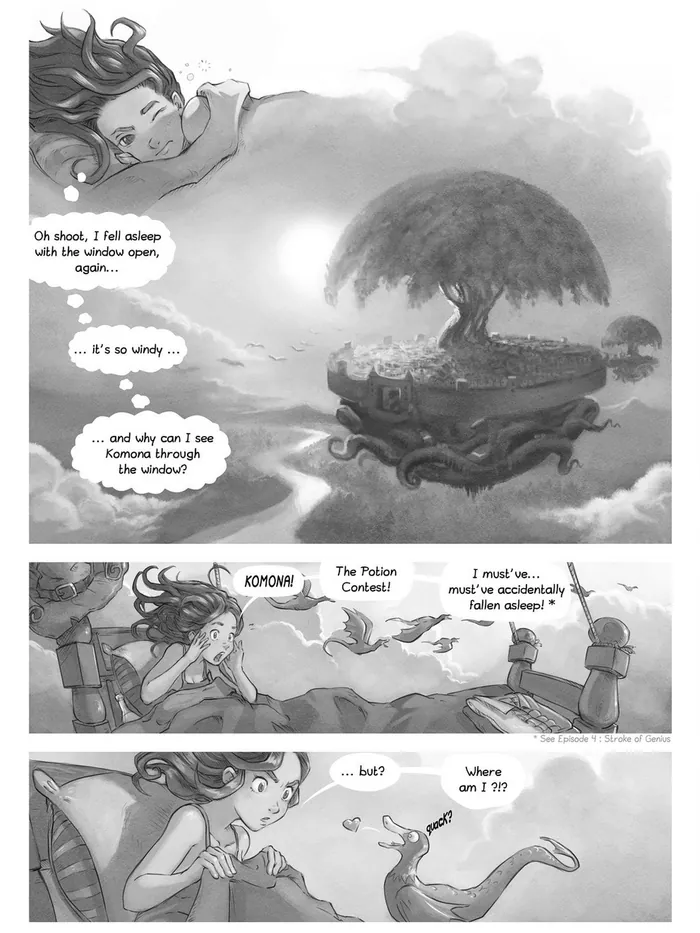
--coverfill1272 × 1696 px, 307 KB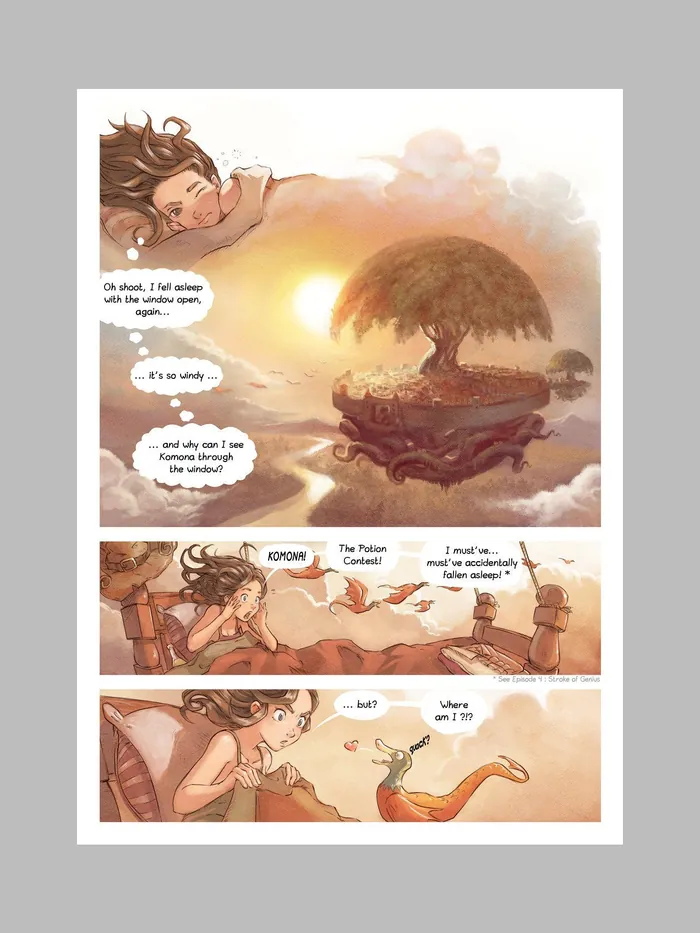
--forcecolor992 × 1373 px, 272 KBThe gray is the screen around the page: Kindle Paperwhite 6, 1272 × 1696 pixels.
Art:Pepper&Carrot, episode 6 by David Revoy (CC BY 4.0). Converted with mangaprep 0.9.0.
The first picture is the cover as it is made: the size of the image, since it already fits, with the screen around it. The first page of the same book is 1225 × 1696, enlarged to fit the screen: the cover is not that page.
Which formats have a cover
Section titled “Which formats have a cover”An EPUB always has one. A CBZ has one only when the front cover was cut from a wide image or you chose a cover yourself, and then it is stored as a file named ##cover.jpg ahead of the pages. A PDF has none. The table was read back from the books, converted for the Kindle Paperwhite 6; the rows with a wide image use two pages of Go Go! Encyclopedia Girls side by side, 2160 × 1440 pixels, and the rows with a cover of your own use the first page of Pepper&Carrot, episode 1.
| Setting | On the command line | First image | First page of the book | Cover |
|---|---|---|---|---|
| EPUB | no flag | 992 × 1373 | 1225 × 1696 | 992 × 1373, gray |
| EPUB, with Crop the cover to fill the screen | --coverfill | 992 × 1373 | 1225 × 1696 | 1272 × 1696, gray |
| EPUB, with Color pages: Keep in color | --forcecolor | 992 × 1373 | 1225 × 1696 | 992 × 1373, color |
| CBZ | no flag | 992 × 1373 | 1272 × 1696 | not in the book |
| CBZ, with Crop the cover to fill the screen | --coverfill | 992 × 1373 | 1272 × 1696 | not in the book |
| CBZ, with Cut the front cover from a wide image, on a page | --smartcovercrop | 992 × 1373 | 1272 × 1696 | not in the book |
| CBZ, with Cut the front cover from a wide image, on a wide image | --smartcovercrop | 2160 × 1440 | 1272 × 1696 | 1015 × 1440, gray |
| CBZ, with that and Crop the cover to fill the screen | --smartcovercrop --coverfill | 2160 × 1440 | 1272 × 1696 | 1272 × 1696, gray |
| CBZ, with a cover of your own | --cover cover.jpg | 992 × 1373 | 1272 × 1696 | 992 × 1373, gray |
| CBZ, with a cover of your own and Crop the cover to fill the screen | --coverfill --cover cover.jpg | 992 × 1373 | 1272 × 1696 | 1272 × 1696, gray |
| PDF, with a cover of your own | --cover cover.jpg | 992 × 1373 | not read | not in the book |
| PDF, with Cut the front cover from a wide image, on a wide image | --smartcovercrop | 2160 × 1440 | not read | not in the book |
- A CBZ has no cover of its own making. With nothing set, with Crop the cover to fill the screen, and with Cut the front cover from a wide image on an image that is not wide, the CBZ has none, and its first page is all there is to show.
- A cover of your own is stored in a CBZ whatever the options are, and both options apply to it: the rows with
--coverare the same sizes as the others. The app passes--coverwhen you choose a cover for a book. - A PDF is never given a cover, by any option or by a cover of your own: it holds one image to a page, and no more.
Crop the cover to fill the screen
Section titled “Crop the cover to fill the screen”By default the cover is fitted inside the screen, with the screen showing around it when the shapes differ, and a small cover is not enlarged. With this on, it is cropped to the exact size of the screen instead, and a small cover is enlarged to it: the first page of the episode, 992 × 1373, becomes a cover of 1272 × 1696 in the second picture above, and the edge that does not fit is cut off. --coverfill turns it on.
It only matters for a book that has a cover: an EPUB, or a CBZ with a cover of your own or one cut from a wide image. The app dims it for a PDF, and for a CBZ unless the front cover is cut from a wide image. It looks only at the settings, not at the covers you chose for books, so for a CBZ with a cover of your own the option is dimmed although mangaprep would apply it, as the rows with a cover of your own show.
Cut the front cover from a wide image
Section titled “Cut the front cover from a wide image”A first image that is a whole jacket or a spread has the front cover in one part of it. This option cuts that part out for the cover, instead of using the whole image. --smartcovercrop turns it on.
The example has no jacket, so a spread stands in for it: two pages of Go Go! Encyclopedia Girls side by side, with the later page on the left, which is where the front of a book read right to left lies. The first picture is the image as it came, 2160 × 1440 pixels. The others are covers made from it.
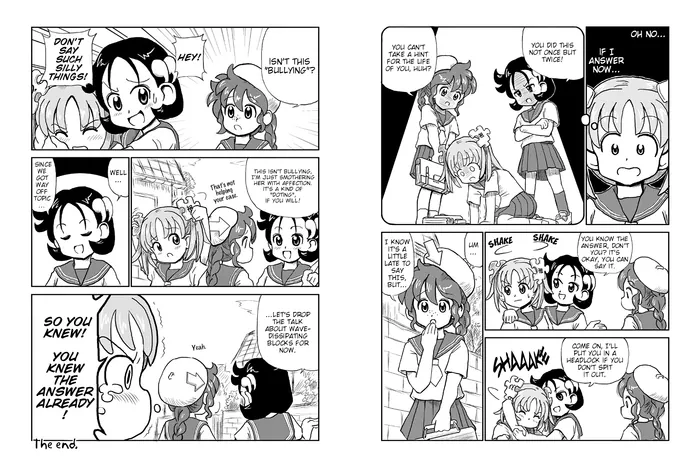
not converted2160 × 1440 px, 1290 KB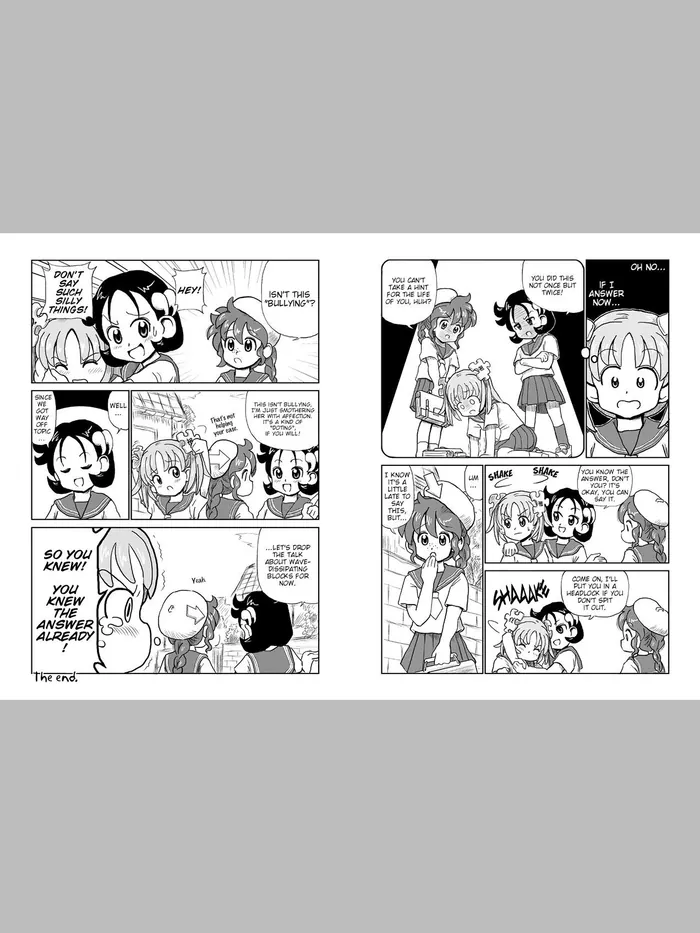
no flag1272 × 848 px, 263 KB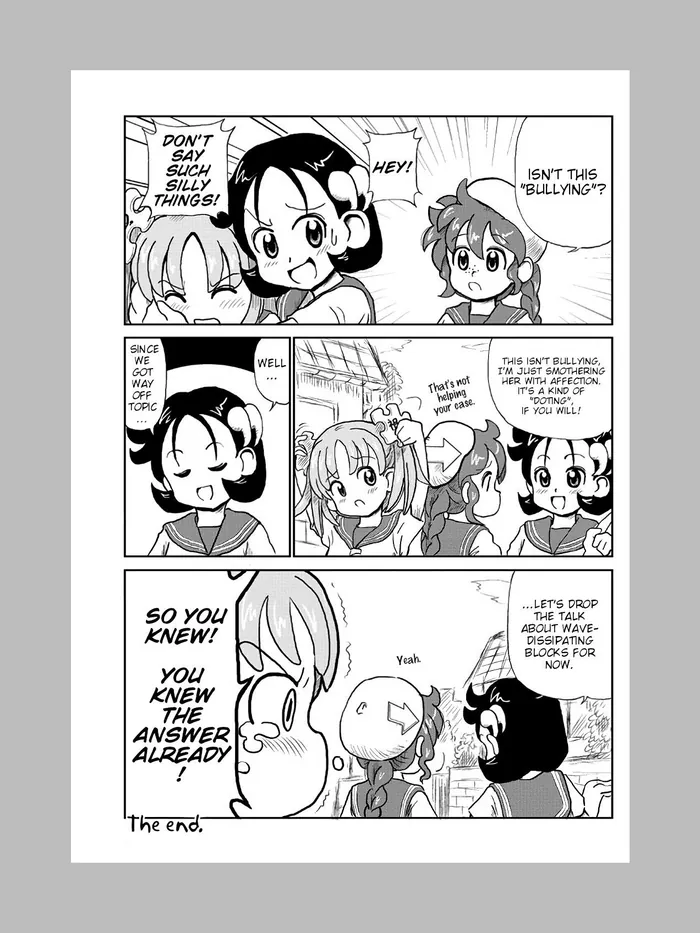
--smartcovercrop1015 × 1440 px, 283 KB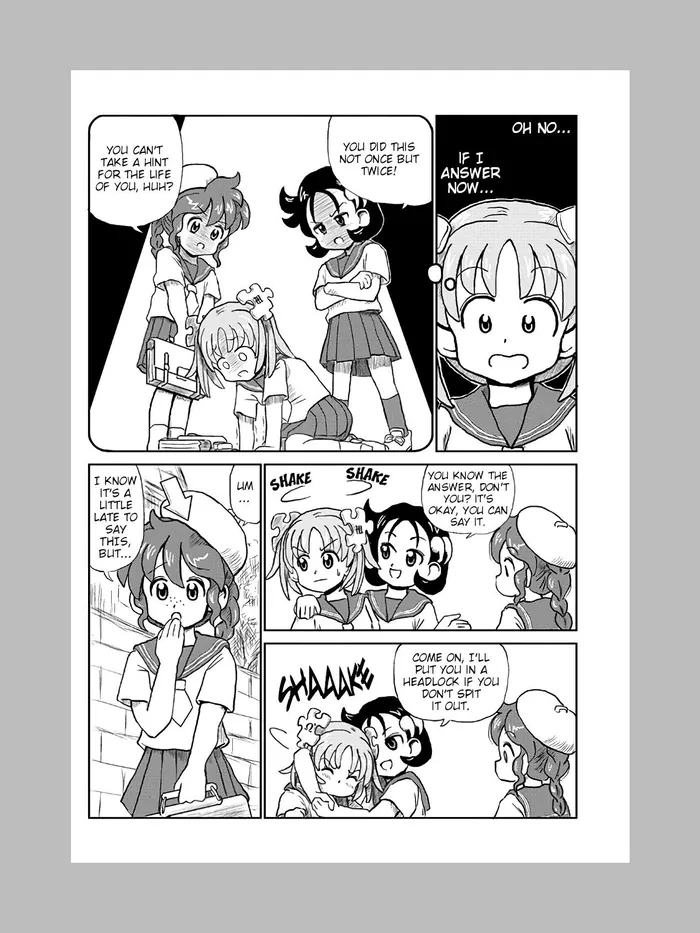
--smartcovercrop1015 × 1440 px, 290 KB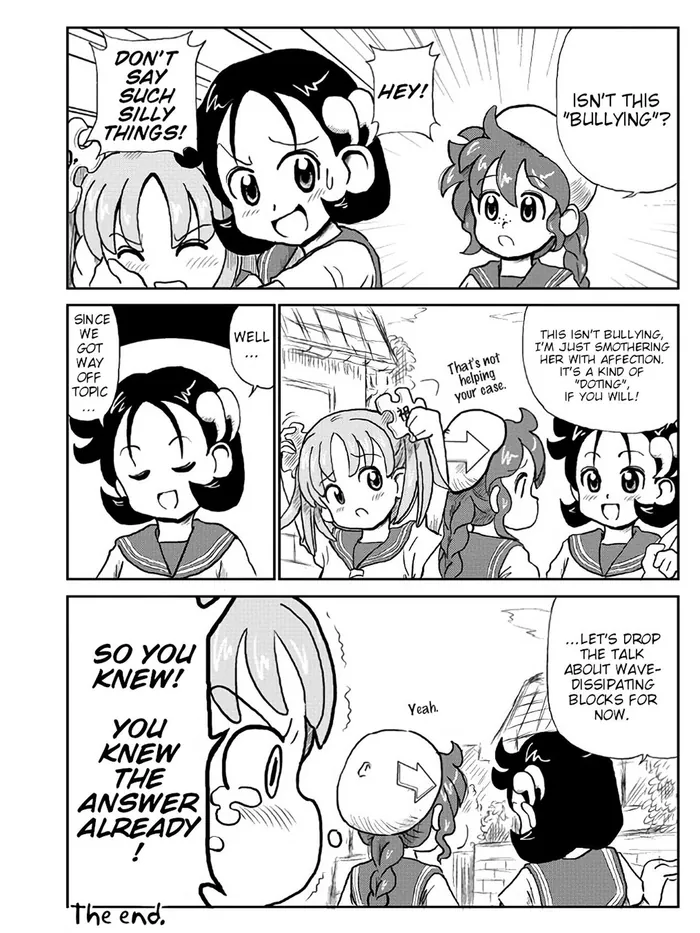
--smartcovercrop --coverfill1272 × 1696 px, 366 KBThe gray is the screen around the page: Kindle Paperwhite 6, 1272 × 1696 pixels.
Art:Go Go! Encyclopedia Girls, page 4 by Kasuga, English version by Masatami (CC BY-SA 4.0); Go Go! Encyclopedia Girls, page 3 by Kasuga, English version by Masatami (CC BY-SA 4.0). Converted with mangaprep 0.9.0.


- Off, the whole image is the cover: shrunk to the screen’s width, since it is wider than it is tall, so 1272 × 848 pixels.
- On, the cover is the left page, 1015 × 1440 pixels: 47% of the image’s width, and the full height.
- On, with Manga reading order off, it is the page on the right. The reading order says on which side of the spine the front is: with it on, a book read right to left has it on the left.
- On, with Crop the cover to fill the screen, the same page is enlarged and cropped to the screen, 1272 × 1696.
How much of the image is taken
Section titled “How much of the image is taken”mangaprep decides from the shape of the image, in bands, from a plain spread to a jacket with flaps; these are the bands of Kindle Comic Converter, which mangaprep follows. An image no wider than it is tall is already a cover and is left whole. The table cuts one image from each band out of the same three pages, with Manga reading order on: the width of the cover is the share of the image that was taken.
| Setting | On the command line | First image | Cover |
|---|---|---|---|
| An image 0.75 times as wide as tall | --smartcovercrop | 1080 × 1440 | 1080 × 1440, gray |
| An image 1.2 times as wide as tall | --smartcovercrop | 1728 × 1440 | 1106 × 1440, gray |
| An image 1.5 times as wide as tall | --smartcovercrop | 2160 × 1440 | 1015 × 1440, gray |
| An image 1.75 times as wide as tall | --smartcovercrop | 2520 × 1440 | 965 × 1440, gray |
| An image 1.9 times as wide as tall | --smartcovercrop | 2736 × 1440 | 1053 × 1440, gray |
| An image 2.2 times as wide as tall | --smartcovercrop | 3168 × 1440 | 993 × 1440, gray |
The bands go by the width of the image divided by its height: up to 1, the whole image; over 1 and up to 1.34, a share of 64%; over 1.34 and up to 1.7, 47%; over 1.7 and up to 1.83, 38%; over 1.83 and up to 2, 38.5%; over 2, 31%. The rows above are one image from each band, and show the shares: 1106 of 1728 pixels, 1015 of 2160, 965 of 2520, 1053 of 2736 and 993 of 3168.