
Seu navegador está em português, e este guia está disponível em português.
お使いのブラウザは日本語に設定されています。このガイドは日本語でも読めます。
Size and borders
The Size and borders section of Advanced conversion options decides how a page is fitted to the screen, and what fills the room around it when the page is not the screen’s shape. The screen is the one of the device you chose, or the Custom width and Custom height you set in Conversion settings.
The pictures show each page on the screen it was made for, in gray: the gray is the reader’s own background, so a page that is smaller than the screen sits in it. Pepper&Carrot’s pages are 992 × 1373 pixels, a ratio of 0.72; the Kindle Paperwhite 6 is 1272 × 1696, 0.75; the reMarkable Paper Pro Move is 954 × 1696, 0.56, tall enough for the borders to show.
How a page is fitted
Section titled “How a page is fitted”mangaprep decides in this order, and the first rule that applies wins:
- Stretch to the screen is chosen: the page is resized to the exact screen.
- Crop to fill the screen is chosen: the page is scaled until it covers the screen and the rest is cut off.
- The page already fits inside the screen and Fit, never enlarge is chosen: the page is left as it is, even if it is smaller.
- The page’s shape is close to the screen’s, within about 1.5%: it is cropped by the few pixels that do not fit, and has no borders at all. In the tests, a page 0.9% off the screen’s shape was cropped, and one 1.7% off was padded.
- Otherwise, in a CBZ or PDF, the page is fitted inside the screen and padded to it with a color; with White borders it is only fitted, and not padded. An EPUB is only fitted, and its borders are the page’s background.
If more than one size option is given on the command line, --stretch wins over --wallpaper, and both win over --upscale: the first two rules, then. The app sets exactly one of them.
Page size
Section titled “Page size”- Fit, never enlarge: larger pages are shrunk to fit, and smaller ones are left as they are.
--upscaleis not given. - Fit, enlarging small pages: every page is fitted to the screen, smaller ones enlarged.
--upscale, or-u. - Stretch to the screen: the page fills the screen exactly, without keeping its proportions.
--stretch, or-s. - Crop to fill the screen: the page is cropped until it fills the whole screen.
--wallpaper.
A page smaller than the screen is where the first two differ. The Paperwhite 6’s screen is larger than a page of Pepper&Carrot, so Fit, never enlarge leaves the page at its own size in the middle of the screen, and the other fits it to the screen. The page is 3.7% narrower than the screen’s shape, so enlarging leaves a thin band of the page’s background down each side, about 23 pixels:
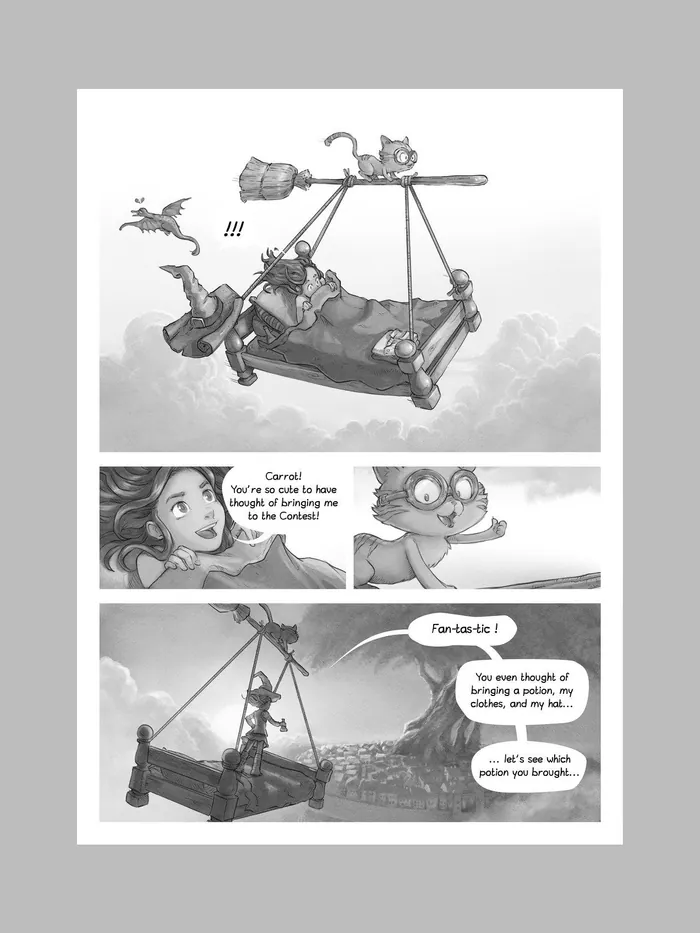
no flag992 × 1373 px, 220 KB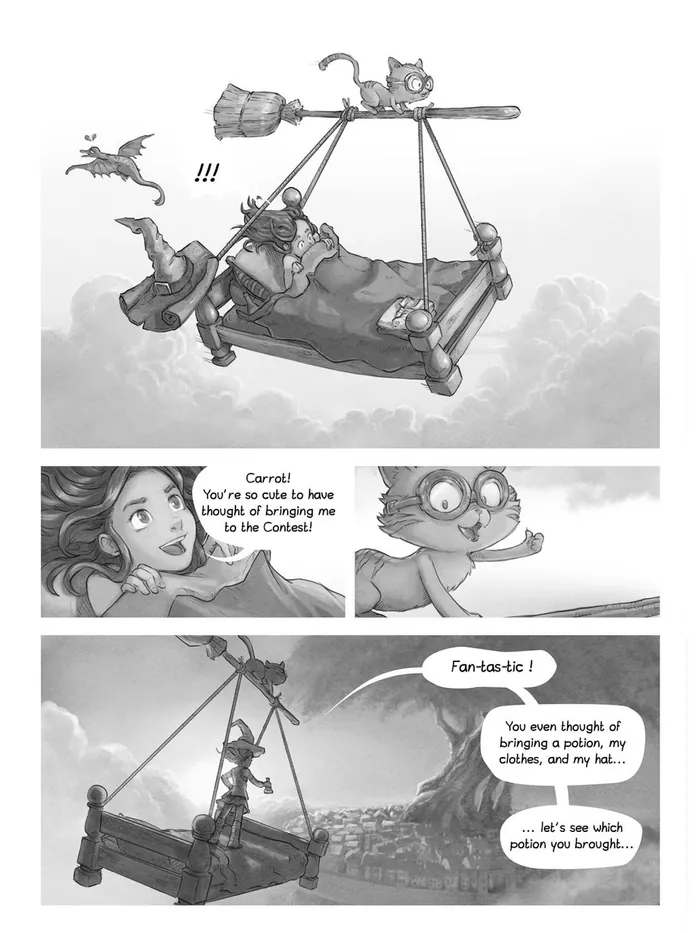
--upscale1272 × 1696 px, 255 KBThe gray is the screen around the page: Kindle Paperwhite 6, 1272 × 1696 pixels.
Art:Pepper&Carrot, episode 6 by David Revoy (CC BY 4.0). Converted with mangaprep 0.9.0.
On a page that is larger than the screen the two choices give the same page: with the page below on the reMarkable’s screen, the pages from Fit, never enlarge and from Fit, enlarging small pages are the same file, byte for byte.
Which one starts selected depends on the device. Fit, never enlarge starts for Kindle 1, Kindle 2, Kindle Keyboard/Touch, Kindle 5/7, Kindle 8/10, Kindle DX/DXG, Kindle Paperwhite 1/2, Kindle Scribe 1/2 and 3, Kindle Scribe Colorsoft, the Kindle 1240, 1324, 1860 and 1920 profiles, Kobo Aura, Kobo Glo, Kobo Glo HD, Kobo Mini/Touch and Other. Fit, enlarging small pages starts for every other device.
Stretching and cropping change the page where the screen is another shape. The reMarkable Paper Pro Move is much narrower than a page:
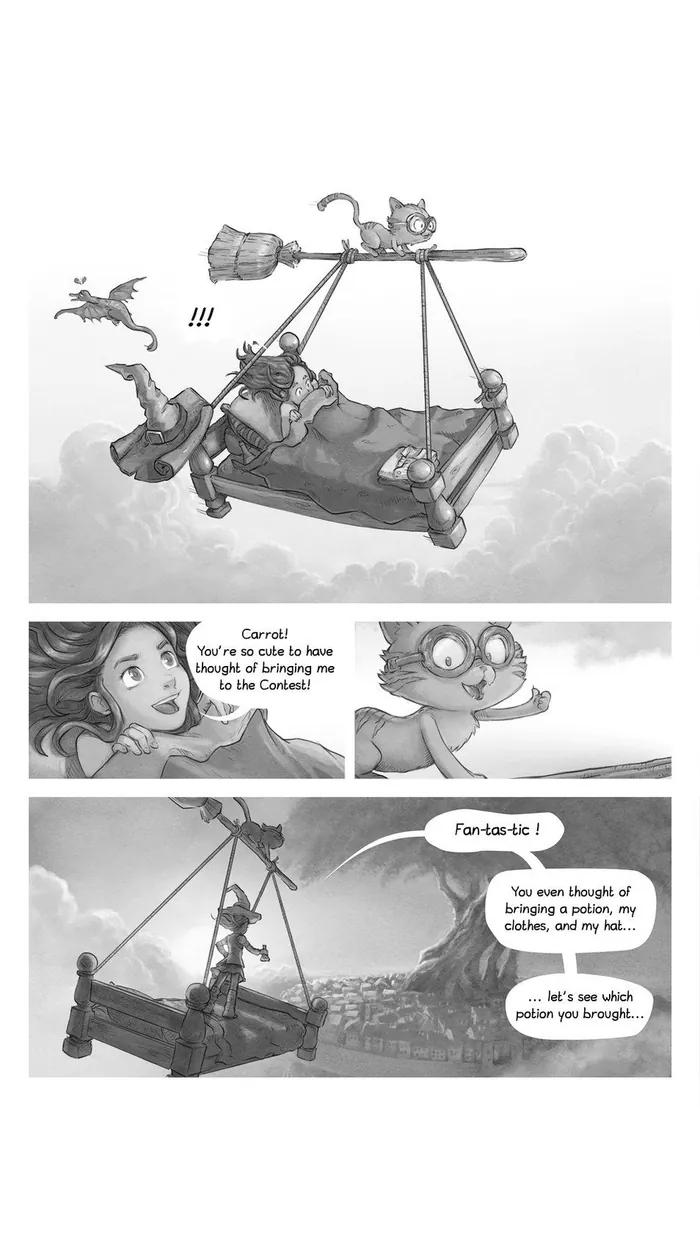
--upscale954 × 1696 px, 185 KB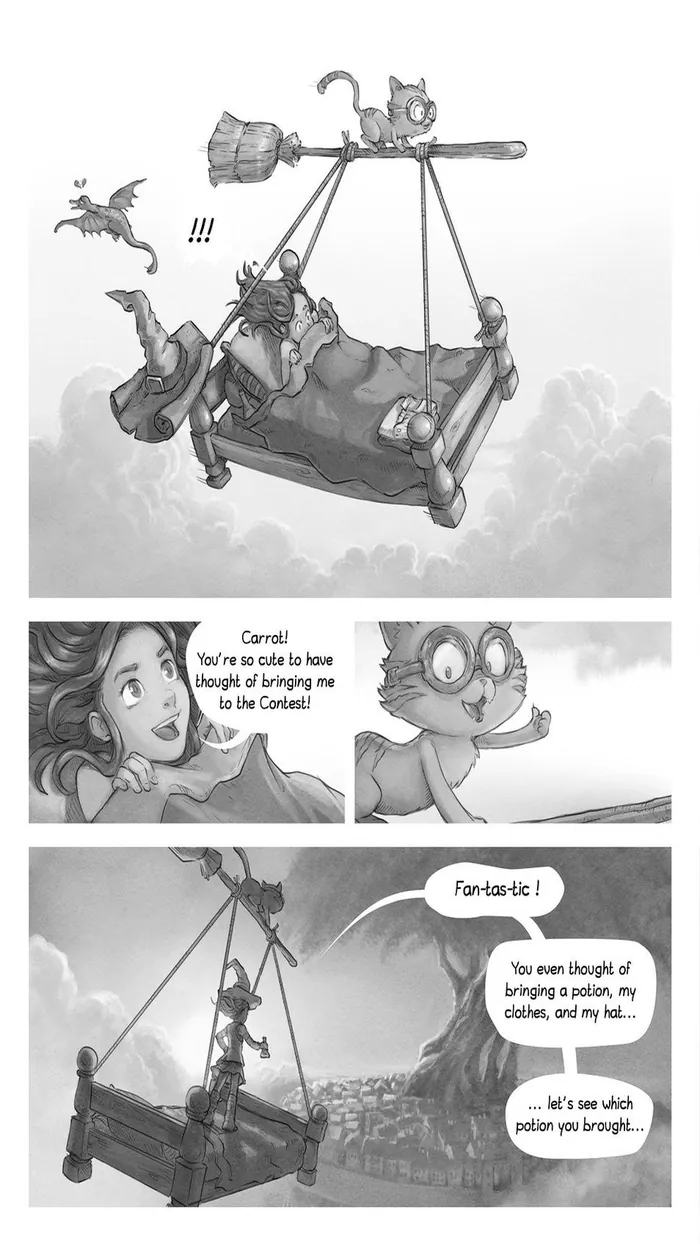
--stretch954 × 1696 px, 219 KB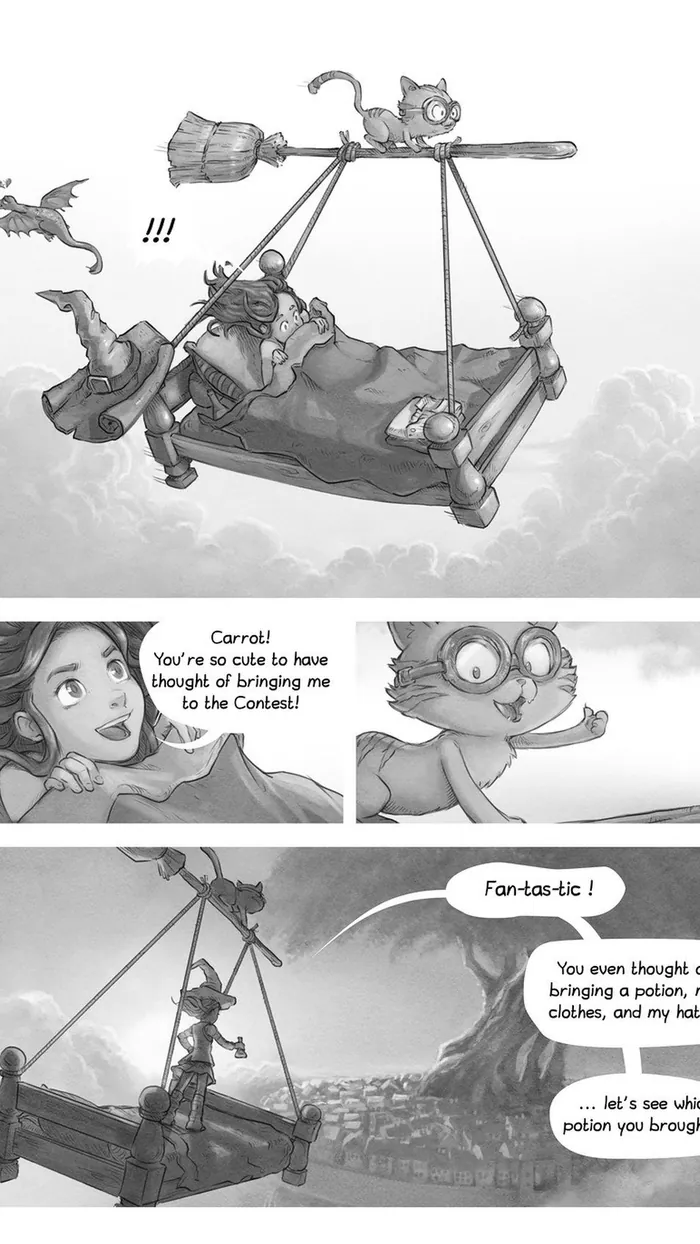
--wallpaper954 × 1696 px, 231 KBThe gray is the screen around the page: reMarkable Paper Pro Move, 954 × 1696 pixels.
Art:Pepper&Carrot, episode 6 by David Revoy (CC BY 4.0). Converted with mangaprep 0.9.0.
Stretch pulls the drawing about 28% taller against its width. Crop to fill scales the page to the screen’s height, 1696 pixels, which makes it 1225 wide, and cuts 271 of them, 22% of the width, from the sides. Neither keeps the page whole: use them for a page that has a margin to spare, or when filling the screen matters more than the edges.
With Webtoon strips, pages are never enlarged and borders are always white, and the app says so; with Use the images as they are, Page size and Borders are dimmed, since the pages are not touched. Reading has the full list for webtoons.
Borders
Section titled “Borders”When a page does not have the screen’s shape, the room around it is the borders. In a CBZ or PDF they are part of the page, padding added to it. In an EPUB there is no padding: the page is centered and what shows around it is the page’s background.
- Automatic: each page gets the background its own edges have. mangaprep looks at the page and takes it as white or as dark, and pads with white or with black.
- White: in a CBZ or PDF, pages are not padded: the file is the page alone, as small as it comes out. In an EPUB, a white background behind every page, dark ones included.
--whiteborders. - Black: pages are padded to the screen with black; in an EPUB, a black background behind every page.
--blackborders, which wins if--whitebordersis given too.
A light page and a screen taller than it:
no flag954 × 1696 px, 185 KB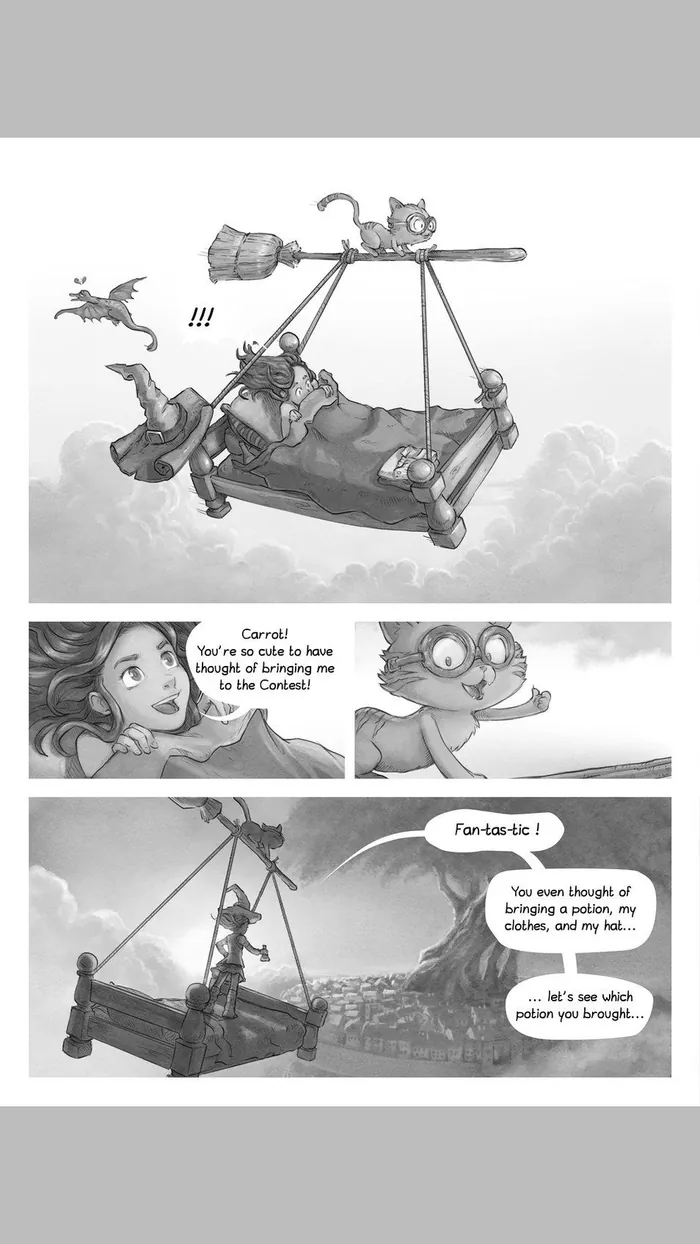
--whiteborders954 × 1320 px, 182 KB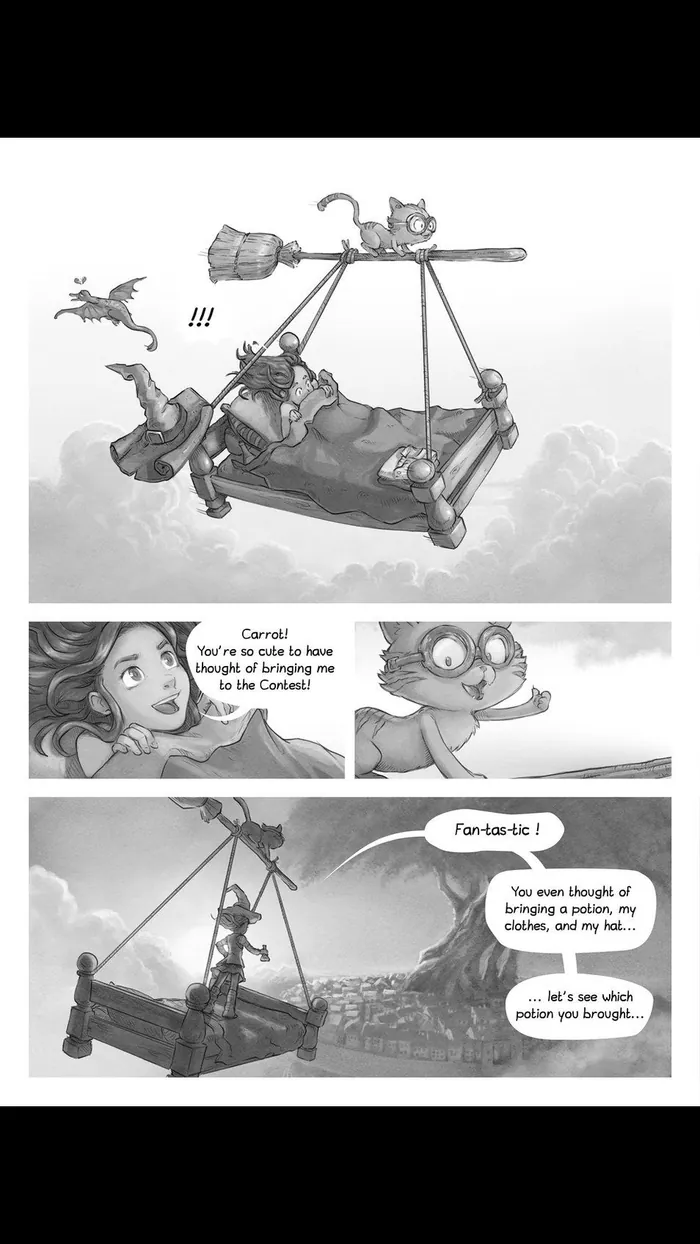
--blackborders954 × 1696 px, 187 KBThe gray is the screen around the page: reMarkable Paper Pro Move, 954 × 1696 pixels.
Art:Pepper&Carrot, episode 6 by David Revoy (CC BY 4.0). Converted with mangaprep 0.9.0.
The page’s own margin is white, so Automatic pads with white and the page seems to fill the screen. White leaves the page as the file of 954 × 1320 pixels that it is: the gray around it in the picture is the reader’s, and what a reader puts there is up to the reader. Black pads with black.
A dark page is where Automatic shows. The picture below is a page with a black background: Wikipe-tan fighting a troll, drawn in white line and a few colors on black, by Polylerus.
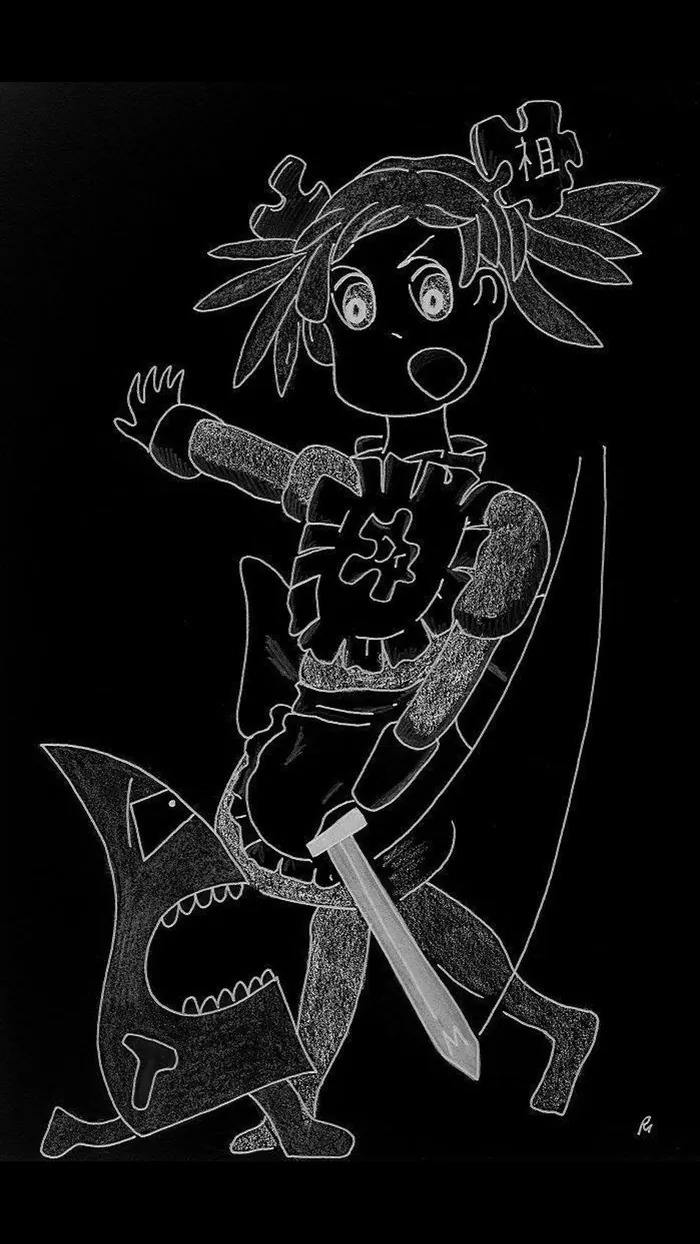
no flag954 × 1696 px, 227 KB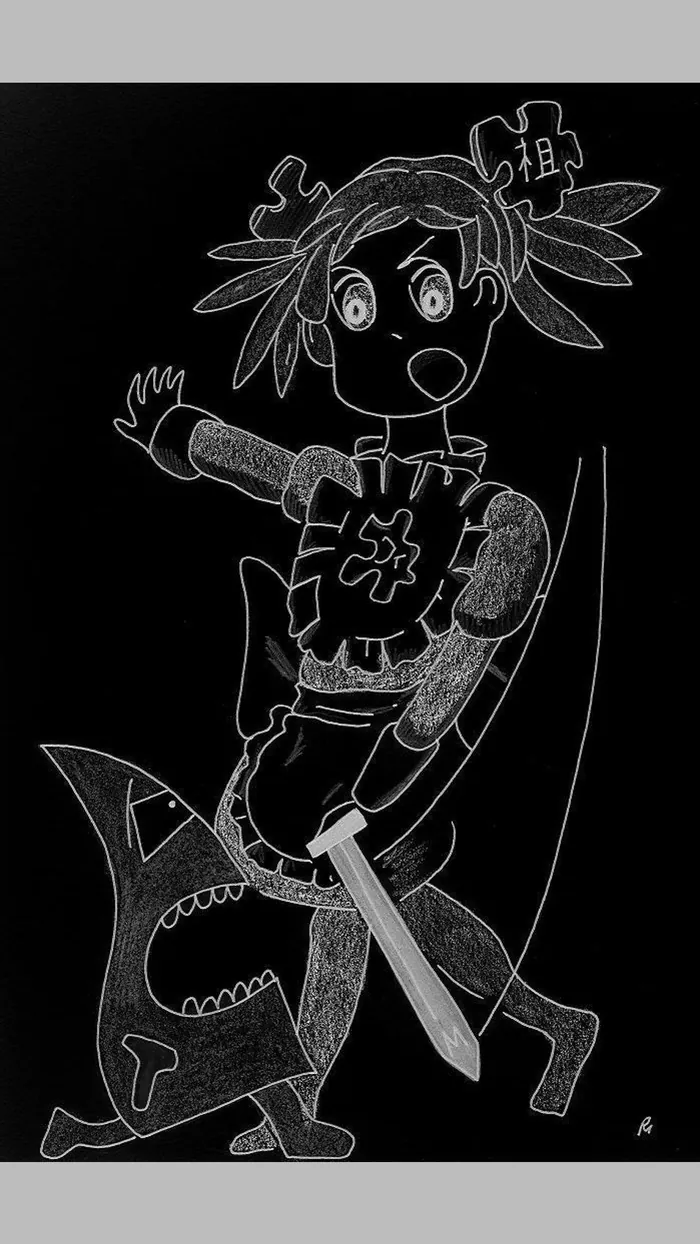
--whiteborders954 × 1471 px, 225 KB--blackborders954 × 1696 px, 227 KBThe gray is the screen around the page: reMarkable Paper Pro Move, 954 × 1696 pixels.
Art:Wikipe-tan Battling a Wikitroll in the Darknesses of Ignorance by Polylerus (CC BY 2.5). Converted with mangaprep 0.9.0.

Automatic found a dark page and padded with black, so the first and the third picture are the same file here. White gives the page alone, 954 × 1471 pixels, and in an EPUB would give it a white background that would show as a bright frame around a dark picture.
A page that is cropped to fit, as in the fourth rule above, has no borders to choose.